


You're not alone in this. Managing a steady publishing schedule is one of the hardest parts of running a content-driven site - not because the ideas aren't there, but because the system to support them usually isn't. And a disconnected system - one that lives in a spreadsheet over here, a notes app over there, and your head somewhere in between - is barely a system at all.
Here's where things get interesting. In 2025, 44% of businesses planned to use AI for content creation, and of those, 79% expected it to improve their content quality. It's not a small experimental group - it's a signal that AI has moved from novelty to tool. The question is no longer if AI can help with content planning - it's whether you're using it in a way that actually fits into your workflow.
That's what this post will show you. Not a complex setup that's going to need three new subscriptions and a developer. Instead, I'll show you how to build a working AI-powered content calendar directly inside WordPress - the place you're already spending your time. By the end, you'll have a better system that helps you plan ahead, stay consistent, and finally work through that backlog.
Short Summary
To set up an AI content calendar inside WordPress, install a plugin like CoSchedule, PublishPress, or an AI-integrated tool such as Bertha AI or ContentBot. Connect your AI tool via API if needed, then use it to generate content ideas, titles, and schedules. Map out publishing dates within the calendar view, assign posts to team members, and automate content suggestions based on keywords or audience data. Some plugins integrate directly with ChatGPT or similar AI to draft posts and fill your calendar automatically, streamlining your entire content planning workflow without leaving WordPress.
Why Managing a Content Calendar Inside WordPress Saves Time
The last time you planned a content schedule, you probably had a spreadsheet open in one tab, a Notion board in another, and WordPress sitting in a third tab waiting for you to do something with it. That non-stop tab-switching can add up to more lost time than you want to admit.
The problem with external planning tools is not that they are bad at their jobs. They sit outside the place where your content actually lives. Every time you move an idea from a planning doc into WordPress, you are doing manual work that does not need to exist.
When your calendar, your drafts, and your publishing schedule all live inside WordPress, that gap disappears. You plan something and it's already in the right place. There is no translation step and no danger of a post falling through the cracks because you forgot to copy it over.
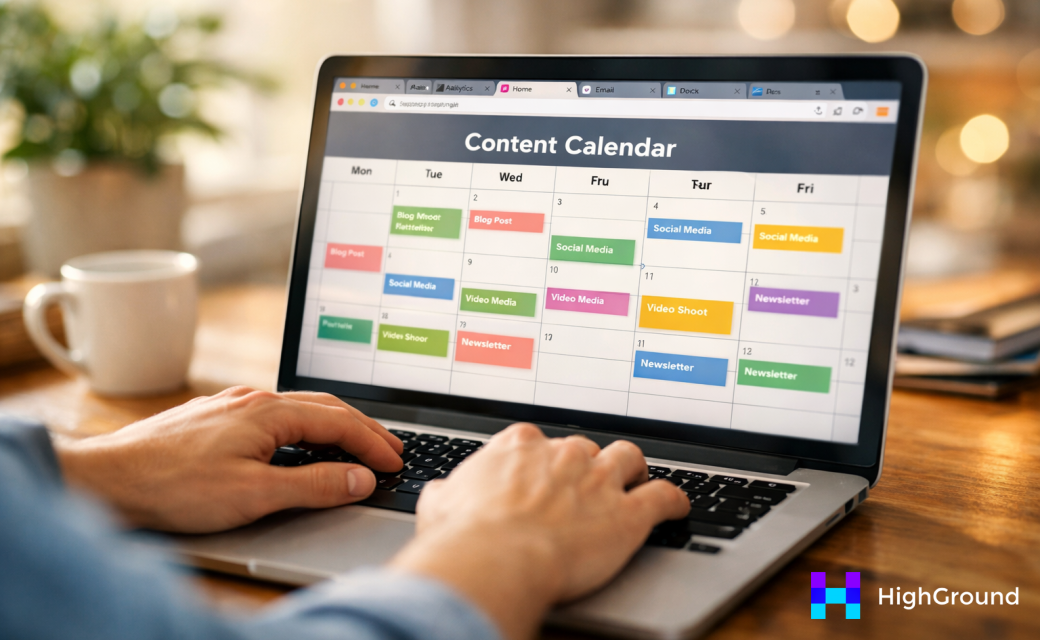
This matters even more when AI is part of the picture. The numbers back it up too. The top 40 AI-driven WordPress plugins collectively pulled in over 315 million visits in a single year. That tells you content teams are not experimenting with WordPress-native AI tools out of curiosity - they are relying on them as part of their workflow.
Keeping everything in one location also makes it easier to find gaps in your schedule and act on them fast. If you need to move a post, adjust a publish date, or hand off a draft to a teammate, you do it right there without opening a second app. That friction-free process is what lets small teams produce content at a pace that would otherwise need a much bigger headcount. Tools that let you auto queue and schedule posts with AI inside WordPress are a big part of how that works in practice.
It is about having your planning and your publishing connected so nothing gets lost between the two. That is what the right WordPress setup can give you, and the next section covers which plugins actually make it happen.
Which WordPress Plugins Actually Handle AI-Assisted Planning
Not every plugin that mentions AI actually helps you plan a content schedule. A few do look great for different reasons, and the right one can depend on your budget and how much control you want over the AI behind it.
Jetpack AI Assistant is built directly into the WordPress editor, which makes it easy to get started without installing much. The free tier gives you 20 AI requests before you hit a limit. If you are already on a paid WordPress.com plan, access is included. It does support a calendar view, so it covers the planning and writing sides in one location.
Rank Math takes a slightly different angle because it's primarily an SEO plugin that added AI features on top. You get 5 Content AI credits on the free plan, which is enough to test the feature but not enough to rely on it. The Pro plan starts at $59 per year, though the calendar functionality is more limited compared to a dedicated scheduling tool.
ContentLineup works differently from the others. The plugin itself is free to install, and you connect it to your own AI provider like OpenAI or Google Gemini. You pay only for the tokens you use through that provider, so your costs scale with your usage. It also includes a 30-day drag-and-drop calendar, which makes it the most flexible option for visual planning.
| Plugin | Free Tier | Paid Starting Cost | Calendar Feature |
|---|---|---|---|
| Jetpack AI Assistant | 20 free requests | Included in paid plans | Yes |
| Rank Math | 5 Content AI credits | $59/year | Limited |
| ContentLineup | Fully free plugin | AI provider tokens only | Yes (30-day drag-and-drop) |
Each one of these options installs directly through the WordPress plugin directory, so getting them onto your site is easy either way.
How to Install and Connect Your Chosen Plugin to an AI Provider
Installation is easy for most of these plugins. Go to your WordPress dashboard, click Plugins → Add New and search for the plugin name. Hit Install Now and then Activate.
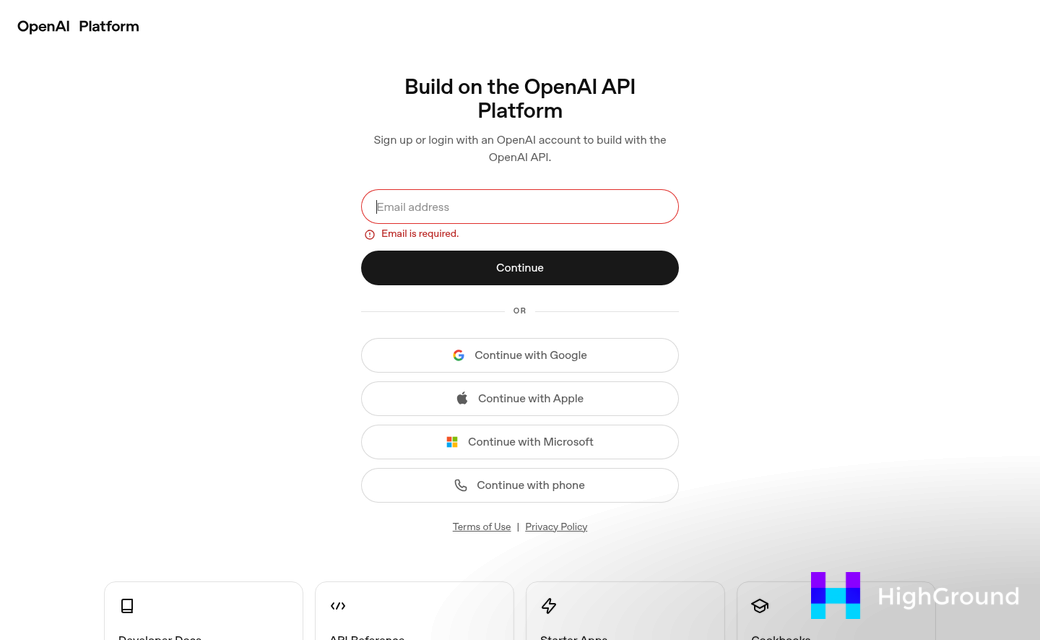
The part where people get stuck is the API connection. Plugins like ContentLineup need you to bring your own API key from a provider like OpenAI or Google Gemini. If you don't have that key, the AI features won't fire and you'll be left wondering why nothing is happening.
How to Get and Add Your API Key
Let's look at how to get set up with OpenAI, which is the most common option.
- Go to platform.openai.com and create a free account.
- Navigate to the API Keys section in your account settings.
- Click Create new secret key and copy it immediately - you won't see the full key again after you close that window.
- Go back to your WordPress dashboard and find the plugin's settings page.
- Paste the key into the API key field and save.
If you prefer Google Gemini, the process is nearly identical. Go to aistudio.google.com, generate an API key there and paste it into the same field in the plugin settings. Some plugins let you choose which provider to use, so check that dropdown too.

OpenAI's API is not free to use at scale. You'll fund a small credit balance through your OpenAI account and the plugin draws from that as it generates content. For most personal sites, the cost stays very low - but it's good to know the meter is running. If you're thinking about scaling AI content production, it's worth understanding how those costs and risks add up.
Once your API key is saved and verified, the plugin will usually show a success indicator or unlock the AI features in the menu. That confirmation means the connection is live and you're ready to build out your calendar structure.
Building Your First AI-Generated Content Schedule
With your plugin connected, the next step is to ask it for content ideas and turn those into a 30-day plan. Most plugins give you a prompt field where you describe your blog's focus, your audience, and the types of posts you want to publish. The more context you give, the better the output tends to be.
A prompt like "weekly how-to posts for beginner gardeners, mix of seasonal tips and evergreen basics" will get you more than just typing "gardening blog." Think of it as briefing a new assistant who knows nothing about your site yet. For more on shaping how the AI interprets your instructions, see post writing preferences.
Once the AI returns a list of suggested titles or topics, you can drag them into your calendar view. ContentLineup, just to give you an example, uses a drag-and-drop grid that lets you spread posts across the month and see gaps at a glance. You can adjust publish dates, swap titles around, and fill in any thin weeks without leaving the calendar.
Evergreen vs. Timely Content
It's helpful to try to tell the AI which posts need to be timely and which can stay relevant all year. A post about a seasonal event should have a fixed date. But an evergreen how-to guide can go wherever the calendar has space. Many plugins let you tag posts by type so the schedule stays balanced.
If you run a solo blog, you might generate one post per week and keep the schedule easy. A small team can push the AI to fill out more slots and then divide writing duties based on the generated list. The calendar can become a shared plan instead of a personal to-do list. You can also mass schedule or republish older posts to fill gaps without creating everything from scratch.
| Content Type | Best Placement | AI Prompt Tip |
|---|---|---|
| Evergreen how-to | Any open slot | Ask for "timeless beginner topics" |
| Seasonal post | Fixed date before the event | Include the date in your prompt |
| News or trend piece | Early in the week it's relevant | Ask for "current trends in [topic]" |
After the first pass, review the schedule and look for anything that feels repetitive or out of place. The AI won't always get the balance right on the first try, and a quick edit now saves backtracking later. If you want a broader look at managing content at scale, the WordPress content pipeline automation guide covers how to connect these steps into a repeatable workflow.
How Automattic Built an Internal AI Calendar in One Week
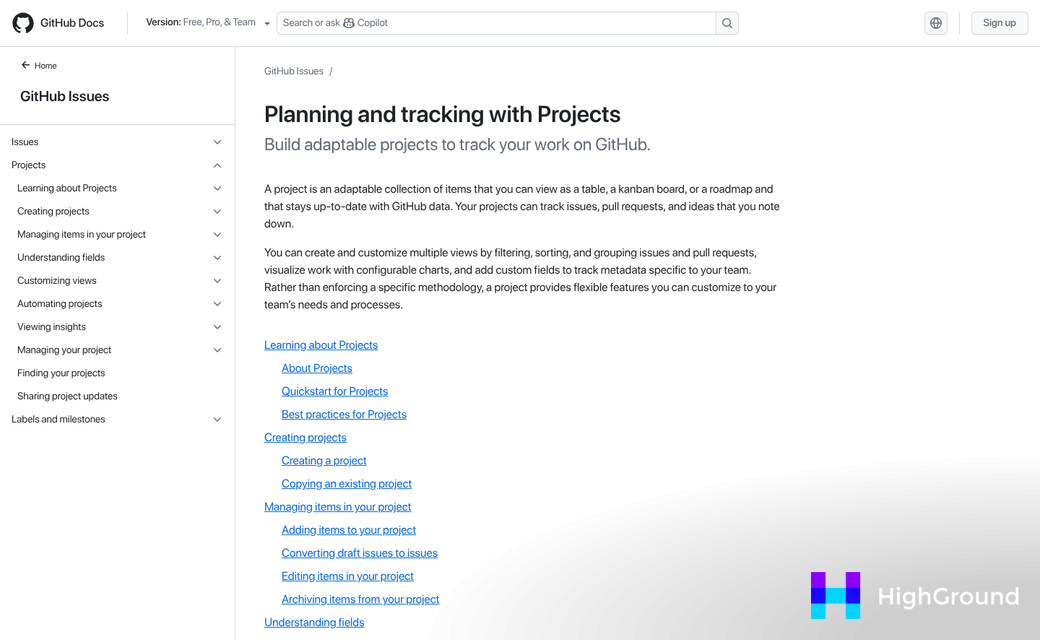
In early 2025, a team at Automattic used Cursor AI to build a functional content calendar inside GitHub Projects in just one week. Automattic, the company behind WordPress.com, didn't go looking for a tough business tool. They built what they needed with AI assistance and shipped it fast.
That's worth sitting with for a bit. The people who make WordPress decided that AI-assisted content planning was worth building from scratch on a short timeline; it's not a small signal.
Cursor AI helped the team generate structure, map out scheduling logic, and connect it all inside a project management layer that the team already used. The result was a calendar that fit their workflow instead of forcing them to adapt to someone else's template.

For WordPress users, this matters because it shows that AI content calendars don't need months of planning to take shape. A small team with a goal and the right AI tool can move from idea to working system in a very short time. You don't need a development budget or a dedicated ops team to make this happen.
It also points to something helpful about where to start. Automattic already had GitHub Projects in their workflow, so they built there. If you already have WordPress open every day, that's your equivalent. Build where you already are and let AI manage the scaffolding - tools like auto-writing blog posts with AI in WordPress can take care of the heavy lifting once your structure is in place.
The Automattic example also raises a helpful question for your own setup. Now that you have a working AI-generated schedule inside WordPress, is it holding up over time? A calendar is only as helpful as its ability to stay filled and stay relevant - automatically updating posts and pages with AI is where the next part of thinking comes in - because the gaps that form after the first setup are a very different problem.
Avoiding the Gaps That Make AI Calendars Fall Apart
Getting everything set up is only half the work. The part that trips most teams up comes in the weeks after, when the novelty wears off and old habits start to creep back in.
The most common problem is topic drift. AI tools generate suggestions based on patterns and prompts. But they don't always stay locked to your niche. If you don't have standard human review, you can end up with a calendar full of content ideas that technically make sense but don't serve your audience. A quick check at the start of each week is enough to catch this before it can become a bigger problem.
Over-reliance on generated topics is the other trap worth watching for. AI is helpful for generating a starting point, not for making final editorial calls. If your team publishes whatever the tool suggests without asking if it fits the site's goals, the content will start to feel generic. Someone still needs to own the decisions. Tools like BrandWell are worth understanding if you want a clearer picture of how AI editorial tools handle these boundaries.
Then there's the abandonment problem. A lot of calendars go quiet after the first two weeks because the team set up a tool but never built a habit around it.

A few lightweight habits can keep things moving without adding much to anyone's plate. If you're also managing broken links or stale content across your site, folding that into your weekly review cycle makes it easier to catch issues before they compound.
| Habit | Frequency | What to Check |
|---|---|---|
| Review AI topic suggestions | Weekly | Do these fit the site's niche and current goals? |
| Check for empty calendar slots | Weekly | Are any upcoming dates missing assigned content? |
| Swap out stale or repeated topics | Bi-weekly | Has this angle already been covered recently? |
| Reassign or reschedule overdue drafts | Weekly | What's fallen behind and why? |
None of this takes long. You want to treat the calendar as a living document that you actively manage, instead of a system that runs on its own.
Your AI Content Calendar Is Already Closer Than You Think
It is worth remembering that 79% of businesses expect AI to improve their content quality - and the ones seeing results are not the ones with the most refined stacks. They are the ones who started somewhere, learned what worked, and built from there. That window is open for you right now.
Keep it easy to start. Pick one plugin that fits how you already work, map out your next 30 days of content, and let the calendar do what it was built for. Adjust after you have data in front of you. You don't need a perfect system on day one - you just need a system that gets you moving. If you want help deciding where to begin, auto-configuring your SEO plugin is a solid first step before anything else.
FAQs
What is an AI content calendar in WordPress?
An AI content calendar inside WordPress combines AI-generated topic suggestions with a scheduling tool, all within your existing WordPress dashboard. This eliminates the need for separate planning apps and keeps your content pipeline organized in one place.
Which WordPress plugins support AI content calendar features?
Jetpack AI Assistant, Rank Math, and ContentLineup are three strong options. ContentLineup is the most flexible, offering a free plugin with a drag-and-drop 30-day calendar and support for your own AI provider like OpenAI or Google Gemini.
Do I need an API key to use AI planning plugins?
Some plugins like ContentLineup require you to connect your own API key from OpenAI or Google Gemini. You can generate one from platform.openai.com or aistudio.google.com, then paste it into the plugin's settings page.
How do I avoid my AI content calendar falling apart?
Build a weekly review habit to check for topic drift, empty slots, and overdue drafts. AI tools generate starting points, but a human editor still needs to make final decisions to keep content relevant and on-brand.
Why manage a content calendar inside WordPress specifically?
Managing content planning inside WordPress eliminates the tab-switching between spreadsheets, Notion boards, and your CMS. Your ideas, drafts, and schedule all live in one place, reducing the risk of posts falling through the cracks.

