


This guide walks you through how to set up that connection and put it to work. I'll talk about how to authenticate with the Claude API, make requests from within WordPress PHP, and build easy automations that generate content on demand - without relying on third-party plugins or black-box tools you can't control.
Whether you're a developer building a custom solution for a client or a site owner comfortable editing theme files, the strategy here is practical and helpful. You don't need an advanced programming background. But you should be familiar with how WordPress functions and comfortable working in the code editor or via FTP.
Short Summary
To use Claude API with WordPress for automated content creation, install a REST API plugin or use custom PHP code to connect WordPress to Anthropic's Claude API. Add your API key to WordPress settings, then create a custom function that sends prompts to Claude's endpoint and receives generated text. Trigger this via scheduled posts, buttons, or automation hooks. Use the response to auto-populate post titles, body content, or meta descriptions. WPCodeBox or custom plugins can streamline integration without modifying core files.
Native Claude Connector vs. Custom API Setup for WordPress
There are two paths to get Claude working inside WordPress, and the right one can depend on how your site is set up. One is a native, nearly instant connection. The other takes more work but gives you far more control.
In February 2026, Anthropic launched a native Claude connector for WordPress.com - it works on all paid WordPress.com plans and sites connected through Jetpack AI or the Jetpack Complete plan. Once activated, the connector gives you access to 60+ built-in abilities - things like drafting posts, rewriting content, generating summaries, and more. The setup is a few clicks, which makes it a great fit for those who want AI in their workflow without touching any code.
That said, the native connector does have limits. You're working within whatever abilities Anthropic and WordPress have built into the integration, and you can't modify how Claude processes your data or how the outputs get used. For content creators and small site owners, that's fine. But if you're running a self-hosted WordPress site or you need Claude to fit into a more complex workflow, the built-in connector won't get you there.
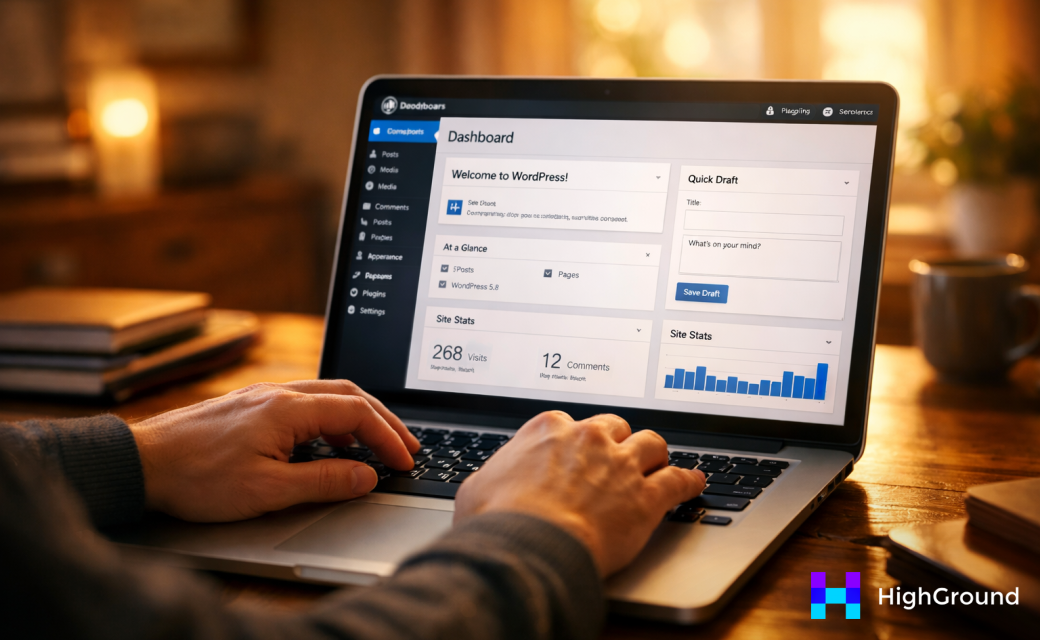
A custom API setup means connecting directly to the Claude API through your own code - usually a custom plugin, a functions.php snippet, or a third-party automation tool - it takes more effort to configure. But it opens the door to customized workflows. You can define what Claude receives as input, how it formats responses, and where that content goes inside WordPress. For a deeper look at building these kinds of systems, the WordPress content pipeline automation guide covers how to structure the full process.
Self-hosted WordPress sites (the kind you run on your own hosting through WordPress.org) don't have access to the native connector at all. A custom API integration is the only path forward for those sites. Even on WordPress.com, developers who want to go beyond the 60+ standard abilities will find the custom path worth the extra setup time. If you're also thinking about using AI writing assistants inside the WordPress block editor, the custom route gives you the most flexibility there as well.
| Approach | Setup Effort | Flexibility | Best For |
|---|---|---|---|
| Native Claude Connector | One-click | Limited to 60+ built-in abilities | WordPress.com or Jetpack users |
| Custom API Integration | Manual/Developer | Fully customizable | Self-hosted or advanced workflows |
The native connector is the faster starting point if you qualify for it. A custom API setup is the better long-term foundation if you want Claude to work the way you need it to.
Connecting Claude API to a Self-Hosted WordPress Site
Getting your API key is the first step. Head to console.anthropic.com, create an account or sign in, and get through to the API Keys section. Generate a new key and copy it somewhere safe immediately, because you won't be able to see it again after you leave that page.
From there, the setup follows a logical sequence. Let's look at how to get everything connected:
- Install a WordPress MCP plugin. Search the plugin directory for an MCP-compatible option. Some of these plugins advertise access to over 170 tools that span core content management, GA4 analytics, Search Console data, SEO metadata, and third-party plugin integrations. Pick one that matches the scope of what you want to automate.
- Activate the plugin and open its settings. You'll see a field to paste your Anthropic API key. Do this carefully and don't expose the key in any public-facing template, shortcode, or log file.
- Connect to the Abilities API. WordPress 6.9 introduced the Abilities API, which serves as the backbone of the MCP Adapter. Make sure your WordPress installation is running 6.9 or later before you go further, otherwise the adapter won't have what it needs to function.
- Configure your permissions and scope. Decide which post types, taxonomies, and integrations the plugin is allowed to interact with. Narrow this down to what you actually need rather than leaving everything open.
- Run a test prompt. Most MCP plugins include a basic test interface. Use it to send a simple request to Claude and confirm you're getting a response before building any automation on top of the connection.
A Few Things That Can Go Wrong
API key exposure is the most common problem worth addressing. If your key ends up hardcoded in a theme file or visible in the browser console, anyone who finds it can use it at your expense. Store it in your wp-config.php file or use an environment variable instead of pasting it directly into a public template.
Plugin conflicts are the other thing to watch for. MCP plugins that pull in GA4, Search Console, and SEO data are reaching into parts of your WordPress environment that other plugins also touch. If you have an existing SEO plugin or analytics integration, check the documentation for known conflicts before you activate anything.
The Abilities API in WordPress 6.9 is still pretty new. Some older caching plugins or security configurations can get in the way of how it registers capabilities, so if your test prompt returns nothing, that's a place to start troubleshooting instead of assuming the API key is wrong.

Keeping Your Setup Stable
Once the connection is live, treat it like any other part of your stack. Keep the MCP plugin updated, because the integration layer between WordPress and external APIs tends to change as platforms evolve. Set up logging if your plugin supports it so you can see what requests are being made and catch any unexpected behavior early.
You'll also want to set hard limits on your Anthropic account. The usage dashboard at console.anthropic.com lets you cap monthly spending, which is a helpful protection if you're automating content at any actual volume. Having that limit in place before you start running scheduled prompts is a small step that prevents a bigger headache later.
At this point your WordPress site and the Claude API should be talking to each other. The next part of the equation is picking which Claude model to use for your content tasks and how that choice can affect what you'll spend.
Choosing the Right Claude Model and Managing API Costs
Anthropic gives you three Claude models to work with, and each one sits at a different price point for a reason. They are built for different jobs, so picking the wrong one can mean paying more than you have to, or output that falls short of what your content actually needs.
Here is how the pricing breaks down across all three models.
| Model | Input Cost (per 1M tokens) | Output Cost (per 1M tokens) | Best Use Case |
|---|---|---|---|
| Haiku 4.5 | $1 | $5 | High-volume, shorter content |
| Sonnet 4.6 | $3 | $15 | Balanced quality and cost |
| Opus 4.6 | $5 | $25 | Complex, long-form writing |
To put this in context, one million tokens is roughly 750,000 words of text. For most WordPress sites, that's a lot of content.
Match the Model to the Task
Haiku 4.5 is the right pick for product descriptions, meta summaries, or any content that's short and repetitive in format - it's fast and cheap, which makes it a strong fit for automation at scale. If you are generating dozens of similar posts with light instructions, Haiku handles that well without eating into your budget.
Sonnet 4.6 is where most WordPress publishers will land - it produces long-form content and works with more nuanced prompts without the cut in price of Opus - it's your workhorse for blog posts and articles that need to feel considered and polished.

Opus 4.6 is best saved for content that needs depth - guides, technical writeups, or pieces where the quality of reasoning in the writing matters - it would be wasteful for routine content. But for the right content type it earns its cost. If you're weighing which AI tool handles long-form writing best, it's worth comparing options before committing to a model tier.
Think About Your Publishing Volume
A site that publishes five posts a month has almost no reason to worry about API costs. A site pushing out fifty posts a month needs to be mindful of which model is doing the work. Volume changes the math, so it's worth doing a rough estimate before settling on a model in your WordPress automation setup.
Two features from Anthropic can cut costs meaningfully if your volume is high. Batch processing lets you send multiple requests together and cuts the cost by 50%. Prompt caching is even more dramatic - if you reuse the same system prompt or context across requests, the cached input cost drops by 90%.
A Practical Starting Point
Start with Sonnet 4.6 for your first content runs - it gives you enough quality to review the output without committing to Opus pricing. Once you know what your prompts are producing and how long those outputs tend to be, then you'll have a much clearer picture of what the monthly cost looks like for your site's pace.
You can always split your workflow later - Haiku for metadata and shorter fields while Sonnet or Opus handles the full post body. That layered strategy keeps costs in check without sacrificing quality where it matters.
Automate Smarter, Not Just Faster
Before you build anything, take ten minutes to audit what you're currently publishing by hand. The tasks worth automating are repetitive, rule-based, or time-consuming without being creatively demanding. A few starting points:
- Product descriptions that follow a consistent format
- Meta titles and descriptions for existing posts
- Content briefs or outlines generated from a keyword list
- First drafts for recurring content types like roundups or FAQs
- Internal linking suggestions based on existing content
Automation works best when it's pointed at a problem - not used as a way to flood your site with output. Volume without purpose doesn't build an audience - it just creates more content to manage. Start with one use case, test it closely, measure the result, and expand from there.
The tools are capable, the setup is manageable, and the cost can scale with your preferences. If you've been putting this off because it felt too technical or too uncertain, that barrier is smaller than it looks. Pick one job worth automating and build toward it.
FAQs
What is the Claude API native connector for WordPress?
Anthropic launched a native Claude connector for WordPress.com in February 2026, available on paid plans via Jetpack AI. It offers 60+ built-in abilities like drafting posts and generating summaries with minimal setup, but lacks customization for complex workflows.
Can self-hosted WordPress sites use the Claude API?
Yes, but only through a custom API integration. Self-hosted WordPress.org sites don't have access to the native connector, so developers must connect directly via custom plugins or code snippets for full functionality.
How do I securely store my Claude API key in WordPress?
Store your API key in your wp-config.php file or use an environment variable. Never hardcode it into theme files or public-facing templates, as exposure allows others to use it at your expense.
Which Claude model is best for WordPress content automation?
Sonnet 4.6 is the best starting point for most WordPress publishers, balancing quality and cost. Use Haiku 4.5 for high-volume short content and Opus 4.6 only for complex, long-form writing where quality is critical.
How can I reduce Claude API costs for high-volume publishing?
Use batch processing to cut costs by 50%, and enable prompt caching to reduce repeated input costs by 90%. Splitting workflows-Haiku for metadata, Sonnet for full posts-also keeps spending manageable at scale.

