


In 2026, there's no good reason to keep doing things the hard way. The tools for automating social media sharing from WordPress have matured significantly, and creating a reliable workflow takes far less technical knowledge than it used to. Whether you're running a blog, a business site, or a content-heavy publication, automation is able to manage the distribution side so you can focus on what gets published, not where it gets posted.
I'll walk through the most helpful methods available, from native WordPress plugins to third-party automation platforms, with enough detail so you can choose the best strategy for your setup and get it running without unnecessary friction.
Short Summary
To automate social media sharing from WordPress in 2026, use a plugin like Jetpack, Revive Old Posts, or Blog2Social to automatically publish new and existing posts to platforms like Facebook, Twitter/X, LinkedIn, and Instagram. Connect your social accounts through the plugin settings, configure posting schedules and message templates, then let it run automatically. Tools like Zapier or Make can also link WordPress to social platforms without plugins. For advanced scheduling, Buffer or Hootsuite integrations offer additional control over timing and content formatting.
Why Manual Social Sharing Is Costing You More Than You Think
Every time you publish a post and then open Twitter, LinkedIn, Facebook and Instagram one by one to share it, you are spending time that piles up fast across a week or a month. The clicking and copy-pasting is only part of it. You have to write a caption for each platform, find the right image size and then remember which assets are already ready to move on to the next job.
The time cost is real. But inconsistency could be the bigger problem. When you share manually, some posts get promoted across every platform and some get one rushed tweet at an awkward hour. That patchy presence makes it harder to build an audience that knows when to expect you.
Timing matters on social media. Platforms reward posts that get engagement in the first hour or so, and posting at the wrong time can mean a post goes almost unnoticed. Most who share manually do it whenever they get around to it instead of when their audience is online.
There is also the mental load to consider. Keeping track of what has been shared, where and when is its own small job on top of everything else you do to run a WordPress site. Over time that friction makes it tempting to skip the social step altogether on busy days.

The tools to fix this have been around for years. There are currently over 1,786 social media plugins in the WordPress plugin directory alone. That number is not meant to overwhelm you - it shows how much demand there is for a better way to manage this. If you are already looking at ways to reduce repetitive work, a broader WordPress content pipeline automation approach can help you see where social sharing fits alongside publishing and SEO tasks.
So why do so many site owners still do this by hand? It can come down to not knowing where to start or assuming setup will take longer than it does. In reality, getting automation in place is a one-time job that saves time on every post you publish after that. Tools that auto-write and publish blog posts with AI can make the whole workflow feel far less manual from the start.
The Main Ways to Automate Social Sharing From WordPress
There are three main routes to get WordPress to share your content automatically, and they suit different needs.
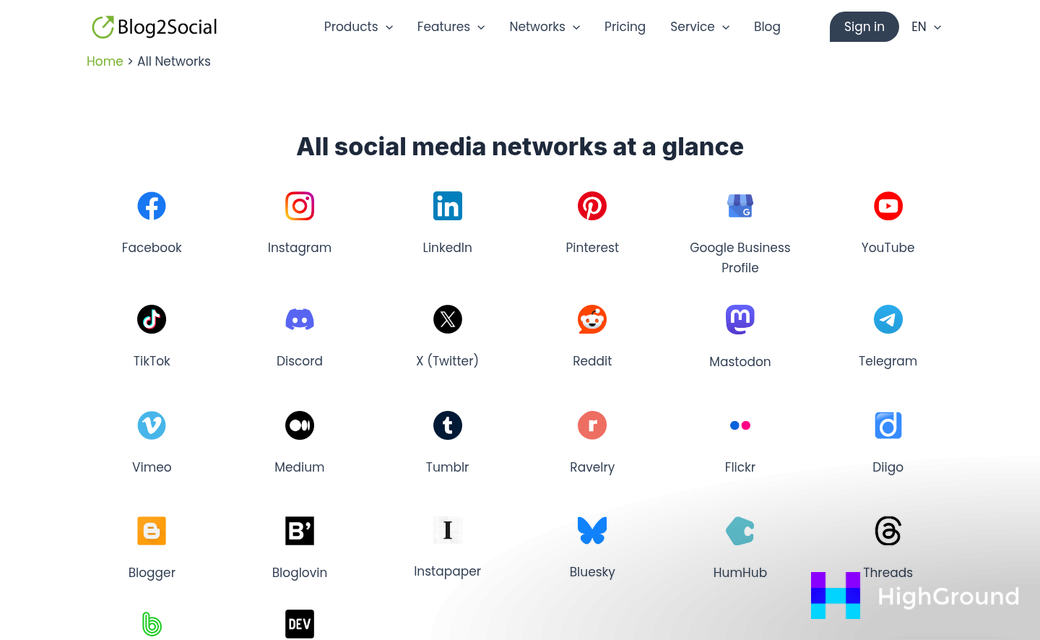
The first path is a dedicated WordPress plugin. Tools like Blog2Social and FS Poster live entirely inside your WordPress dashboard and manage scheduling and posting without needing anything external - the easiest path for those who want one tool for everything.
The second path is a third-party connector like Zapier. Zapier sits outside WordPress and acts as a bridge between your site and other apps - it connects to over 1,000 of them. When something happens in WordPress, like a post going live, Zapier can trigger an action somewhere else- like your social platforms- this works if you already use a stack of tools and want them all to talk to each other. You can see how this plays out in practice with a guide on connecting ChatGPT to WordPress using Zapier or Make.
The third path is a no-code recipe builder. Uncanny Automator is the best example here, and it integrates with over 210 plugins and apps directly inside WordPress. You build automated workflows by connecting triggers and actions without writing a single line of code- this fits setups where you need multi-step logic, like posting to social media, tagging a user, and sending an email all from one trigger.
| Method | Example Tool | Best For |
|---|---|---|
| WordPress Plugin | Blog2Social, FS Poster | All-in-one scheduling |
| Third-Party Connector | Zapier | Cross-app workflows |
| No-Code Recipe Builder | Uncanny Automator | Complex multi-step logic |
Each strategy works pretty well on its own, and some site owners combine more than one. The right fit can depend on how your WordPress site is built and what you want the automation for. If you're also looking to streamline content creation itself, automating WordPress blog posts with AI pairs naturally with any of these sharing setups.
Choosing the Right Plugin for Your WordPress Setup
The plugin you pick will shape how smooth or frustrating the whole process feels. Three options come up again and again for a reason: Blog2Social, FS Poster and Bit Integrations, and each one fits a different type of user.
Blog2Social connects to 20+ social networks and lets you customize posts for each platform before they go out. Plans start at around $7 per month, which makes it accessible if you're just starting out- it's a pick if you want large network coverage without a cutback on the learning curve.
FS Poster has earned a 4.97 out of 5 rating on CodeCanyon, which is unusually high for a plugin with a large user base- it works well with scheduled posting and gives you control over how your content gets shared. If reputation and reliability matter most to you, it's hard to look past that score.
Bit Integrations takes a different strategy entirely- it connects WordPress to 335+ places and charges no per-job fees, so your costs stay flat no matter how much you post- it makes it a fit for high-volume sites or anyone who wants to connect social sharing to a wider automation setup.
The trap is falling into paying for a plan loaded with features they'll never touch. Before you commit, write down the networks you actually use and be honest about how much manual control you want. That alone will cut your options down fast.
| Plugin | Networks Supported | Starting Cost |
|---|---|---|
| Blog2Social | 20+ | ~$7/month |
| FS Poster | 20+ | ~$45 one-time |
| Bit Integrations | 335+ | Free / paid tiers |
Your tech comfort level matters here as well. Blog2Social and FS Poster are built to feel intuitive from the start. Bit Integrations gives you more flexibility but takes a little more time to configure the first time around.
Setting Up Your First Automated Sharing Workflow
Start with one social network. Connecting a single account first lets you test everything before things get complicated. Once your workflow runs cleanly, adding more networks takes minutes.
Here is how to build a basic automation from scratch.

- Install your chosen plugin from the WordPress plugin directory and activate it. Head to its settings page before doing anything else.
- Connect your social account by following the plugin's authentication flow. This usually opens a login window for the platform you want to use.
- Grant API permissions when prompted. This step is where a lot of people get stuck - if you skip a permission or dismiss the window too early, the connection will fail silently.
- Create a new sharing rule inside the plugin. Most plugins call this a "profile" or "channel."
- Set your trigger to "publish post" so the automation fires the moment you hit publish. You can adjust this later to include updates or scheduled posts.
- Write a message template using the plugin's available variables like post title, URL, or custom excerpt.
- Run a test post on a draft or a low-traffic page to confirm everything shares correctly before going live.
The API permissions step trips up new users, and each platform has its own rules about what a third-party app is allowed to do, so read the permissions screen carefully. If you only grant read access by accident, the plugin can't post anything on your behalf.
Post format mismatches are another thing to watch. LinkedIn works with long text well. But X has a character limit, so a message template that works in one location may get cut off or rejected in another. Build separate templates for each network from the start. If you're also managing bulk editing across posts and pages, keeping templates consistent becomes even more important.
Keep your first workflow simple. A trigger, a template, and one destination is all you need to get started. You can layer in more logic once the basics are working as expected. When you're ready to expand, setting up an AI content calendar inside WordPress can help you plan and coordinate what gets published and shared.
Scheduling, Timing, and Posting Rules That Actually Work
Once your workflow is in place, timing is the next thing to get right.
Different networks have different peak windows. LinkedIn tends to perform better on weekday mornings. But Facebook and Instagram see more engagement in the early evening. X (formerly Twitter) is more forgiving across the day. But early afternoon still tends to outperform late night. These aren't hard laws. But they're a basic starting point until you have your own data to work from.
Your audience's time zone matters more than the platform average. If most of your readers are in the UK but your WordPress site is set to UTC-5, your "morning post" could land at midnight for them. Check your analytics to see where your traffic actually comes from and adjust your schedule to match.
Tools like Blog2Social let you set a custom schedule per network, which means you're not stuck posting everything at once. You can stagger LinkedIn for Tuesday at 8am, Facebook for Wednesday at 6pm, and so on - all triggered by a single publish action in WordPress. That control makes a difference over time.
A Few Posting Rules Worth Setting From the Start
Don't post the same content to every platform within a few seconds of each other. Spread things out by at least a few hours to cut back on the chance of flagging, and to give each network its own moment.
Set a posting limit inside your automation tool if the option is there. Most tools support this, and it stops a bulk import or content flood from hammering your profiles all at once.
Also think about re-share rules for evergreen content. Some tools let you re-post older articles on a rotation, which is helpful - but set a minimum gap of a few weeks between repeats on the same network. Audiences notice repetition faster than you might expect.
One last thing: leave a small random delay window in your scheduler settings. Even a 5-15 minute variation makes automated posts look far more natural to platform algorithms.
What Can Break Your Automation (And How to Catch It Early)
You have your scheduling dialed in, your laws set, and everything looks good - then a post goes out and nothing lands on any platform. No error message, no warning, just silence. This happens more than expected, and it usually traces back to one of a few common causes.
API changes are the most unpredictable one. Social platforms update their APIs on their own timelines and don't always give plugin developers much notice. When that happens, a connection that worked last week can stop working entirely, and your WordPress setup won't always tell you about it.
Expired access tokens are another quiet culprit. Most social platforms issue tokens that expire after a set period, and once that happens, your plugin loses permission to post. The plugin might not throw a visible error - it just stops sending. Re-authenticate your connected accounts every few months before they lapse.

Plugin conflicts are worth watching too. If you update your automation plugin or another plugin on your site, something can break in the background. A quick test post after any update can save you from a week of missed shares.
Set Up Some Basic Monitoring
The goal here is to know something broke before your readers do. Most social automation plugins have a post log that shows which shares were sent and which failed. Check it every week or two - it only takes a minute and it tells you quite a bit.
Email alerts are worth turning on if your plugin supports them. Some tools can notify you when a post fails to send, which gives you a chance to fix it fast. A dedicated test account on each platform is also helpful because you can push a draft post through the system and confirm everything is connected. If broken links are also part of your concern, bulk updating broken links in WordPress before they hurt your SEO is a smart parallel habit to build.
The setup built in earlier sections only works if the connections underneath it stay healthy. A small amount of routine checking protects that work - it's less about troubleshooting and more about a quick schedule that keeps things running the way you intended. Pairing this with automated post and page updates can further reduce the manual effort needed to keep your site in good shape.
Keeping Your Automation Lean as Platforms and Plugins Evolve
Social places update their APIs more than you know. What worked last year may now hit a rate limit, lose a feature, or stop functioning altogether without any warning on your end.
This matters because your automation can look like it's running fine while quietly doing less than it used to. A platform might restrict how many posts can go out per day, or it might drop support for a content type your workflow depends on. The tools you use - Zapier, Bit Integrations and others - do update their integrations when this happens. But they can't always act instantly. And even when they do, the update may need you to adjust your setup to match.
That's why it's worth doing an easy audit of your workflows a few times a year. Not a deep technical review, just a pass through each connection to check that it's still active and still doing what you set it up for.

A question to ask during that audit is whether every part of the automation is still pulling its weight. You might find a connection to a platform you barely use anymore, or a step that adds delay without adding value. Old pieces like to stick around because removal takes extra work. But a leaner setup is easier to manage and less likely to have hidden points of failure.
Platform policies also change. A network that allowed automated posting two years ago might now flag or restrict it - it's worth checking the terms of service for each platform you post to, at least annually, just to stay on the right side of what's allowed.
None of this has to be a big project. Set a recurring reminder every few months and spend twenty minutes looking at what's connected and what's actually running. Think of it less as maintenance and more as staying in control of something that runs in the background of your whole content strategy.
Your WordPress Posts Shouldn't Need a Babysitter
The most important thing to remember is that you don't need a perfect, all-encompassing system on day one. One plugin, one platform, one workflow - it's a win. You can layer in more networks, better scheduling, and fancier customization later. Automation is a living part of your workflow - not a one-time project you check off and forget.
- Start small: One automated workflow is infinitely better than zero.
- Pick the right tool: Match your plugin or integration to your actual needs, not the longest feature list.
- Customize your messages: Generic auto-posts get ignored - a little personality goes a long way.
- Review periodically: Social platforms change, APIs shift, and what worked in January might need a tweak by July.
- Don't set and forget forever: Check in every few months to make sure everything is still firing correctly.
Set it up, test it, let it run, and then go write something worth sharing. The automation will manage the rest.
FAQs
What is the easiest way to automate WordPress social sharing?
Installing a dedicated WordPress plugin like Blog2Social or FS Poster is the easiest approach. These tools live inside your dashboard, handle scheduling, and require no external setup or coding knowledge.
Which plugin is best for high-volume social sharing?
Bit Integrations suits high-volume sites best, as it connects to 335+ platforms with no per-job fees, keeping costs flat regardless of how frequently you post.
Why does timing matter for automated social media posts?
Platforms reward early engagement, so posting at the wrong time reduces visibility. LinkedIn performs better on weekday mornings, while Facebook and Instagram see more engagement in early evenings.
What commonly breaks WordPress social media automation?
API changes, expired access tokens, and plugin conflicts are the most common causes. Re-authenticating connected accounts every few months and checking post logs regularly helps catch issues early.
How often should I review my social sharing automation setup?
A quick audit every few months is recommended. Check that all connections are active, remove unused integrations, and verify platform policies still permit automated posting.

