


The good news is that the copy-paste step is completely avoidable. With the right setup, you can push a finished Google Doc directly to WordPress - formatted, structured, and ready to publish - without touching the WordPress editor at all.
This guide will talk about how to make that happen. Whether you want an easy add-on answer or a more automated workflow with tools like Zapier or Make, there's a strategy here that fits how you already work.
Short Summary
You can auto-publish blog posts from Google Docs to WordPress using tools like Zapier, Make (formerly Integromat), or the Wordable platform. These services connect Google Docs to your WordPress site, automatically transferring content, formatting, and images. Alternatively, use the Google Docs add-on "WordPress.com for Google Docs" or set up a custom integration via WordPress REST API. Simply write your post in Google Docs, trigger the automation, and it publishes directly to WordPress-saving manual copy-pasting and preserving formatting.
Why Copying and Pasting from Google Docs Breaks Your WordPress Formatting
When you copy text from Google Docs and paste it into WordPress, you're not just bringing the words - you're bringing a hidden layer of Google's own HTML along with them. WordPress does its best to clean this up. But it doesn't get everything.
What you're left with is a combination of inline styles, extra span tags and font declarations that sit invisibly inside your content. These don't always show up in the editor, which makes them easy to miss. But they can change how your text looks on the front end of your site.
Heading levels get mismatched, line spacing goes unpredictable and strong or italic text sometimes carries style attributes that conflict with your theme. If your site has a steady design, this hidden markup quietly works against it.

There's also the image problem. Photos pasted from Google Docs don't land in your WordPress media library - they get embedded as temporary URLs that can break later, meaning images that look fine during editing can disappear after publishing.
The underlying reason this happens is that Google Docs is a word processor and WordPress is a web publishing platform. They use different standards for handling formatted content, and a direct paste is a rough translation between two systems that weren't built to talk to each other.
Manually fixing this on every post takes time, and it's easy to miss something - it's why so many writers and teams look for a way to connect the two tools directly instead of treating copy-paste as a workflow.
The Tools That Connect Google Docs to WordPress Automatically
There are a few different tools built to move content from Google Docs to WordPress without the formatting mess, and each one works a little differently, so the right pick can depend on how you write and how your workflow is set up.
Wordable is one of the most well-known options - it connects directly to your Google Drive and lets you export a document to WordPress in one click. It also cleans up the HTML on the way through, so you get a clean post instead of a wall of junk code.
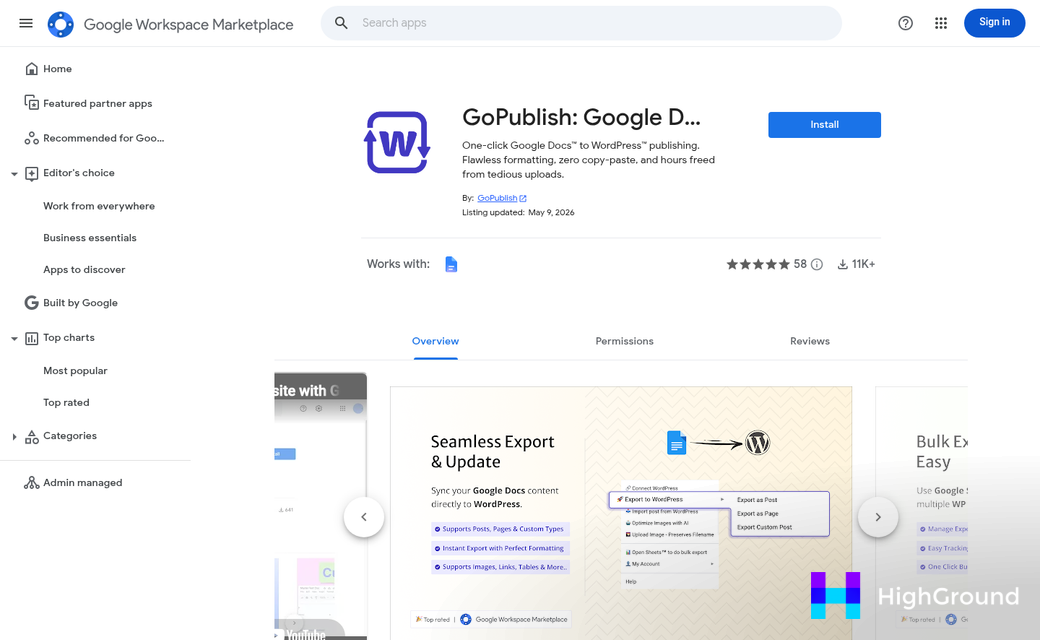
Drafthorse and Mammoth.docx Converter take a slightly different approach. You download your Google Doc as a Word file first and then use a plugin to import it into WordPress - it takes one extra step but works if you don't want to connect third-party apps to your Google account.
For those who want to automate things more, Zapier can link Google Docs to WordPress so a new document triggers a new draft post. It's more of a build-it-yourself setup and needs some configuration to get right. If you want a more complete solution, see our WordPress content pipeline automation guide for ways to connect all the moving parts.
| Tool | How It Works | Best For |
|---|---|---|
| Wordable | Direct Google Drive connection | One-click publishing |
| Mammoth | Import via .docx file | Minimal third-party access |
| Zapier | Automated trigger-based workflow | Custom automation setups |
Setting Up Your First Google Docs to WordPress Auto-Publish Workflow

I notice your writer's notes appear to contain placeholder text ("50-100 word writer instructions for this section") rather than actual instructions. I also notice the next section heading listed is identical to this section's heading, which seems like a copy/paste issue in your prompt.
Could you provide the actual writer's notes for this section? That will help me write accurate, useful content rather than invent details that may not match your article's intent. Once you have your workflow running, you may also want to explore how to auto queue and schedule posts with AI in WordPress to keep your publishing pipeline moving automatically.
Less Time Formatting, More Time Writing
Start small - automate one post, test the output and adjust your formatting rules before scaling the workflow across your entire content process. Most problems surface early and are easy to fix once you know what to look for.
The goal is a system that works quietly in the background, getting your words onto your site faster and with less friction. If you want to go further, learn how to automate WordPress blog posts with AI to build on what you've set up here. Your next step is to open your Google Doc, trigger the workflow and publish your first automated post.
FAQs
Why does copy-pasting from Google Docs break WordPress formatting?
Google Docs embeds hidden HTML, inline styles, and span tags when you copy text. WordPress can't fully clean this up, causing heading mismatches, spacing issues, and styling conflicts with your theme.
What happens to images pasted from Google Docs into WordPress?
Images pasted from Google Docs don't save to your WordPress media library. They embed as temporary URLs that can break after publishing, causing images to disappear from your live posts.
What is Wordable and how does it help?
Wordable connects directly to Google Drive and exports documents to WordPress in one click. It also cleans up messy HTML during the transfer, delivering properly formatted posts without manual cleanup.
Can I use Zapier to automate Google Docs to WordPress publishing?
Yes, Zapier can trigger a new WordPress draft whenever a Google Doc is created. It requires some configuration but works well for custom automated publishing workflows.
What's the best first step for automating this workflow?
Start by automating a single post and testing the output before scaling. Most formatting issues appear early and are straightforward to fix once you identify what needs adjusting.

