


Custom GPTs, introduced by OpenAI, let you build your own version of ChatGPT with specific instructions, a defined personality, and - this is the part that changes everything - the ability to connect to outside tools and APIs. That last piece is what makes this more than just a better chat window. When you connect a Custom GPT directly to your WordPress site, it can draft a post, format it correctly, assign categories, and push it straight into your dashboard without you ever opening a new tab.
This isn't a setup designed for developers with server access and a taste for difficulty - it's legitimately easy for writers, content managers, and site owners who are comfortable in WordPress and willing to follow a process. The tools involved are more accessible than they used to be, and the payoff - a content workflow that actually flows - is worth the initial configuration.
I'll walk you through the full setup from start to finish: creating a Custom GPT, building the connection to WordPress via its REST API, and configuring everything so your GPT can write and publish posts on command. Each step is explained with the context you'll need to know not just what to do, but why it works.
Short Summary
To build a custom GPT that writes directly to WordPress, use ChatGPT's custom GPT builder with an Action that connects to the WordPress REST API. Generate an application password in your WordPress user settings, then configure the GPT's Action schema to authenticate and send POST requests to your site's `/wp-json/wp/v2/posts` endpoint. Define the action to accept a title and content, then instruct the GPT to format and submit posts automatically. This allows the GPT to draft or publish content to your WordPress site without manual copy-pasting.
What You Need Before You Start Building
Two things need to be in place before any of this works. Get these wrong and you'll hit a wall before you even get started.
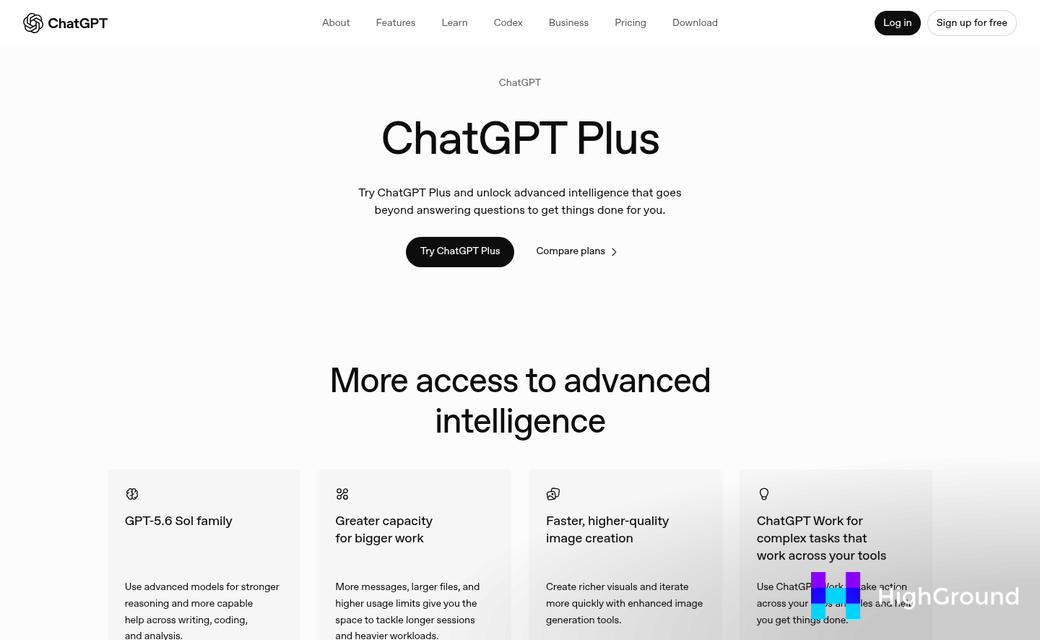
The first is a paid ChatGPT Plus account. Building a Custom GPT is a Plus-only feature, so a free account won't get you there. If you haven't upgraded yet, that's the first thing to do.
The second is a self-hosted WordPress site with the REST API enabled, and that's the part that trips up most people. The REST API is what lets your Custom GPT talk to your WordPress site and send content to it. If you don't have it, the connection won't work.
Self-hosted means you're running WordPress through your own hosting provider using the software from WordPress.org, which is different from a WordPress.com account, which has its own rules about what you can and can't do. The table below breaks this down.
| WordPress Type | REST API Available | Custom GPT Compatible |
|---|---|---|
| Self-hosted (WordPress.org) | Yes | Yes |
| WordPress.com Free | Limited | No |
| WordPress.com Business+ | Yes | Possibly |
If you're on a free WordPress.com plan, this setup won't work for you as things stand. Even some entry-level hosting plans can create problems if they restrict API access or block external requests at the server level - it's worth checking with your hosting provider to confirm that outbound API calls are allowed.
You'll also want to have your WordPress login credentials handy and be comfortable generating an Application Password inside WordPress. That's how ChatGPT authenticates itself when it sends a post to your site - it sounds technical but it takes about two minutes to set up, and that part comes later. If you want a broader look at how ChatGPT connects to WordPress, there are other approaches worth knowing about too.
One more thing worth mentioning: your site needs to be live and accessible over HTTPS. A local development environment or a site behind a login wall won't work here because ChatGPT needs to reach your site's API endpoint from the outside. If your site is already live and running, you're in good shape.
Take a few minutes to confirm these things - it makes the steps ahead much smoother and saves you from having to backtrack halfway through the build. Once everything checks out, you might also find it useful to explore adding ChatGPT directly to WordPress as a complementary setup.
How to Set Up Your Custom GPT in ChatGPT
Head to chat.openai.com and open the GPT builder from your account menu. You'll find it under "My GPTs" and then "Create a GPT." The builder walks you through two tabs - Configure and Create - and for this project, Configure is where you'll spend most of your time.
Start with a name and a short description. These seem minor, but they help you stay organized if you're looking to build more than one GPT for different content types.
The instructions field is the most important part of the whole setup. It's your system prompt, and it tells the GPT how to behave every time it runs. Think of it less like a description and more like a standing brief you'd hand to a writer on their first day.
Before you type anything into that field, spend a bit of time deciding what this GPT is actually for. A GPT built to write product descriptions needs very different instructions than one built to write long-form blog posts or landing pages. The content type shapes everything - the tone, the length, the structure, and what facts the GPT should always ask for before it starts writing.
Once you've defined the content type, write your instructions around two questions: what do you always want this GPT to do, and what do you never want it to do? That's where your rules and your voice live. You might want it to always write in second person, always include a meta description, and never use passive voice. You might want it to ask for a target keyword before it writes anything. All of that goes here.

Be direct in your instructions and write them like you're talking to a person. Vague input produces vague output, so be as literal as you can. Instead of writing "write engaging content," write "open every post with a direct statement that addresses the reader's main question."
The Conversation starters field lets you pre-load prompts that appear when someone opens the GPT. These are worth creating because they give you a quick way to kick off common tasks without typing the same thing every time.
Don't expect the instructions to be perfect on the first try. You can edit and test your GPT as many times as you need without having to connect it to anything external.
Connecting Your Custom GPT to WordPress via the REST API
The WordPress REST API is what makes it possible for your GPT to talk to your website- it exposes your site's data through a set of URLs that external tools can send requests to, and that's how ChatGPT reaches your WordPress install.
Inside ChatGPT you'll find an "Actions" section when editing your custom GPT, where you define what external services your GPT can use. You'll need to add a new action and point it at your WordPress site's API endpoint. The base structure looks like this: https://yoursite.com/wp-json/wp/v2/posts. That endpoint is where WordPress receives and returns post data.
For authentication, WordPress has a built-in option called Application Passwords. You'll find this under your user profile in the WordPress dashboard- it generates a separate password specifically for API access, so you're not handing out your main login credentials. You'll pass this along with your username via Basic Auth in your action's authentication settings.

What the REST API Can and Cannot Do
The standard REST API connection lets your GPT read publicly available posts from your site. But it does not let your GPT create, update, or delete posts on its own through a basic setup.
This trips people up. They set up the connection and expect full two-way control, then find that write access needs more configuration or a plugin layer to manage it safely. The reading side works without much friction. But publishing takes a bit more work to wire up correctly - and if you want a deeper look at how ChatGPT connects to WordPress via MCP, that's worth reading alongside this.
The table below breaks down what the REST API works with out of the box versus what needs extra setup.
| Action | Available by Default | What's Needed for More |
|---|---|---|
| Read public posts | Yes | Nothing extra |
| Read private posts | No | Authentication |
| Create or publish posts | No | Auth plus plugin or custom endpoint |
| Delete posts | No | Auth plus careful configuration |
To get the action schema right inside ChatGPT takes a little patience. But once the connection is live you have a foundation to build on - including options like using the Claude API with WordPress for automated content creation.
Using the Sync to GPT Plugin to Read Existing Posts
The Sync to GPT plugin is a free WordPress plugin that lets your custom GPT read your existing published posts through the REST API - it does not write, edit, or delete anything - it's strictly a reading tool, and that distinction matters more than it might appear.
A lot of people install it expecting it to manage publishing, then get confused when nothing happens on that front. To be clear about it: this plugin is for feeding your GPT information about your site - not for sending content back to it.
What It Does for You
Before your GPT writes a new post, it helps to give it context about what you have already published - your writing style, your tone, the topics you cover, and the way you structure your content. The Sync to GPT plugin makes your existing posts accessible to ChatGPT so you can ask it to analyze them before generating anything new - it's a way to get your GPT up to speed on your voice before it starts writing.
It's helpful if you want new posts to feel consistent with your existing content instead of like they came from a different writer. This is especially useful when working on WordPress cornerstone content, where consistency with your established voice really matters.
How to Install It
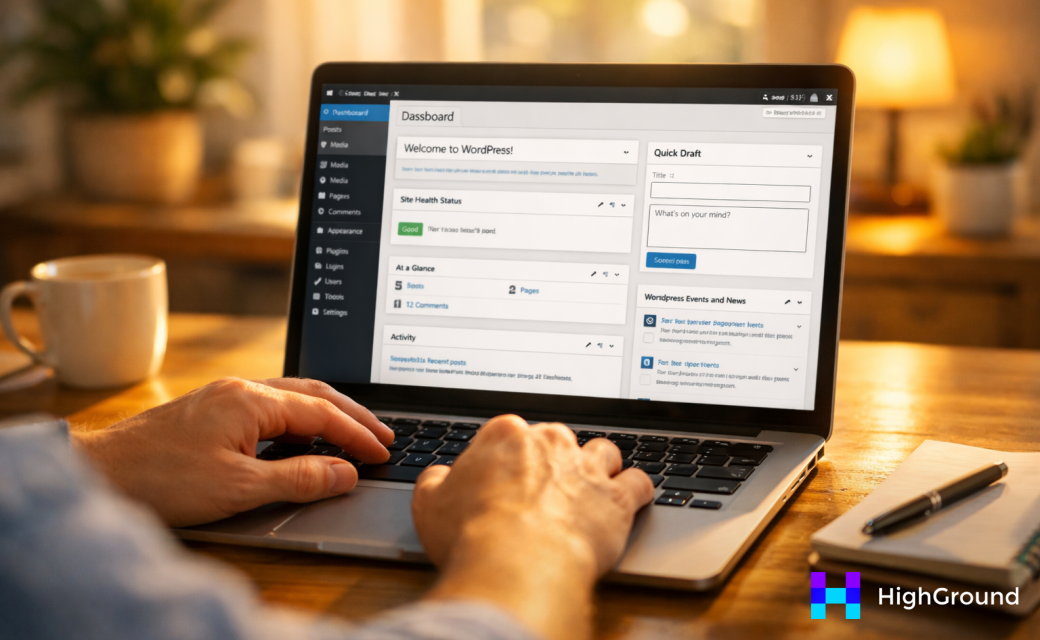
To get started, go to your WordPress dashboard and navigate to Plugins, then Add New. Search for "Sync to GPT" and install the plugin from there, then activate it. There is no complex setup process after that - once it's active, your public posts are readable through the REST API endpoint the plugin exposes.
You do need to make sure your posts are published and not set to private or password-protected. The plugin works with publicly available content only.
Reading Posts Inside ChatGPT
Once the plugin is active, you can reference your site's posts inside a custom GPT by pointing it to the exposed endpoint. Your GPT can then pull in post titles, content, categories, and tags. From there, you can ask it to analyze the tone of your last ten posts or summarize the topics you cover most.
This part sets the stage for what comes next: writing and publishing new content through your GPT instead of just reading what is already there. From that point, generating post outlines with AI before you write is a natural next step.
Writing and Publishing Posts Through Your Custom GPT
This is where everything you have set up starts to pay off. You have connected your site, authenticated your credentials, and tested that your GPT can read posts - now it's time to actually create and publish content from inside ChatGPT.
Start by prompting your Custom GPT the way you would brief a writer. Something like: "Write a 600-word WordPress post about the benefits of cold brew coffee. Use a friendly tone, include an introduction and three body sections, and save it as a draft." That instruction gives the GPT enough to work with so it can produce a structured post without much back and forth.
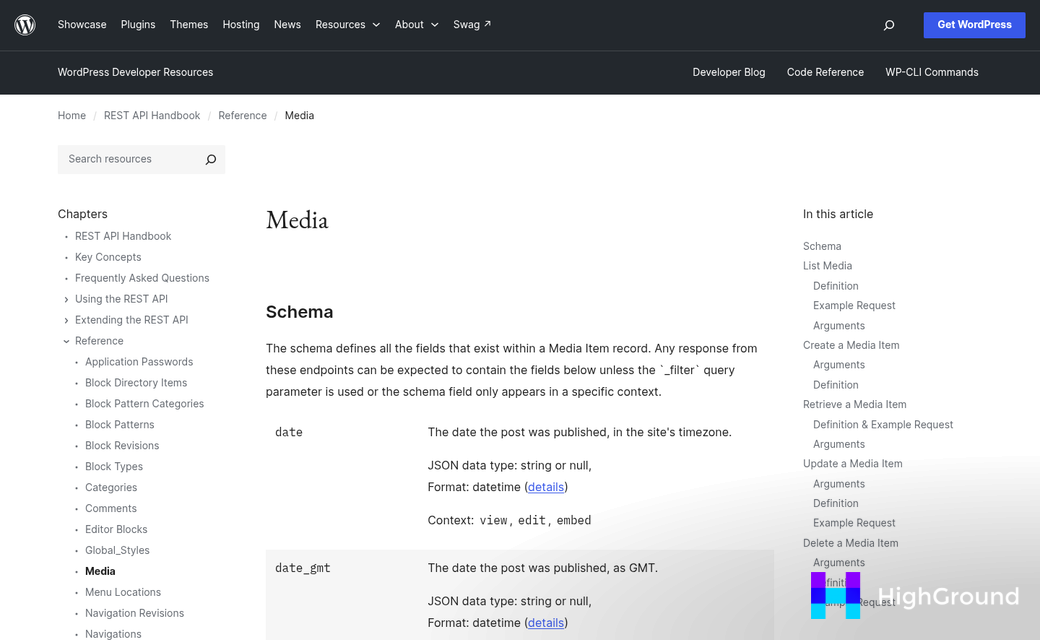
The GPT will generate the content. Getting it into WordPress is going to need a little more infrastructure. Reading posts is easier because you are only pulling data. To write posts, you'll have to make a POST request to the WordPress REST API endpoint, which is /wp-json/wp/v2/posts - it means your GPT needs an action configured to send that request, not just receive information.
If you built a custom action schema in earlier steps, you can extend it to include a write or create post action. Your schema is going to need to pass values like the post title, content body, status (draft or publish), and any category or tag IDs you want to attach. All standard REST API territory, so the structure is well documented in the WordPress developer handbook.
If your current setup does not support outbound write actions, tools like Zapier or Make can bridge the gap. You can connect a webhook to your GPT workflow and pass the generated content into a WordPress integration - it does add a step, but it gets the job done without needing to build a full custom backend.
A Note on Draft vs. Publish
It is worth setting your default post status to "draft" while you are getting comfortable with this workflow. That way every post your GPT creates lands in your WordPress dashboard for review before anything goes live. You can always flip it to "publish" in the action schema once you trust the output - and if you want to take that further, see how others have automated a full WordPress content approval workflow.
The REST API also lets you set the post author, featured image ID, and excerpt through the same request. You don't have to use all these fields at once, but knowing they are available means you can build toward a more complete publishing workflow over time.
Your WordPress Workflow, Finally Working for You
Before you go, keep a few realities in mind - this setup is going to need a ChatGPT Plus account, and the WordPress REST API distinguishes between reading and writing - so double-check that your Application Password has the right permissions if posts aren't saving as expected. These aren't dealbreakers, just things worth knowing about before troubleshooting something that was never broken.

The GPT you've configured is a starting point - not a finished product. As your content strategy changes, your categories grow, or your tone evolves, revisit the custom instructions and smooth them out. The more context your GPT has about your site, the less correcting you'll do after the fact - it's less like a one-time setup and more like bringing on a writing assistant who gets sharper the longer they work with you.
The first build takes roughly an hour. Then the work gets lighter every time you use it; it's a trade worth making.
FAQs
What do I need to build a Custom GPT for WordPress?
You need a paid ChatGPT Plus account and a self-hosted WordPress site with the REST API enabled. Your site must be live, accessible over HTTPS, and not behind a login wall.
Can I use WordPress.com with a Custom GPT?
Free WordPress.com plans won't work due to limited REST API access. Self-hosted WordPress.org sites are fully compatible, and WordPress.com Business+ plans may work.
What is an Application Password and why do I need it?
An Application Password is a separate WordPress credential used for API access. It lets ChatGPT authenticate with your site without exposing your main login details.
Can the Custom GPT publish posts automatically to WordPress?
Yes, but write access requires extra configuration beyond basic REST API setup. It's recommended to default to draft status while getting comfortable with the workflow.
What does the Sync to GPT plugin actually do?
It allows your Custom GPT to read your existing published posts for context. It does not write, edit, or delete content - it's strictly a reading tool.