


Notion has quietly become the workspace where a lot of that chaos goes to die. With over 100 million users as of 2024, it's no longer just a pretty place to store notes - it's where writers are doing work, from first idea to finished draft. And with Notion AI now baked directly into that environment, the writing process has become tighter. You can brainstorm, outline, draft and polish without ever leaving the page.
The part of the challenge that used to break the workflow was WordPress. Getting content out of Notion and into your CMS without losing formatting, spending time on manual copy-paste fixes, or juggling yet another tool was its own project. That gap has become much smaller. Between Notion's native integrations and a handful of reliable connection methods, publishing from Notion to WordPress is now a basic part of a streamlined content workflow - not an afterthought.
I'll walk you through how to make that happen. To get started, you'll need two things in place: access to Notion AI (available on paid Notion plans) and a way to connect Notion to your WordPress site, either through a third-party automation tool like Zapier or Make, or through a direct integration. Let's talk about your options as we go.
Short Summary
You can use Notion AI to draft blog posts by opening a Notion page, typing a prompt, and letting AI generate content. Edit and refine the draft within Notion, then export or copy the text. To publish to WordPress, either manually paste the content into the WordPress editor or use a third-party integration like Zapier or a Notion-to-WordPress plugin to automate publishing. Format headings, images, and metadata in WordPress before hitting publish. This workflow combines Notion AI's writing assistance with WordPress's publishing capabilities.
What Notion AI Can (and Can't) Do for Blog Writing
Notion AI sits inside your workspace and works directly on your content. You can ask it to draft a post from a prompt, generate an outline, rewrite a paragraph in a different tone, summarize a long part of research, or clean up messy sentences - it works with the tasks that slow writers down most - staring at a blank page or reworking a section for the third time.
The drafting feature is probably where most blog writers will spend their time. You give it a topic or a rough idea and it produces a working draft you can shape from there - it's not going to write a finished post for you, and that's fine. Think of it as a first-pass writing partner that gets words on the page so you have something to edit.
Rewriting and tone adjustment are also legitimately helpful. If a paragraph sounds too stiff or too casual for your audience, you can show it and ask Notion AI to adjust it. The same goes for summarizing - helpful if you have a pile of notes or research you want to condense before start writing.
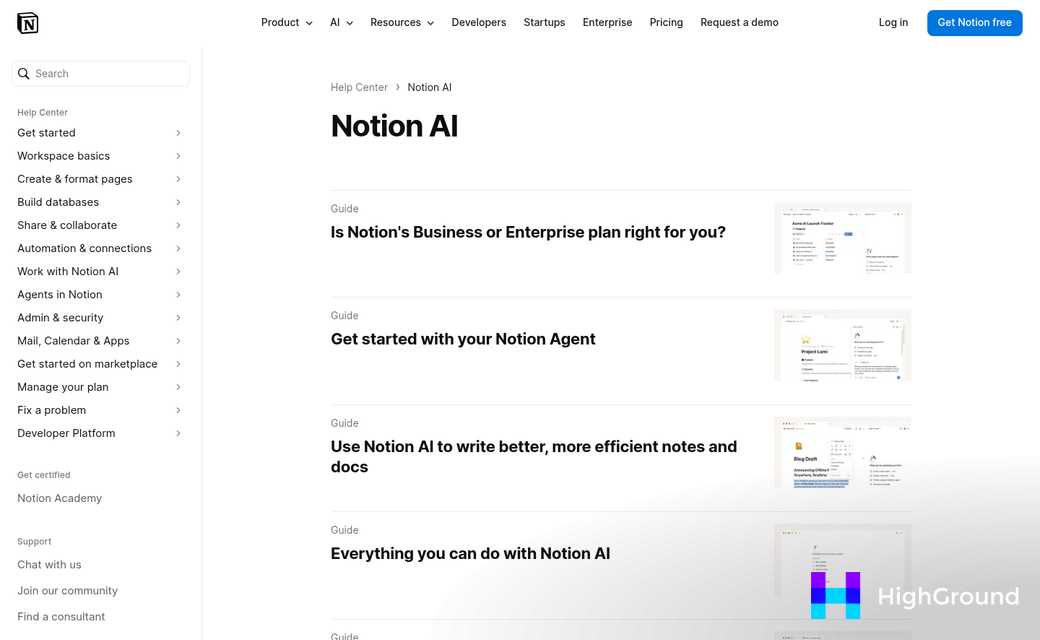
Now for the part that matters most. As of mid-2025, Notion AI is only available on Business and Enterprise plans. If you are on a free or Plus plan, then you'll get a 20-response trial and then hit a paywall. That is not much runway if you want to build a full drafting workflow around it - it's worth knowing about this before you invest time in setting everything up.
The cost difference is significant, so it's worth deciding early on if the AI features alone justify an upgrade. For some writers, the answer is yes - especially if they are already using Notion for project management and content planning. For others, it might make sense to test the trial first and see how the workflow actually sticks.
What makes Notion a strong choice past the AI itself is how well it connects to other tools - it supports over 70 integrations, which means your drafting workspace does not have to live in isolation. That wider ecosystem can become relevant when we get into publishing - but it's good to know that Notion was built to connect, not just to contain.
The honest take on Notion AI is that it works with a real slice of the blog writing process but not all of it - it drafts, outlines, rewrites, and summarizes well - it does not fact-check, it does not pull live data from the web by default, and it will not format your post for WordPress automatically. Those gaps are manageable if you know they are there.
Setting Up Your Blog Drafting Workflow Inside Notion
Start with a Notion database - it will become your editorial center. Create a new full-page database and call it something like "Blog Posts" or "Content Pipeline." Each row in the database is one post and you can add properties to track everything that matters.
The properties worth adding from the start are Status, Publish Date, Target Keyword and Word Count. Status is especially helpful because you can create stages like Idea, Drafting, In Review and Ready to Publish - this gives you a visual map of where every post stands at any given moment.
Once your database is set up, open a post entry and start building your draft inside the page body. An easy structure to follow is a short brief at the top - just a few lines covering the target keyword, the intended reader and the main point of the post - this brief is what you hand to Notion AI when it generates a first draft.
Where Notion AI Fits In
The most helpful way to use Notion AI here is to write your outline first, then ask AI to expand it. Type out your H2 headings and a few bullet points under each one. Then select a section and use the "Ask AI" option to turn those bullets into full paragraphs - this keeps the structure yours while letting AI manage the heavy lifting on sentence-level writing.
You can also use AI to fix a weak introduction. If your opening paragraph feels flat, select it and ask AI to make it more direct or more engaging - it works well for that targeted improvement instead of wholesale generation.
Another use is to generate a rough first draft from your brief alone. Ask AI to write a 600-word post based on your outline and keyword. Treat what comes back as raw material - not a finished product. You will usually need to rewrite sections to match your tone and fix anything that sounds generic.

The Editing Step You Can't Skip
AI drafts tend to have a particular pattern - confident, smooth and a little flat. The sentences make sense but they don't sound like a person who actually knows the subject; it's the gap your editing needs to close.
Read the draft out loud and flag anything you wouldn't say. Add facts, examples and any nuance the AI glossed over. This is also the moment to check factual accuracy. AI can state things with confidence that turn out to be wrong or outdated.
A rule of thumb is to plan for at least one full editing pass before a post is ready to move to the "In Review" stage in your database. The database status system helps here - it stops posts from moving forward before they're legitimately ready.
Keep your Notion workspace as the single place where everything lives until a post is ready to publish. When you're ready to move it over, publishing directly from a writing tool to WordPress is worth setting up to make that final step cleaner. That separation between drafting space and publishing platform makes the next step much cleaner.
Getting Your Notion Draft Into WordPress Without Losing Formatting
There is no native way to export from Notion directly into WordPress, so this step is where many hit a wall. You have a few options depending on how much you want to automate and what your budget looks like.
The most accessible option is copy-paste, and it does work - up to a point. When you paste from Notion into the WordPress block editor, some formatting carries over. But headings can get flattened, bullet points sometimes come through as plain text, and strong or italic styling does not necessarily survive the trip. It's fine for a one-off post. But it can add cleanup time that builds up fast if you are publishing regularly.
A much cleaner path is the Notion WP Sync plugin, which you can find for free in the WordPress plugin repository. It gives you a direct connection between your Notion database and your WordPress site, and it pulls your content over with formatting. The free version works with the basics well, though the automation side is limited - you'll still need to trigger syncs manually for the most part.
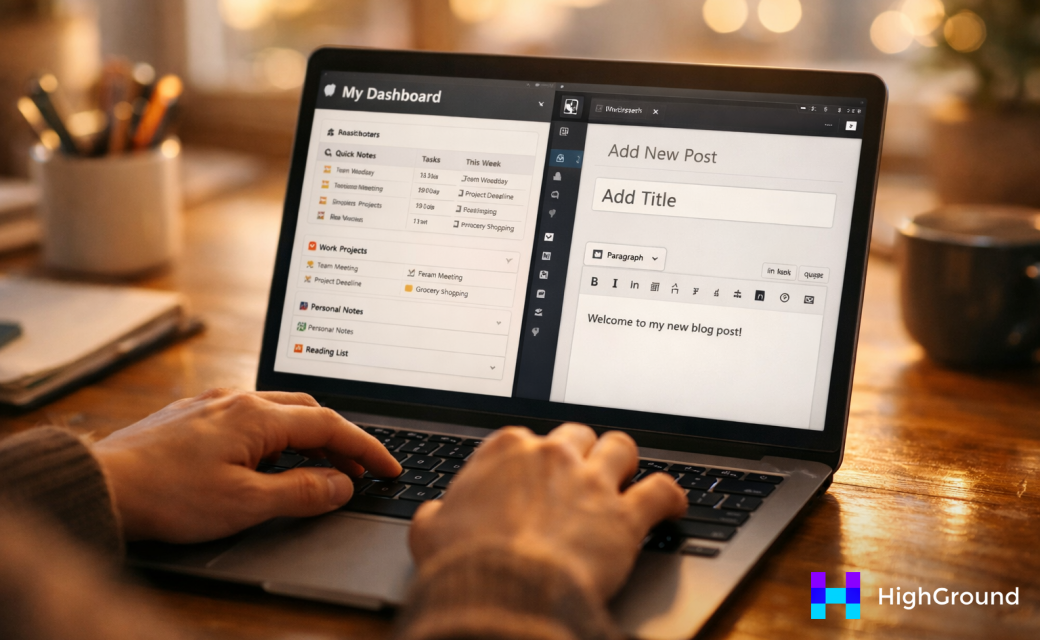
The Pro version of Notion WP Sync supports full automation. You can set it up so when a post in your Notion database reaches a certain status, it syncs to WordPress without you touching it. That hands-off publishing is worth paying for if you manage a content calendar with any volume.
Tools like Zapier or Make are another path worth learning about. They let you build custom workflows that connect Notion to WordPress, so a status change in your database can trigger a new post draft on your site. The setup takes more time than installing a plugin. But it gives you flexibility if you already use those tools for other parts of your business.
| Method | Cost | Formatting Preserved | Automation Support |
|---|---|---|---|
| Manual Copy-Paste | Free | Partial | None |
| Notion WP Sync (Free) | Free | Yes | Limited |
| Notion WP Sync (Pro) | Paid | Yes | Full |
For most users, Notion WP Sync is the helpful middle ground. The free version alone removes most of the friction from manual transfers, and upgrading to Pro makes sense once your publishing volume grows.
Whichever strategy you use, a quick review inside WordPress before you hit publish is worth the time. Check that headings are the right level, that images have alt text, and that your meta description is in place. Notion handles the drafting side beautifully. But WordPress is still where the final polish happens.
From AI Draft to Published Post - Making This Workflow Stick
The path is easy: use Notion AI to move past the blank page, your content database clean and structured, and push finished posts to WordPress through a strategy that fits how you work. Just make sure that you have the Notion AI add-on active and build this into your schedule - without it, the AI features won't be available and you'll hit a wall early in the process.
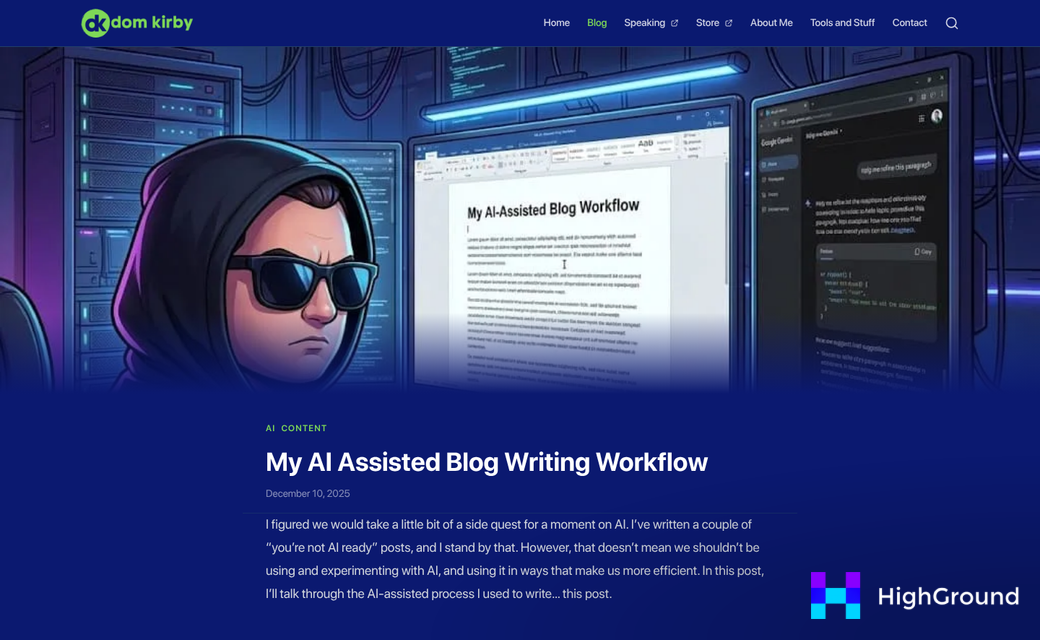
An easy way to test this: pick one upcoming post and run it through the content approval workflow from start to finish. Avoid overhauling everything at once. One post is enough to see where the process clicks and where you might want to adjust - then you'll have a published piece and a clearer sense of how to auto queue and schedule posts with AI to make this system your own.
FAQs
What is Notion AI and what can it do?
Notion AI is a built-in writing assistant that helps you draft, outline, rewrite, and summarize content directly inside your Notion workspace. It works as a first-pass writing partner to get words on the page quickly, though it does not fact-check or pull live web data.
Which Notion plans include AI features?
As of mid-2025, Notion AI is only available on Business and Enterprise plans. Free and Plus plan users receive a 20-response trial before hitting a paywall.
How do I publish a Notion draft to WordPress?
The cleanest method is using the Notion WP Sync plugin, which preserves formatting during transfer. Alternatives include manual copy-paste or automation tools like Zapier or Make, though copy-paste often loses heading and bullet formatting.
Does copy-pasting from Notion to WordPress preserve formatting?
Only partially. Headings can flatten, bullet points may appear as plain text, and bold or italic styling may not carry over. It works for occasional posts but adds cleanup time at higher publishing volumes.
Should I edit AI-generated drafts before publishing?
Yes, always. AI drafts tend to sound smooth but generic. Plan for at least one full editing pass to add facts, examples, and your own voice, and verify factual accuracy before moving a post to review.