


It is not just an aesthetic issue. Disorganized taxonomies quietly work against you in two directions at once. Readers land on your site, look for related content and find nothing helpful to click - so they leave. Search engines crawl the same chaotic structure and have a hard time understanding what your site is actually about, which makes it harder to rank for anything. A clean, logical tagging system is one of the foundational things that helps with nearly everything else, and yet it's usually the last thing anyone gets around to fixing.
The manual alternative is brutal. Imagine sitting down with 82 blog posts - an unglamorous number - and reading through each one to choose which categories apply, which tags make sense, and if any of the existing taxonomy even holds up anymore. That is not an afternoon project. That is a week of grinding, context-switching work that pulls you away from everything else on your plate.
This is where AI has started to earn its place in a helpful, measurable way. Not in some theoretical future sense. But with tools that can read your content, understand its themes, and apply steady tags and categories in a fraction of the time it would take you to do it manually. What follows is an easy look at how to actually make that happen inside WordPress - without needing to be a developer or an AI expert to pull it off.
Short Summary
To auto-tag and categorize WordPress posts using AI, integrate an AI tool like OpenAI's API or a WordPress plugin such as WordLift, Yoast SEO with AI features, or Auto Tag. These tools analyze post content and automatically suggest or assign relevant tags and categories. You can also use Zapier or custom PHP code to connect WordPress with AI services. Configure the plugin or API to trigger on post creation or update, letting the AI parse content and apply appropriate taxonomy terms without manual input.
Why Tagging and Categorizing Posts Manually Doesn't Scale
But manual tagging breaks down the second more than one person is involved or the content volume grows past a manageable point.
Consider a blog with multiple contributors. One writer tags a post about email marketing as "email." Another uses "email marketing." A third uses "newsletters." The site now has three tags that mean roughly the same thing and none of them are connected. A reader trying to find related posts gets a dead end instead of a trail of helpful content.
This creates problems for site search and internal linking. When tags are fragmented or missing, your search has less to work with. Related posts stop surfacing in the right places. Readers land on one post and have no path to the next relevant one because the taxonomy underneath is a mess.
Try searching your own site for a topic you've written about ten times. If the results feel thin or scattered, inconsistent tagging is likely a big part of why.

Humans also get worse at this over time. Tagging the first fifty posts is easy enough, but post five hundred, fatigue sets in and decisions get faster and less careful. Categories get picked because they're familiar instead of because they fit. Some posts get over-tagged with a dozen loosely related terms and others get one vague label or none at all.
The long-term cost of this is harder to see but worth noting. A poorly organized archive doesn't just frustrate readers - it also weakens how search engines understand your site's structure and topic authority. Pages that should support each other become isolated. AI internal linking tools for WordPress can help reconnect those pages automatically before the problem compounds.
Categories and tags are supposed to create a map of your content. When that map is drawn by a dozen different hands over a few years with no consistent rules, it stops being helpful to anyone - least of all you. If the damage is already done, bulk updating your internal links is a good place to start cleaning things up.
How AI Reads and Labels Your Content
When an AI model like GPT-4o mini reads your post, it does not scan for a list of preset keywords - it reads the full text and understands what the content is about based on context. That distinction matters quite a bit for tagging.
A keyword tool might tag a post about "running shoes" only if those exact words appear. An AI model can read a post about marathon training and understand that footwear, endurance, and race prep are all relevant - even if none of those phrases appear word-for-word - it works from meaning, not just matches.
Useful output from an AI model comes through a prompt - an instruction that tells the model what to do with the content. A basic prompt might say something like "read this post and return five to seven tags that describe the main topics." The model then generates labels based on what it understood from the full text.
Categories vs. Tags: Two Different Jobs
Categories and tags work differently, and so does the AI process behind each one. Assigning a category is a classification job. The model reads your post and picks the best fit from a fixed list of options you have already defined - a "this post belongs here" choice.
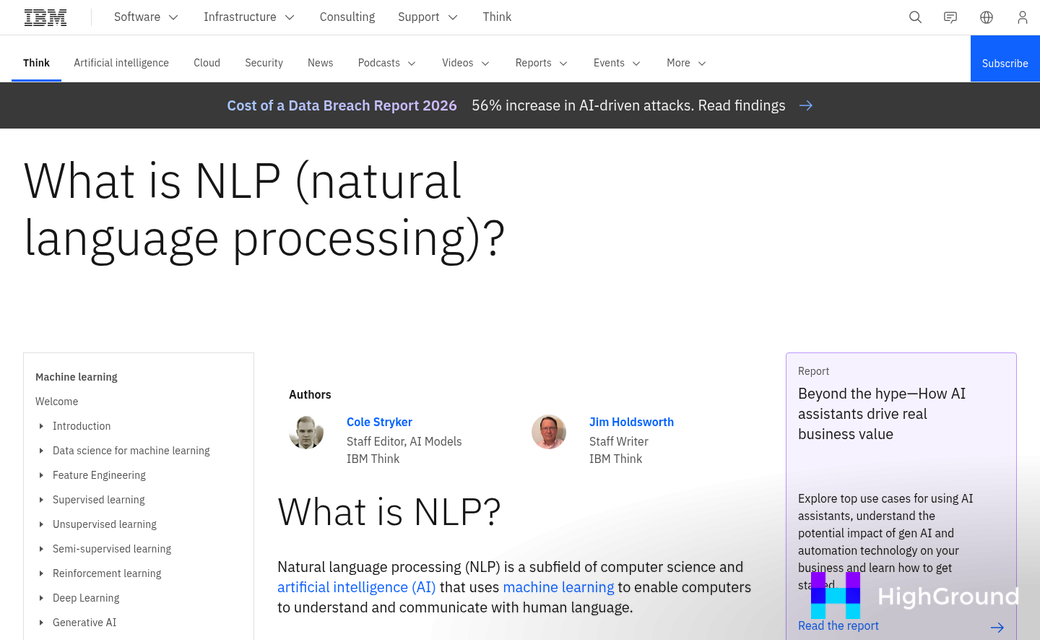
Tags work a bit differently. The model extracts relevant concepts directly from the content without needing a fixed list to choose from. This is called extraction, and it gives you more flexibility since the model can surface angles that a preset list would miss.
| Task | Type | How the AI Handles It |
|---|---|---|
| Assign a category | Classification | Picks from a list you define |
| Generate tags | Extraction | Pulls concepts directly from the content |
This difference matters when creating your prompts correctly later. Classification needs boundaries. Extraction needs some room to work.
Plugin-Based AI Tagging Inside WordPress
If you want to do everything inside WordPress without connecting to outside services, there are plugins built to manage this. Two worth looking at are AI Autotagger and TaxoPress Pro - and they take quite different strategies.
AI Autotagger (version 3.11.1) was documented in a March 2024 tutorial running on WordPress 6.4.2 - it uses a built-in model to scan your post content and apply tags automatically. You don't need to connect an external API to get it working, which makes setup pretty easy. The trade-off is that it works with tags only - it will not assign categories.
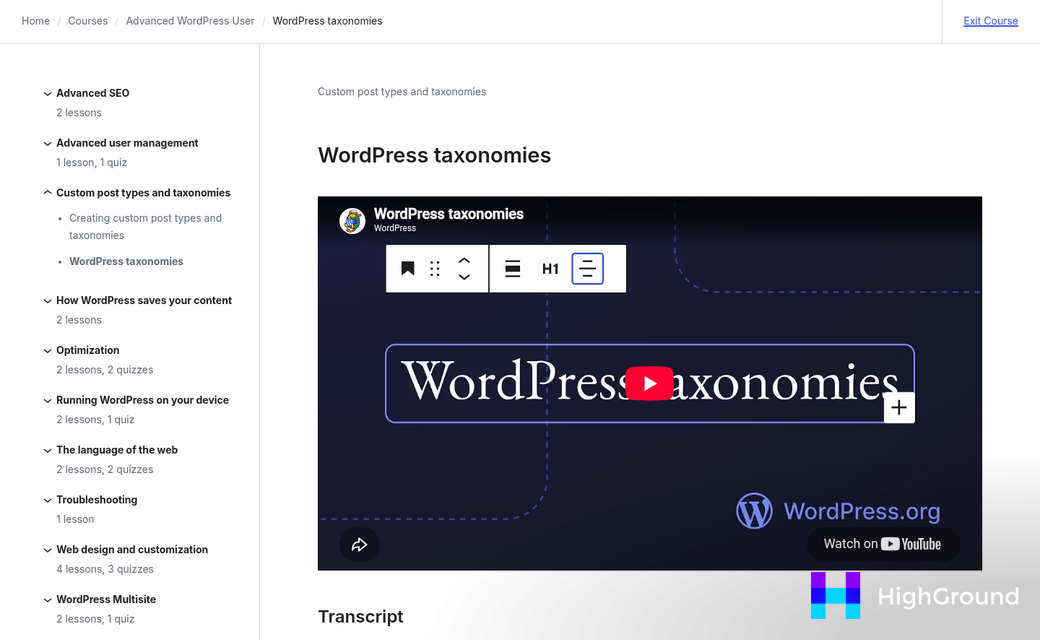
TaxoPress Pro goes further - it integrates directly with OpenAI and IBM Watson to generate taxonomy term suggestions as you write or edit a post. That means you get AI-assisted tagging and category assignment from the same plugin. Because it connects to external AI services, you are going to need API credentials for whichever integration you want to use.
| Plugin | AI Integration | Handles Tags | Handles Categories |
|---|---|---|---|
| AI Autotagger v3.11.1 | Built-in model | Yes | No |
| TaxoPress Pro | OpenAI, IBM Watson | Yes | Yes |
The right choice can depend on what you need to automate. If tags are all you care about and you want an easy install-and-go setup, AI Autotagger gets the job done. If you want to automate your full taxonomy - tags and categories together - TaxoPress Pro is the more capable option.
One thing to keep in mind with any plugin-based strategy: the quality of the output is tied to how well your content is written and structured. A post with a clear focus tends to produce more accurate tag suggestions than one that wanders across a few unrelated topics. That is worth thinking about when automating at scale.
Setting Up an Automated Workflow With n8n
If you want more control than a plugin gives you, n8n is worth a look - it's a no-code automation tool that connects WordPress to an external AI model, which means you're not locked into whatever a plugin decides to give you.
The setup takes around 15 minutes once you know the flow. The basic logic: a trigger watches for new posts, sends the content to an AI model like GPT-4, and then pushes the returned tags or categories back to your WordPress site through the REST API.
How to Set It Up
- Create a free n8n account and start a new workflow.
- Add a WordPress trigger node and connect it to your site using your API credentials.
- Add an HTTP request node to send the post title and body to your chosen AI model.
- Write a prompt that tells the AI to return tags or categories in plain text or JSON format.
- Add another WordPress node to write those tags back to the original post via the API.
- Test the workflow on a draft post and activate it when you're happy with the output.
The prompt you write in step four does the heavy lifting. Be specific about the format you want back, because the next node needs to parse that response cleanly to push it into WordPress without errors.
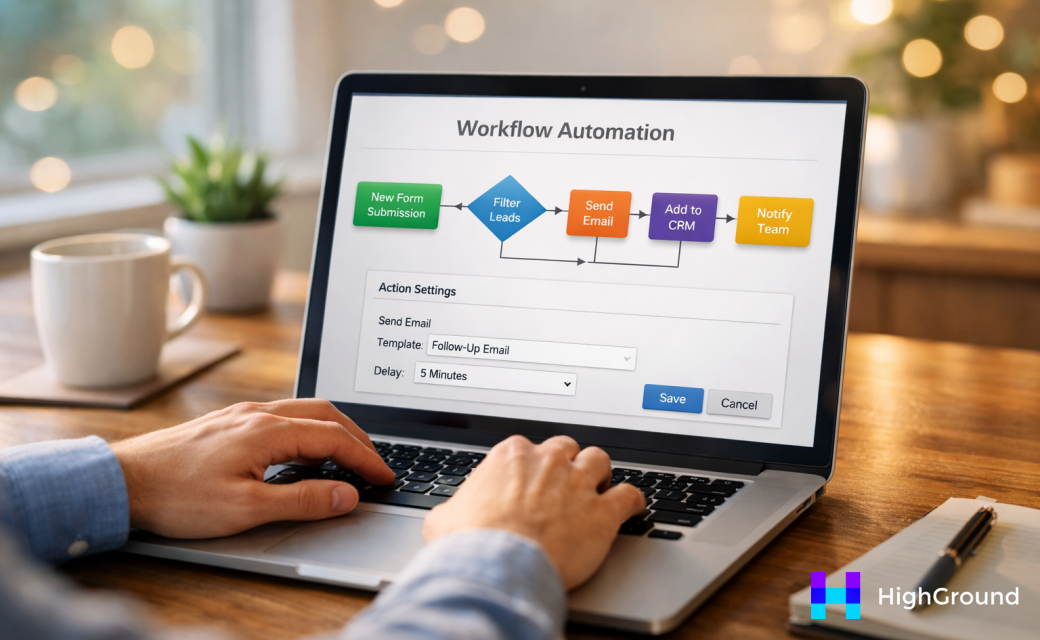
One reason to go this path instead of a plugin is flexibility. You can swap the AI model, adjust the prompt, add extra steps like Slack notifications, or route posts through different logic based on category. A plugin ties you to one workflow; n8n lets you build your own. If you want to see how this kind of setup scales, automating a full WordPress content approval workflow follows a similar logic and is worth reading alongside this.
You also keep your API keys outside of WordPress entirely, which some site owners like from a security standpoint. The AI call happens inside n8n's environment instead of inside your CMS, so there's a cleaner separation between your site and your automation logic. For those who prefer keeping everything inside WordPress, connecting ChatGPT to WordPress via Zapier or Make is another route worth considering.
It does assume some comfort with connecting tools through APIs. But n8n's visual interface makes it far less technical than it sounds.
Bulk Categorizing Old Posts You've Been Ignoring
If you have a backlog of uncategorized posts sitting in your WordPress dashboard, you're not alone. Imagine 82 published blog posts with no tags, no categories, and no way to find them except scrolling; it's the situation where bulk AI tagging goes from a great feature to a genuine time-saver.
Both the plugin strategy and the n8n workflow from the previous section are able to manage bulk jobs. The plugin path is the easier path - most AI tagging plugins let you choose multiple posts and run categorization in one batch from the posts list screen. The n8n workflow takes a bit more setup to loop through posts, but it gives you more control over what the AI does with each one.
Before you run anything on a large batch, take a few minutes to check a couple of things first - it will save you a cleanup headache later.
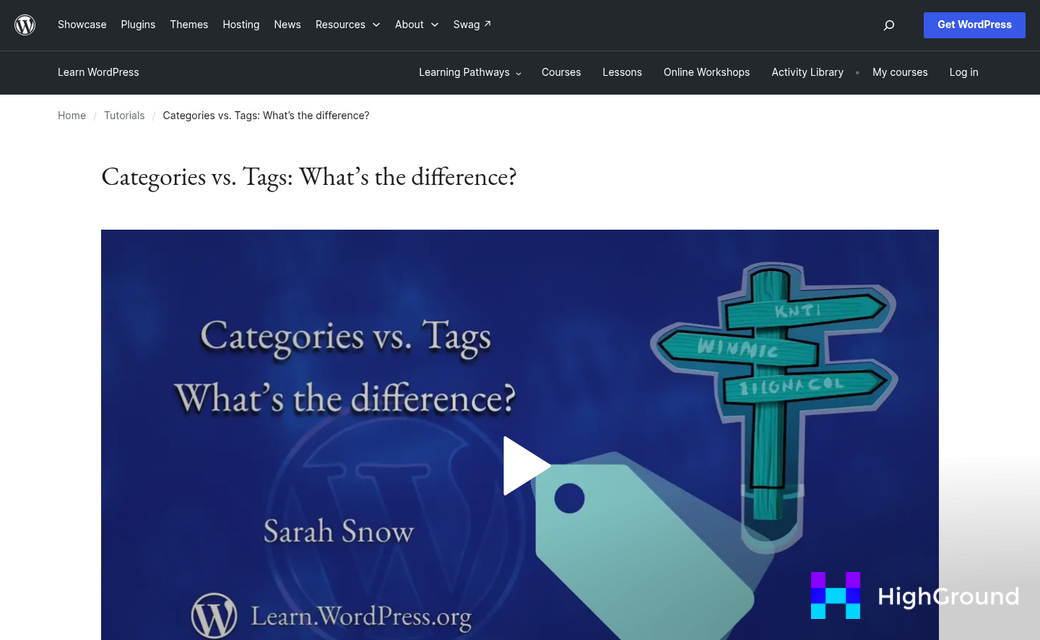
Start by scanning your existing categories for duplicates or near-duplicates. Things like "SEO Tips" and "SEO Advice" can survive in your taxonomy and confuse the AI into splitting posts across them. Then check your post statuses - you probably only want to run bulk tagging on published posts, not drafts that aren't finished yet. Finally, look at whether your existing categories still match the direction of your content, and that's also the case if those older posts are from a different era of your site.
The biggest pitfall with bulk AI categorization on old content is over-tagging. The AI doesn't know that your 2019 post on email marketing was written for a different audience, so it might attach ten tags that technically fit but don't go well with how your site is structured. Set a tag limit in your settings before you run the batch - three to five tags per post is a reasonable cap.
Mismatched categories are the other thing to watch for. An older post might get filed under a category you've since rebranded or retired. A quick check of the assignments before you publish any changes is worth the time, which is what the next section covers. If you're also dealing with outdated URLs inside those old posts, bulk updating broken links before you re-categorize is a smart first step.
Reviewing and Cleaning Up AI-Generated Tags
AI does a good job of tagging posts at scale. But it's not perfect. Before you treat those tags as final, it's worth taking a pass to catch anything that slipped through in a way you didn't intend.
The most common problems to look for are tags that are too broad to be helpful, tags that are so narrow they'll only ever appear on one post, and near-duplicate tags created by slight spelling differences. Think "ecommerce" and "e-commerce" living as two separate tags, or "WordPress Plugin" and "WordPress Plugins" floating around your taxonomy. These fragments can quietly make your tag structure harder to navigate over time.
Tags that are off-topic are less common but do happen. AI tools pull from the language in your post, so if a piece has a passing mention of a loosely related subject, the tool might tag it as though that subject is the main focus. A quick read of the tag list alongside your post title is usually enough to catch these.
WordPress makes the cleanup process fairly painless. The Tags screen under Posts gives you a full list of every tag on your site and a count of how many posts use each one. Any tag with a count of one or two is worth a second look. From there, you can use Quick Edit on individual posts to remove or swap tags without opening the full editor, which saves quite a bit of time if you're working through a backlog.
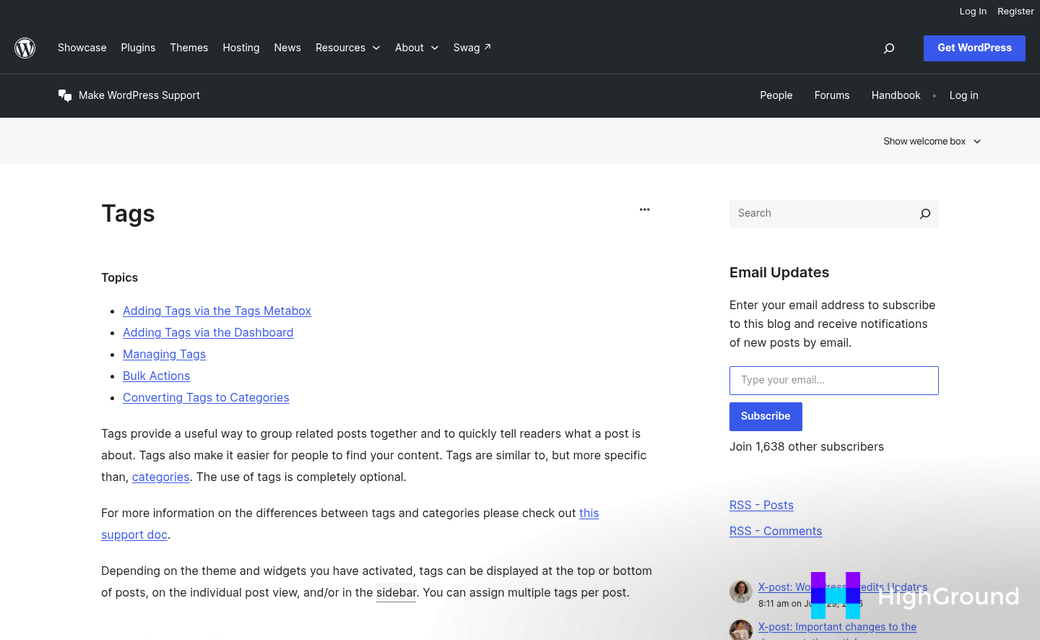
It's helpful to build a short review into your publishing workflow instead of letting tags accumulate unchecked. It doesn't need to be involved - even a two-minute check before hitting publish can keep things clean. If you're also dealing with keyword overlap across posts, that's worth addressing at the same stage.
The Tags screen also lets you merge duplicates by deleting one tag and re-assigning its posts to the correct one - it's a manual step. But third-party plugins like Term Management Tools can speed this up if you have many duplicates to consolidate. For broader site hygiene, broken link checker plugins are worth pairing with tag cleanup if you're doing a full editorial audit.
Your taxonomy will always need some maintenance as your content grows and your topics change. Treating the review process as a standard editorial habit instead of a one-time fix is what keeps it functional.
Keeping Your Taxonomy Consistent Going Forward
Once your tags and categories are in shape, the challenge is keeping them that way. If you don't have a plan, new posts will slowly introduce off-brand tags and your taxonomy will slowly drift into the same mess you just cleaned up.
The best way to stay away from this is to define a controlled vocabulary - a fixed list of approved tags and categories that your site is allowed to use. When you feed this list into your AI prompt alongside each new post, the AI will assign tags from that list instead of inventing new ones - it takes about two minutes to add to your prompt and it can make a difference.
A few easy rules are also worth writing down and sharing with whoever manages content on your site. Keep the tag limit to between three and five per post so things stay focused. Every post should be assigned at least one category before it goes live. Pick a review cadence too - once a month works for most sites to check that nothing new has slipped through.

| Rule | Recommended Setting |
|---|---|
| Max tags per post | 3 to 5 |
| Required categories | At least 1 per post |
| Taxonomy review cadence | Monthly |
| Controlled vocabulary update | Quarterly or as needed |
It also helps to assign one person to own this process. That does not have to be a dedicated role - it can be the editor, the site admin, or whoever already approves posts before they go live. The point is that someone is responsible for it.
Your controlled vocabulary will also need updates over time as your content evolves. Set a reminder to review and expand the approved list every quarter or so. That way the list stays helpful without becoming outdated.
Taxonomy consistency is less about perfection and more about having a shared standard that everyone follows. The structure you build now will hold up quite a bit longer if there's someone watching the door.
Your WordPress Tags Shouldn't Be an Afterthought
That human touch still matters, though. A quick review pass after your AI tool does its job is all it takes to catch the occasional mismatch and keep your taxonomy sharp. Think of it less as a chore and more as a final edit - a small habit that protects the quality of everything you've built.

If you're not sure where to start, don't try to overhaul your entire site at once. Pick one category you care about, or pull ten posts from your archive and run them through your chosen workflow; it's enough to see results, build confidence in the process and choose how far you want to take it. A cleaner, more steady WordPress archive is closer than it probably feels - and once in place, your readers and your rankings will see the difference. If you want to keep the momentum going, learning how to mass schedule or republish old WordPress posts can help you get even more out of a tidied-up content library.
FAQs
What is AI auto-tagging in WordPress?
AI auto-tagging uses artificial intelligence to read your post content and automatically assign relevant tags and categories, replacing the need to do this manually for each post.
Why does inconsistent tagging hurt my WordPress site?
Inconsistent tagging confuses readers looking for related content and makes it harder for search engines to understand your site's structure, weakening your rankings and topic authority.
Which plugins can handle AI tagging in WordPress?
AI Autotagger handles tags using a built-in model with no external API needed. TaxoPress Pro connects to OpenAI and IBM Watson, handling both tags and categories.
How many tags should each WordPress post have?
Three to five tags per post is the recommended limit. This keeps your taxonomy focused and prevents over-tagging, which can make your site structure harder to navigate.
What is a controlled vocabulary and why does it matter?
A controlled vocabulary is a fixed list of approved tags and categories for your site. Feeding this into your AI prompt ensures consistent tagging instead of the AI inventing new terms.