


Here's what changed the calculus: AI Overviews. Google's AI-generated summaries now appear in roughly 87% of searches, and they pull heavily from structured, well-organized content - the content FAQ schema tells to crawlers. Your product page FAQs may no longer trigger a visual rich result in the traditional sense. But they can change whether your store gets cited inside an AI Overview. For e-commerce, that's not a consolation prize; it's a visibility opportunity that most competitors are ignoring.
But writing FAQ schema is tedious. You have to research the right questions, write answers, format valid JSON-LD, and do that for might dozens of product pages. Most store owners skip it because the time cost doesn't feel worth it. AI changes that equation - the work that used to take an hour per page can be done in minutes with the best strategy.
I'll walk you through how to use AI tools to research, write, and implement FAQ schema on your WooCommerce pages - faster, smarter, and in a way that's actually built for how search works in 2026.
Short Summary
To use AI to write FAQ schema for WooCommerce pages, prompt an AI tool like ChatGPT to generate FAQ content relevant to your product or page, then ask it to format the output in JSON-LD FAQ schema markup. Copy the generated schema and add it to your WooCommerce page using a plugin like WPCode or manually via your theme's header. Validate the schema using Google's Rich Results Test to ensure it's error-free before publishing. This helps your pages qualify for FAQ rich snippets in search results.
JSON-LD - The Schema Format Google Actually Wants
There are three ways to add schema markup to a webpage: microdata, RDFa, and JSON-LD. Google supports all three. But it has recommended JSON-LD as the preferred format since 2015.
JSON-LD stands for JavaScript Object Notation for Linked Data. The name sounds more complex than it is. In practice, it's a block of structured code that sits in a script tag on your page and tells search engines what your content means.
The difference between JSON-LD and the other formats comes down to where the code lives. Microdata and RDFa get wrapped around your HTML content, so the markup is tangled up with your headings, paragraphs, and product descriptions. JSON-LD lives separately, usually in the head or footer of the page. That separation makes it much easier to add, edit, or remove without touching your visible content at all.
For WooCommerce users, this matters quite a bit. WooCommerce pages are generated dynamically by templates you are not hand-coding yourself. Getting microdata into those templates would mean editing PHP files and hoping nothing breaks after the next plugin update. JSON-LD can be dropped in as a standalone script block, which is far more helpful and far less likely to cause problems.
It is also worth knowing that JSON-LD does not need to match your on-page text word for word. The questions and answers in your schema can be phrased differently from what appears in your product description. That gives you a bit of flexibility when writing the schema - you can phrase things in a way that reads well in search results without rewriting your whole product page.
Here is what a simple FAQ schema block looks like for a WooCommerce product page - this example has two questions, which is a basic starting point for most products.
<script type="application/ld+json">

{ "@context": "https://schema.org", "@type": "FAQPage", "mainEntity": [ { "@type": "Question", "name": "Does this product come with a warranty?", "acceptedAnswer": { "@type": "Answer", "text": "Yes, this product includes a 12-month manufacturer warranty covering defects in materials and workmanship." } }, { "@type": "Question", "name": "What sizes are available?", "acceptedAnswer": { "@type": "Answer", "text": "This product is available in small, medium, large, and extra-large." } } ]

}

</script>
Each question follows the same pattern: a Question type with a name field for the question text and an acceptedAnswer field containing the Answer type and the answer text. You can add as many question blocks as you need by repeating that structure inside the mainEntity array.
Google does have rules around what makes FAQ schema valid and eligible to show in search results. The questions should be genuine things a customer would ask, and the answers should be informative rather than promotional. Stuffing the schema with marketing language or using it to repeat the same answer multiple times is the kind of thing that gets flagged.
There is also a practical limit to how many questions to include. Google has not published a hard number. But most SEO practitioners find that between two and five well-chosen questions perform better than a long list of filler. You want to answer pre-buy questions - shipping times, compatibility, return policies, sizing - not to pad out the schema for its own sake.
The format itself is simple enough that writing it manually is easy. But doing it manually for every product in a WooCommerce store is time-consuming, and small syntax errors like a missing comma or an unclosed bracket will break the whole block. That is where AI tools for generating WordPress schema markup can become helpful.
| Schema Format | Where the Code Lives | Easy to Edit Without Touching HTML | Google's Preferred Format |
|---|---|---|---|
| JSON-LD | Separate script block | Yes | Yes |
| Microdata | Wrapped around HTML content | No | No |
| RDFa | Wrapped around HTML content | No | No |
JSON-LD is the format you want to use, and it's the format AI tools generate well when given the right instructions.
Validating AI-Generated Schema Before Adding It to Your Store
Once you have your schema output from the AI, it can be tempting to paste it straight into your store and move on. Don't do that yet. Taking a few minutes to check the output now can save you from broken markup sitting on live product pages.
AI tools are good at generating structured data. But they do make mistakes. The most common problems are mismatched or missing curly braces, extra commas at the end of arrays, and duplicate property names inside the same block. These are easy to miss when reading through raw JSON. But they'll cause the schema to fail silently or get flagged by Google.
The Two Tools Worth Using
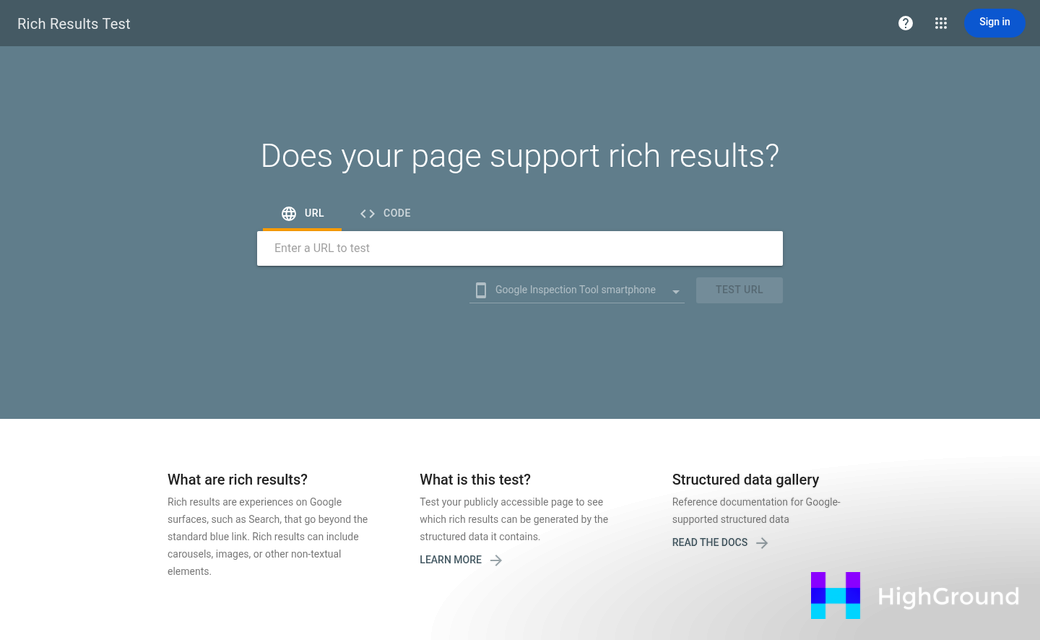
Google's Rich Results Test is the best place to start. You can paste your code directly into the tool and it will tell you if the schema is valid and if the FAQ format qualifies for rich result display in search. That second part matters because not all valid schema will show up as expanded results on Google.
The Schema.org Validator is a second check - it focuses on whether your markup follows the correct Schema.org structure instead of Google's display requirements. Both tools together give you a fuller picture of what's working and what needs a fix.
What the Validators Are Looking For
When you run the schema through either tool, you'll see one of a few results. The schema passes with no warnings, it passes with warnings, or it throws errors that stop it from being read at all. Errors need to be fixed before adding anything to your store. Warnings are worth looking over but won't necessarily stop the schema from working.
Here's a quick comparison of what you'll see when things are working versus when something is broken.
| Status | What the Tool Shows | What It Means |
|---|---|---|
| Valid | Green checkmark, FAQ item count detected | Schema is structured correctly and eligible for rich results |
| Warning | Yellow flag, property note | Schema may work but has a non-standard or deprecated property |
| Error | Red flag, line number highlighted | Malformed JSON or missing required field - schema will not be read |
| Not eligible | Valid JSON but no rich result preview | Schema parses correctly but doesn't qualify for Google's FAQ display |
Common AI Mistakes to Fix Before You Go Live
Malformed brackets are the most common problem. AI sometimes closes a JSON object one bracket too early or can add a trailing comma after the last item in an array, which makes the whole block invalid. A free JSON linter like JSONLint can show where the problem is if the validator output isn't enough.
Also watch for questions that don't actually match your page content. If you prompted the AI with general product facts and it generated answers about features or policies you don't have, those answers need to go. Google's quality guidelines for structured data state that FAQ schema should match content that legitimately appears on the page, so fabricated or off-topic answers can work against you. If you want a more structured approach, building an AI-powered FAQ section in WordPress covers how to keep questions grounded in real page content.
Duplicate property names inside the same schema block are also worth checking manually. Some AI outputs will repeat an acceptedAnswer field or accidentally generate two @type declarations in the same object. Validators will sometimes catch this. But not necessarily - so a quick read-through of the raw output is still helpful.
A Quick Accuracy Check Before You Validate
Validation tools check structure - not accuracy. A schema can pass every technical test and still have wrong information. Before you run anything through a validator, read through each question and answer to make sure the content matches what your product page actually says. Check prices, shipping details, return windows, and any compatibility claims against your live page copy.
This part takes two or three minutes per page and it's worth doing. Structured data that contradicts your page content can create trust problems with shoppers who see a great-looking search result that doesn't match what they find when they click through.
Once the schema passes validators and the content checks out against your page, it's ready to add to your store. The next section covers how to do that using a plugin inside WooCommerce. Tools like Rank Math's AI features can also help you manage and verify structured data directly inside WordPress.
Quick Wins and What to Watch as You Build Out Your Schema
It is also worth keeping the bigger picture in mind. Google's AI Overviews pull structured, conversational content to build their answers, and well-formed FAQ schema is the signal that feeds that system. Treat your FAQ markup as content for AI to take and surface - not an easy click-through-rate trick, and you'll be on the right side of where search is heading. If you want to go deeper on this, see our guide on optimizing WordPress content for AI Overviews.
If you are ready to move forward, it is easy to start:
- Pick two or three of your highest-traffic WooCommerce product pages.
- Gather the real questions customers ask about each one.
- Run them through your AI tool of choice using the prompting approach outlined above.
- Validate the output in Google's Rich Results Test.
- Deploy and monitor your Search Console performance over the next four to six weeks.
Small, focused rollouts are easier to measure and improve. Once you see what works on those first few pages, you can scale the process across your full catalog.
FAQs
What is FAQ schema and why does it matter?
FAQ schema is structured code that tells search engines what your content means. It can help your WooCommerce pages get cited in Google's AI Overviews, which now appear in roughly 87% of searches.
Why does Google prefer JSON-LD over other schema formats?
JSON-LD lives in a separate script block, making it easy to add or edit without touching your HTML. Google has recommended it as the preferred schema format since 2015.
How many FAQ questions should I include per page?
Most SEO practitioners recommend two to five well-chosen questions. Focus on pre-buy questions like shipping, compatibility, and returns rather than padding the schema with filler.
How do I validate AI-generated FAQ schema before publishing?
Use Google's Rich Results Test to check validity and rich result eligibility. The Schema.org Validator offers a second check for correct markup structure. Fix any errors before going live.
Can AI-generated schema contain inaccurate information?
Yes. Validation tools check structure, not accuracy. Always review each answer against your live product page to confirm prices, policies, and product details are correct before publishing.