


A weak featured image does damage - it's the first visual signal readers get - in RSS feeds, social shares, and search results - and a forgettable one tells readers to keep scrolling. Getting this right has always required either a budget, a designer, or spare time.
AI image generation has moved fast enough that this is no longer a given. HubSpot found that 58% of designers use AI tools for imagery, and the technology has matured to the point where WordPress site owners without any design background are making usable, professional-looking featured images in minutes. The workflow has legitimately changed.
That said, not every strategy produces results, and there are dangers worth learning about before following a tool or a process. This post covers how AI image generation fits into a helpful WordPress workflow, what actually tends to work when generating featured images, and where things go wrong - so you can make better decisions before your next publish deadline.
Short Summary
AI-generated featured images work best in WordPress when using tools like DALL-E, Midjourney, or Stable Diffusion to create custom visuals that match post content. Plugins such as AI Image Generator or integration via API automate the process. Abstract, illustrative, and concept-based images tend to work well, while realistic human faces often look unnatural. Best practices include maintaining consistent style across posts, optimizing file sizes for performance, and reviewing AI outputs before publishing to ensure relevance and quality. Always check licensing terms, as usage rights vary by platform.
Why Featured Images Still Drive Traffic More Than People Think
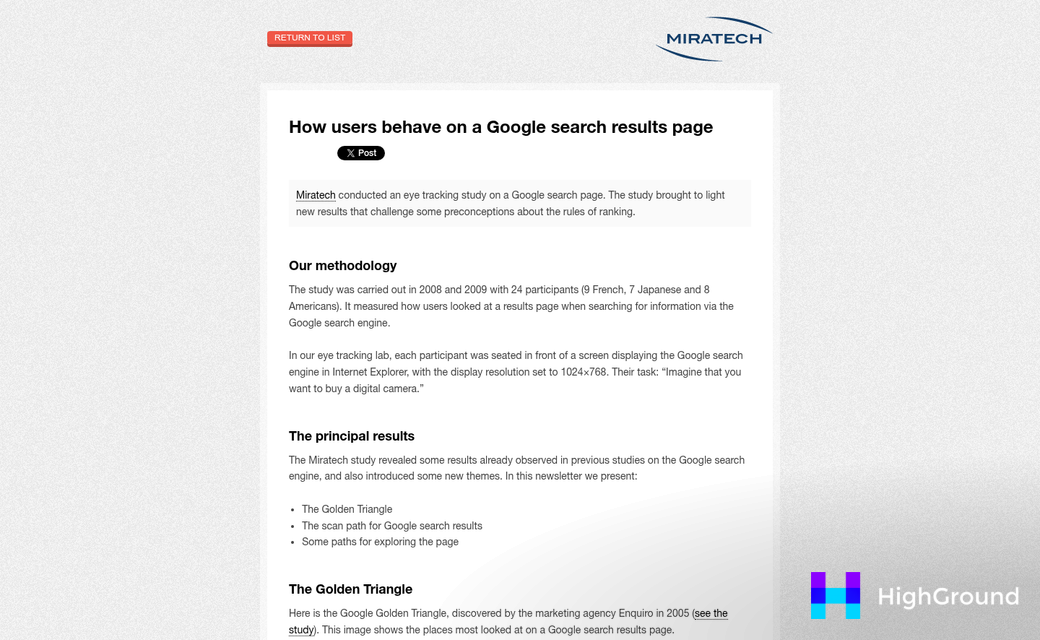
There is a well-cited stat that blogs with relevant images get 94% more views than the ones without. That is not a rounding error - it's nearly double the traffic, and it holds up across content types from tutorials to news articles.
The featured image is doing quiet work. When someone shares your post on social media, the featured image is what fills the preview card. When your post appears in a Google Discover feed, the featured image is the first thing a reader sees before a single word of your content - it's also the first visual on your page itself, which shapes whether they have landed in the right place.
Reader trust is a factor here. A featured image that fits the content tells readers that you put thought into the post - it sets a tone. An image that feels random or disconnected does the opposite - it gives you a small second of doubt that can be enough to send them back to the search results.
Stock photos present their own problem. An image of two shaking hands in front of a laptop does not help a reader understand what your post is about or why they should read it. Generic visuals blend into the background and lose the chance to create any connection with the content.
A missing featured image is even worse for distribution. Social platforms pull the featured image to build the link preview, so without one you get a blank card or a random image scraped from the page. That gets far fewer clicks than a post with a strong visual attached.
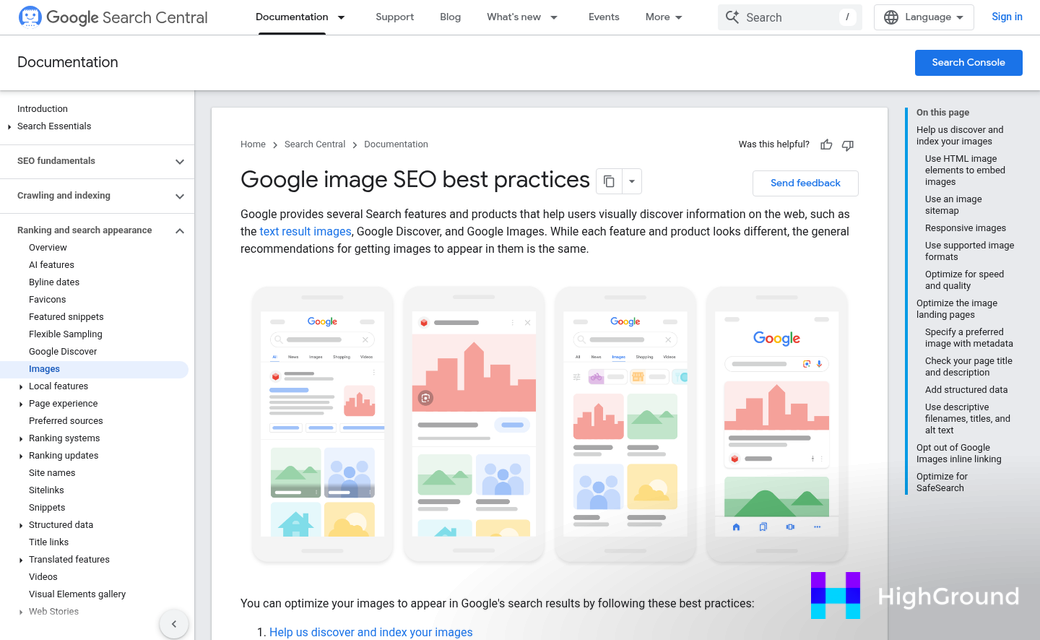
SEO is part of this too. Google uses featured images in rich results and in the image tab, both of which can pull extra traffic to a post. An image with a descriptive file name and alt text can add another small signal that the content is relevant and well-organised.
Featured images are not decoration. They are a functional part of how your content gets found, shared, and trusted, and getting them right on every post matters more than most people factor into their publishing workflow.
How AI Image Generation Actually Plugs Into WordPress
There are two main ways to bring AI-generated images into WordPress: generate them inside the platform via a plugin, or create them in an external tool and upload them manually. Both work, and the right one can depend on how your workflow is already set up.
WordPress.org now hosts over 1,400 AI-related plugins, and a growing slice of them manage image creation or insertion. Some connect directly to generators like DALL-E or Stable Diffusion through an API key you paste into the plugin settings. Once that's connected, you can type a prompt and generate an image without leaving the block editor.
The in-WordPress path is faster for day-to-day publishing. You write your post, know you need a featured image, and generate one right there in the sidebar. The image usually lands in your media library automatically, so it's ready to set as the featured image in one click. That convenience matters when you're moving through a content calendar and don't want to break your flow.
The external workflow looks different. You go to a tool like Midjourney, Adobe Firefly, or the DALL-E interface on OpenAI's site, generate the image there, download it, and then upload it to WordPress the same way you'd upload any photo. It can add steps, but these tools give you more creative control and better output for certain styles.
Here is a rough comparison of paths:
| Approach | Where You Generate | Steps to Featured Image | Best For |
|---|---|---|---|
| Plugin-based | Inside WordPress | Prompt → generate → set | Fast publishing workflows |
| External tool | Outside WordPress | Prompt → generate → download → upload → set | More control over style and quality |
API-based plugins do need an active account with the AI provider, and most charge per image generated or per API call, so it's worth checking those costs before choosing a provider that runs on usage fees.
For site managers taking care of multiple authors, the plugin path also makes it easier to standardize how images get created and named before they hit the media library. That alone can save cleanup work later - and pairs well with a broader strategy for bulk replacing images across WordPress posts.
Prompt Writing That Gets Usable Featured Images
Prompting for a featured image is a different job than prompting for standalone art. The image has to work at multiple sizes, fit a wide horizontal crop, and match the tone of the post it represents; it's a bit to ask, and most generic prompts don't get there on the first try.
Specificity is the single biggest factor in getting something usable. A prompt like "technology image" will produce something generic and hard to crop. A prompt like "flat lay of a laptop and notebook on a white desk, wide composition, soft shadows, minimal background" gives the generator enough to work with. Think about what you actually need the image to communicate, then describe that.
Style descriptors help quite a bit too. Words like "editorial," "minimalist," "photorealistic," or "illustrated" steer the output toward a look that fits your site. If your blog has a clean, professional feel, a prompt without style input might produce something too busy or too artistic to match.
Layout language is worth adding to almost every prompt. Phrases like "wide banner format," "centered subject with empty space on sides," or "low-detail background" help produce images that crop well and leave room for post titles when needed. Most AI tools don't automatically think in terms of WordPress header dimensions, so you have to guide them. Editing your pipeline prompts is one way to build these layout instructions in permanently so you're not rewriting them each time.
Matching the Prompt to Your Post Type
How-to posts tend to work well with clean, object-focused images. A prompt that shows the relevant tool, ingredient, or interface - with a simple background - tends to produce something that reads at thumbnail size. Opinion posts can go a little more abstract. A conceptual or atmospheric image can go well with tone without needing to show anything literal. Product roundups usually need something that feels like a category without featuring a brand, so prompts like "collection of everyday tech accessories on a neutral surface" tend to land better than anything product-specific.
Prompts go wrong in one of three places. The first is being too vague and producing a generic result. The second is over-describing and producing a cluttered image that doesn't scale down well to a small thumbnail. The third is forgetting the crop - portrait-oriented or heavily centered compositions don't work for featured images without awkward cropping.
It takes a few attempts to find the phrasing that works for your content type. But once you have a formula that produces results, you can reuse and adapt it across posts. If you're running this at scale, auto-writing blog posts with AI can pair well with a consistent image prompting approach to keep your workflow moving.
What AI Gets Wrong With Featured Images (And How to Catch It)
Even with a well-written prompt, AI image generators produce bad results all the time. The core reason is simple: the model never reads your post - it works from a short text string, and it fills in the gaps with whatever patterns it was trained on. That difference between your content and the model's interpretation is where things go wrong.
Text inside images is one of the most reliable failure points. Ask an AI to generate an image with a word or phrase in it and you'll usually get garbled, unreadable characters - this happens because AI image models don't generate language the way a text tool does - they render letter-like shapes that look plausible from a distance but fall apart up close. The fix is to keep text out of your prompts entirely and add any words or titles in WordPress or your image editor afterward.
Faces and hands are another weak point. A portrait-style image might look fine at thumbnail size, but zoom in and the faces look wrong in ways that are hard to describe but easy to see. If your post calls for a human subject, it's worth generating a few versions and looking at each one before you commit.
The subtler problem is thematic mismatch. An image can be technically fine-looking but still feel disconnected from the post it represents - this tends to happen when a prompt describes a surface-level concept instead of the angle of the post. A post about recovering from burnout is not the same as a post about workplace stress, but a vague prompt will treat them identically.
It's helpful to remember what a reader sees in one or two seconds when your post appears in a search result or a social share. The featured image has to communicate something about the content in that moment. If it could belong to a dozen other posts on the same topic, it's not doing its job. Tools that auto-update posts and pages with AI can help keep your content and visuals aligned over time.
| Common Problem | Why It Happens | How to Fix It |
|---|---|---|
| Garbled text in image | AI models struggle with typography | Remove text from prompt; add text in editor |
| Wrong aspect ratio | Default output doesn't match WordPress crop | Specify dimensions or crop in prompt/settings |
| Generic or mismatched feel | Vague prompt with no style direction | Add tone, style, and subject specifics to prompt |
Copyright, Licensing, and What You Actually Own
The legal side of AI-generated images is legitimately unsettled right now. As of 2026, copyright law in most countries has not caught up with AI-generated content and courts are still working through what ownership even means in this space.
Who owns an AI-generated image can depend on the tool. Some places grant you full commercial rights to anything you generate. Others limit rights or restrict how you can use the output. A few tools produce images that fall into a legal grey area where no ownership is assigned to anyone.
This matters quite a bit for WordPress sites that run ads, sell products, or earn affiliate income. Using an AI-generated image on a monetized blog counts as commercial use and the laws around that can vary between tools.
Why Tool Policies Are Worth Reading
Most skip the terms of service. That is understandable. But for featured images on a public, monetized site, the licensing terms are worth at least a quick look. Some tools include a clause that lets them use your generated images in their own training data, which may or may not bother you but is worth learning about.
The policies also can vary on attribution. A handful of tools ask that you credit them when you publish images, and ignoring that requirement could put you in breach of your license agreement. If you run an affiliate program or monetize through partnerships, understanding these boundaries matters even more.

The rights you have to the images in your media library depend on where they came from. If you generated them through a free tier or a lesser-known tool, it's worth going back to check. Paid plans and business tiers tend to have clearer commercial rights but free tools can be more restrictive.
There is also the question of whether copyright law changes. Several countries are actively working on new legislation around AI-generated content and what is allowed now might not stay allowed. Keeping a record of which tool you used to generate each image is a small habit that could save problems later if policies or laws change. Adding an auto watermark to your images in WordPress is one practical step toward establishing a clear record of your published assets.
The safest strategy is to treat each tool as having its own rulebook and read that rulebook before you publish.
Before You Generate Your Next Featured Image
Before you generate and upload your next featured image, run it through this quick mental checklist:
- Does the image reflect the actual topic of the post - not just something vaguely related?
- Is the style consistent with the rest of your site's visual identity?
- Have you confirmed the licensing terms for the tool you used?
- Does it look clean at thumbnail size, not just full-width?
If you can check those four boxes, you're in better shape than most publishers. The goal was never to make this a big production - it's a small, repeatable habit that compounds over time.
FAQs
What percentage of designers use AI tools for imagery?
According to HubSpot, 58% of designers now use AI tools for imagery, reflecting how mainstream AI image generation has become across the design industry.
How do AI-generated images integrate with WordPress?
There are two main methods: using a WordPress plugin that generates images directly inside the editor, or creating images in an external tool and uploading them manually. Plugins offer speed, while external tools offer more creative control.
Why does AI struggle with text inside generated images?
AI image models generate letter-like shapes based on visual patterns rather than actual language, producing garbled, unreadable text. The fix is to remove text from your prompt and add any words using WordPress or an image editor afterward.
Do you own the copyright to AI-generated featured images?
It depends on the tool. Some grant full commercial rights, others restrict usage, and some fall into legal grey areas. Always check the licensing terms before publishing AI-generated images on a monetized WordPress site.
What makes a good AI prompt for a featured image?
Specificity is key. Include style descriptors like "minimalist" or "editorial," layout guidance like "wide banner format," and a clear subject. Avoid vague prompts and over-describing, which produces cluttered images that don't scale well to thumbnail size.

