


AI-powered alt text generation changes that equation. Instead of manually describing each image, you can automate the process directly inside WordPress, generating descriptive, contextually relevant alt text the second an image is uploaded. The technology has matured to a point where the output is legitimately helpful - not just a string of generic keywords.
This guide will talk about how to set it up. I'll talk about which tools and plugins make this possible, how to configure them for your site, and how to fine-tune the results so the generated alt text actually meets your standards - not just a checkbox requirement, but something that serves your readers and search engines alike.
Short Summary
To set up AI-powered image alt text generation in WordPress, install a plugin like Alt Text AI, Imagify, or EWWW Image Optimizer that includes AI alt text features. After installing and activating the plugin, connect it to your API key if required, then configure the settings to automatically generate alt text for new uploads or bulk-process existing images. Some plugins integrate directly with OpenAI or similar services. Once configured, the plugin will automatically analyze images and generate descriptive, SEO-friendly alt text, saving manual effort and improving accessibility.
Why Alt Text Still Matters More Than Most WordPress Users Realize
Alt text does three jobs at once: it tells screen readers what an image shows so visually impaired users can access your content, it gives search engines something to index because they can't interpret images the way humans do, and it can be a fallback when an image fails to load, so your page still makes sense.
That last point gets ignored quite a bit. A broken image with no alt text just leaves a blank space and a confused visitor. A broken image with alt text still communicates something helpful.
On the SEO side, alt text is one of the few direct ways to connect your images to the keywords you want to rank for. Google has been open about using alt text to understand image content for standard search and Google Images. Skipping it means leaving that opportunity on the table.
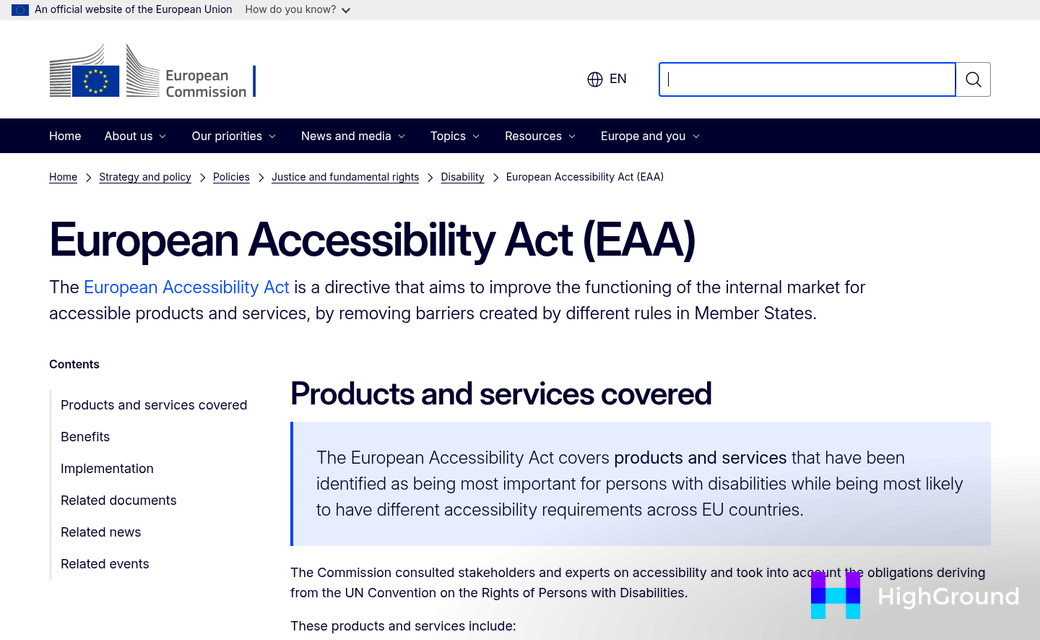
The accessibility side carries more weight now than it did even a year ago. The European Accessibility Act came into effect on June 28, 2025, and it sets requirements for online accessibility across businesses operating in EU markets - not a distant or theoretical obligation for WordPress site owners with any European audience.
In the US, ADA-related web accessibility legal complaints have been filed against businesses of all sizes, from small retailers to large businesses. Missing alt text is one of the most cited problems in those cases. Courts have usually treated websites as public accommodations, which means accessibility standards can apply even to purely online businesses.
Consider what a visually impaired visitor would actually experience on your site. A screen reader moves through your page and reads alt text aloud in place of each image. If that text is missing, the reader might say something like "image" or read out a raw file name like "IMG_4872.jpg," which is not helpful to anyone.
The difference between sites that manage this well and sites that don't is harder to ignore. Good alt text has always been the right thing to do, and now there are legal and search-related reasons to take it seriously alongside the human ones. If you're managing this at scale, bulk updating alt text across your WordPress images can save significant time.
Comparing AI Alt Text Plugins Available for WordPress
There are a handful of AI alt text plugins in the WordPress ecosystem right now, and they each take a slightly different strategy. The table below gives you a quick side-by-side view before we dig into what sets them apart.
| Plugin | Free Tier | Paid Pricing | Standout Feature |
|---|---|---|---|
| AltText.ai | Limited credits | Paid plans vary | 20,000+ installs, 4.7-star rating |
| AI Alt Text Generator | 50 images/month | Paid plans vary | WCAG 2.2, ADA, EAA compliant |
| AI Image Alt Text Generator for WP | Varies | Paid plans vary | 150+ language support |
| AutoAlt.ai | 50 credits/month | From €19/month | Simple free entry point |
AltText.ai is the most established option in this space. With over 20,000 active installs and a 4.7-star rating on the WordPress plugin directory, it has a proven track record. One thing worth learning about is that SVG and AVIF files cost 2 credits each to process, so if your media library leans heavily on those formats, your credits will go faster than you might plan for.
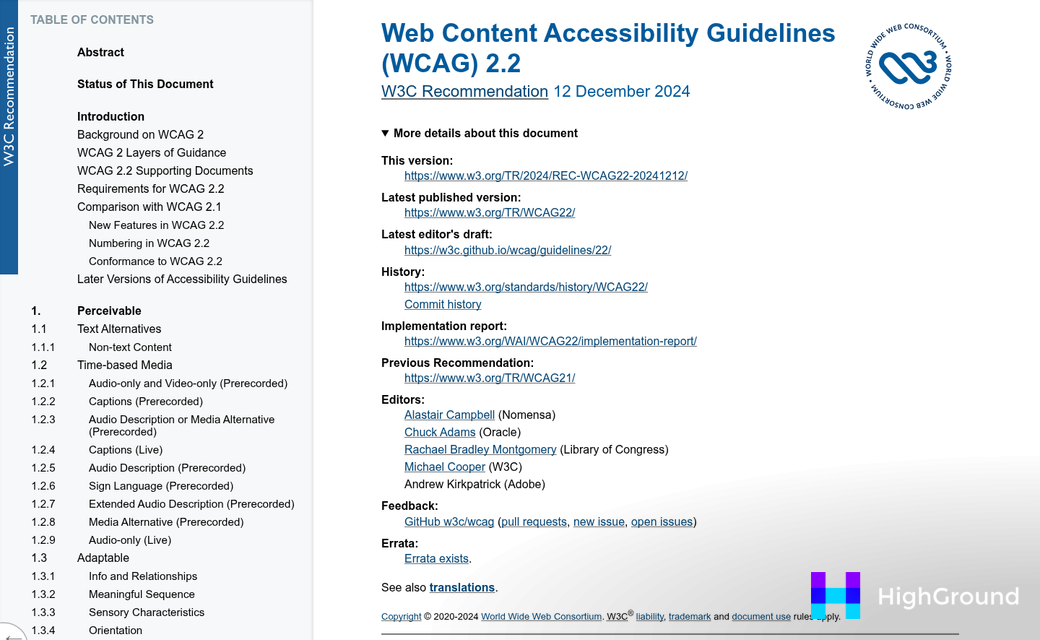
AI Alt Text Generator is the one to look at if accessibility compliance is a priority - it explicitly targets WCAG 2.2, ADA, and European Accessibility Act standards, which matters quite a bit for anyone running a site that needs to meet legal requirements. The free tier covers 50 images per month, which is a basic amount to test the quality before you commit.
AI Image Alt Text Generator for WP takes a very different angle. Its headline feature is support for over 150 languages, which makes it a strong fit for multilingual sites or international audiences. If you publish content in more than one language, it deserves a look. You might also find it pairs well with tools that can auto-create images for posts with AI so your entire image workflow stays consistent.
AutoAlt.ai keeps things easy. You get 50 free credits per month to start, and paid plans begin at €19/month - it does not have the install numbers that AltText.ai does. But the low-cost entry point makes it easy to test on a live site without a financial commitment.
The differences come down to scale, compliance needs, and language support rather than which one has the most features on paper. If you are managing images across many posts, it is also worth looking at how to bulk update content across your entire WordPress site to keep everything in sync.
How to Choose the Right Plugin for Your Site's Needs
Now that you've seen the options side by side, a few helpful questions can help you find the right fit for your situation.
Start with your image volume. If you upload a handful of images per month, almost any plugin will work fine and cost won't be a factor. But if you're running a large e-commerce store or a media-heavy blog, the numbers add up and you'll want to look at how each plugin works with high-volume pricing.
AI Alt Text Builder runs on GPT-4.1-mini and uses one token per generation; it's worth learning about if you're processing hundreds or thousands of images because the cost stays low and predictable. Some other plugins charge more per image or bundle credits in ways that make it harder to forecast your monthly spend.
It's also worth checking which file formats are included in the base price. SVG and AVIF files cost extra credits on some plugins, so if your workflow includes those formats, factor that in before you commit.
Next, think about language. If your site serves visitors in multiple countries, you'll want a plugin that can generate alt text in more than one language. Not all of them can do this natively, so it's an important filter if multilingual support matters to you.
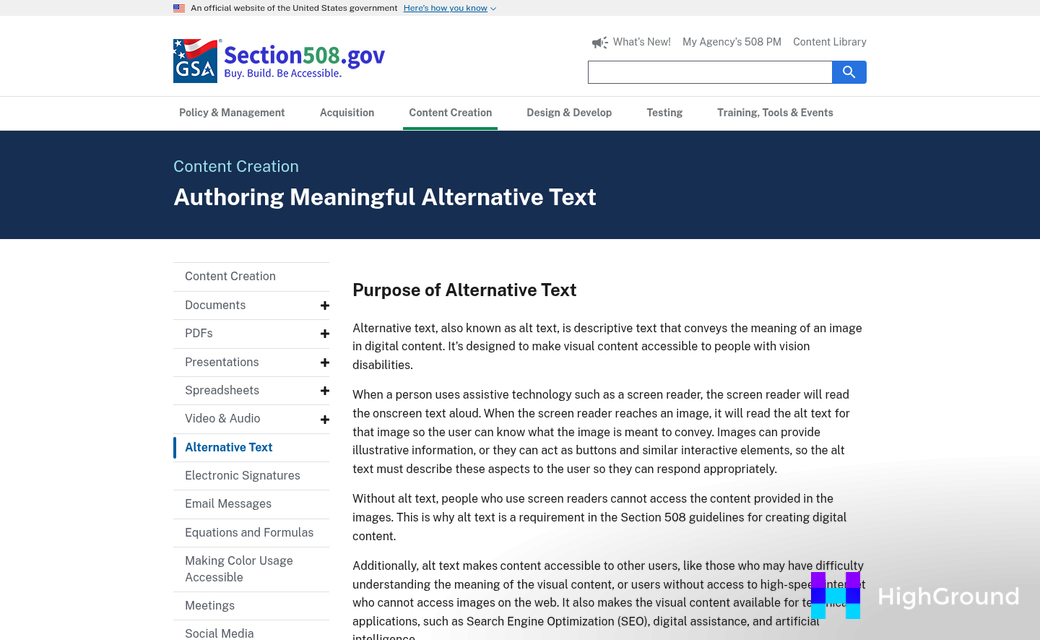
For businesses that need to meet accessibility standards like the ADA or the European Accessibility Act, the stakes around alt text are higher than they are for a personal blog. You'll want a plugin that generates descriptive, context-aware text instead of a generic label. Check if the plugin has the ability to review or edit the generated text before it goes live - similar to how you might edit pipeline prompts to refine AI output in other workflows.
Finally, think about your technical comfort level. Some plugins connect directly to an API and give you more control, and others are more hands-off and automated. Neither approach is better - it depends on how much you want to be involved in the process. If you're interested in deeper API-level control, it's worth reading about using the Claude API with WordPress for automated content.
Run through those questions and the right plugin tends to become clear. Volume, language, compliance needs, and AI plugins that handle content enrichment are the filters that matter most for most sites.
Step-by-Step Setup for AI Alt Text Generation in WordPress
Once you've picked your plugin, the setup is easy. Most AI alt text plugins follow the same basic flow, so these steps will apply whether you're using AI Alt Text, AltText.ai, or something similar.
Install and Activate the Plugin
Go to your WordPress dashboard and navigate to Plugins, then Add New. Search for your chosen plugin by name, click Install Now and then Activate. That gets the plugin into your site - but it won't do anything helpful yet.
Connect Your API Key
Most AI-powered plugins use an external API to generate descriptions, so you'll need to grab an API key from the provider's website. Once you have it, paste it into the plugin's settings page - usually found under Settings in the sidebar or inside its own dashboard menu item. Not sure which AI provider to use? You can choose your AI provider before getting started. Don't skip this step - without the key, the plugin won't generate anything.
Configure Your Automation Settings
Don't rush through and regret it later. Look for two key toggles: one for processing images on upload and one for bulk processing your existing media library. Turn on the upload option first so new images get alt text automatically. Then choose if you want to run bulk processing on older images - it will take time depending on library size. But it's worth doing.
A common mistake here is leaving bulk processing switched off and wondering later why hundreds of existing images still have no alt text. If you're doing a broader content cleanup, it may also be worth bulk replacing images across your WordPress posts at the same time.
Set Your Language Output
Many plugins let you choose which language the generated alt text appears in. If you forget to set this, you might end up with English alt text on a site built for another audience. Find the language dropdown - it's usually in the same settings panel - and set it before you run any processing.
Test With a Sample Image
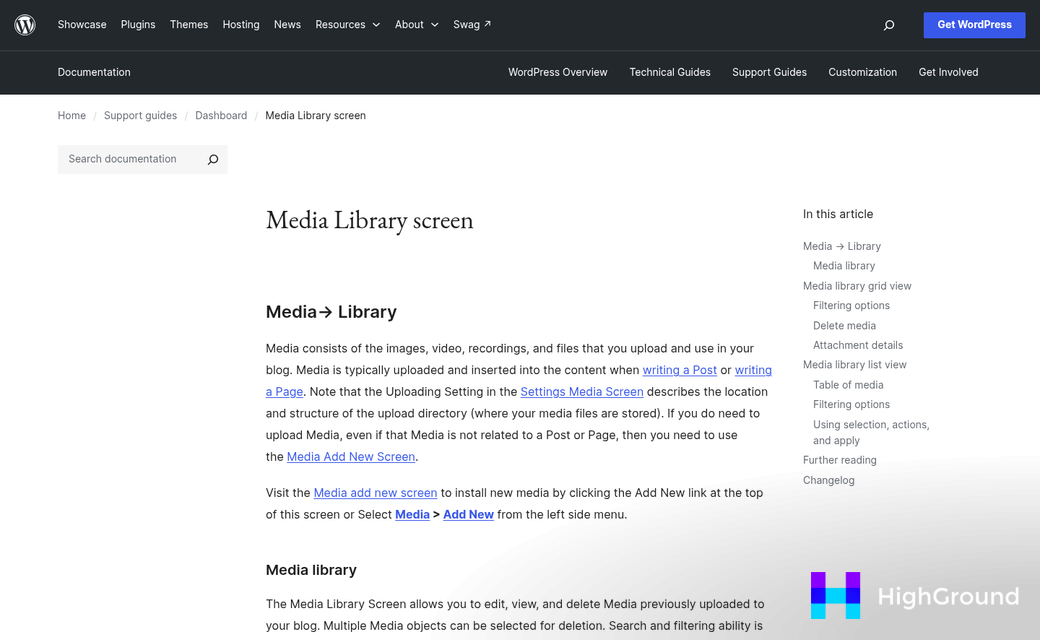
Upload a simple image and check the Media Library to see what the plugin generated. Look at the alt text field and see if it accurately describes the image. If the output looks off or too vague, dig back into the settings - some plugins let you adjust the description style or level of detail. For broader SEO wins while you're at it, consider automating your SEO and meta fields with AI across the site.
One test image tells you quite a bit about whether everything is connected and working as expected.
Make Every Image Count Without the Manual Work
Now is a great time to turn that same system toward your existing content. Use the bulk-processing options covered earlier to scan your media library for images with missing or placeholder alt text. Even a partial audit of your most-visited pages matters for screen reader users and search visibility alike.
One habit worth keeping: give the generated alt text a quick look for images that carry nuance - product photos with fine detail, infographics, or anything culturally sensitive. AI does the heavy lifting reliably. But a quick human review on tough visuals guarantees that the description actually serves your audience instead of just filling a field. Think of it as a partnership instead of a handoff.
Accessibility done well is about making sure every visitor, regardless of how they experience the web, gets the full picture. With the right tools running on your WordPress site, that goal is well within reach.
FAQs
What does AI-powered alt text generation do in WordPress?
AI-powered alt text generation automatically creates descriptive, contextually relevant alt text for images the moment they are uploaded to WordPress, eliminating the need for manual descriptions.
Why is alt text important for WordPress sites?
Alt text supports screen reader accessibility, helps search engines index images, and provides a fallback when images fail to load. It also helps meet legal requirements like the ADA and European Accessibility Act.
Which AI alt text plugin is best for multilingual sites?
AI Image Alt Text Generator for WP supports over 150 languages, making it the strongest choice for multilingual or internationally-focused WordPress sites.
How do I set up an AI alt text plugin in WordPress?
Install and activate your chosen plugin, connect your API key, configure automation settings for new uploads and bulk processing, set your language output, then test with a sample image.
Should I review AI-generated alt text manually?
Yes, especially for nuanced images like product photos or infographics. AI handles routine descriptions reliably, but a quick human review ensures accuracy for visually complex or culturally sensitive content.