

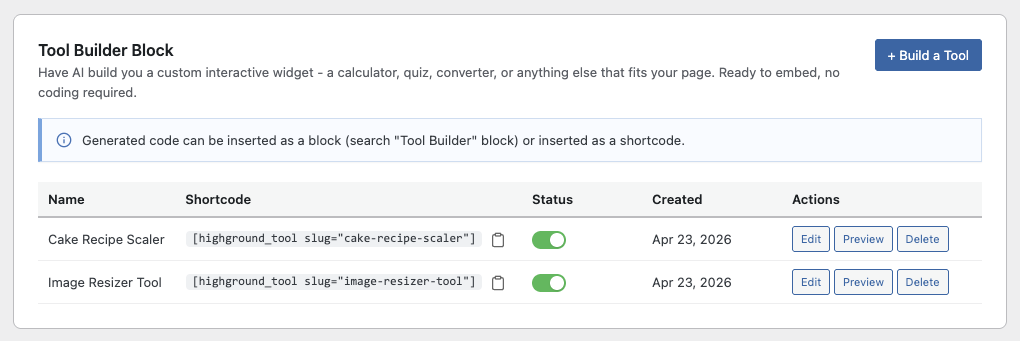
To use Tool Builder, go to HighGround settings, then click the Blocks tab and find the Tool Builder Block card at the top.
Tool Builder lets you describe a simple interactive widget in plain English and have AI generate it as ready-to-embed HTML, CSS, and JavaScript. It's designed for the kind of small, single-purpose "page tools" that drive traffic and engagement: tip calculators, BMI calculators, quizzes, unit converters, mortgage estimators, color pickers, interactive forms, countdown timers, and anything similar. Tool Builder shipped in v1.27.0.
Building a New Tool
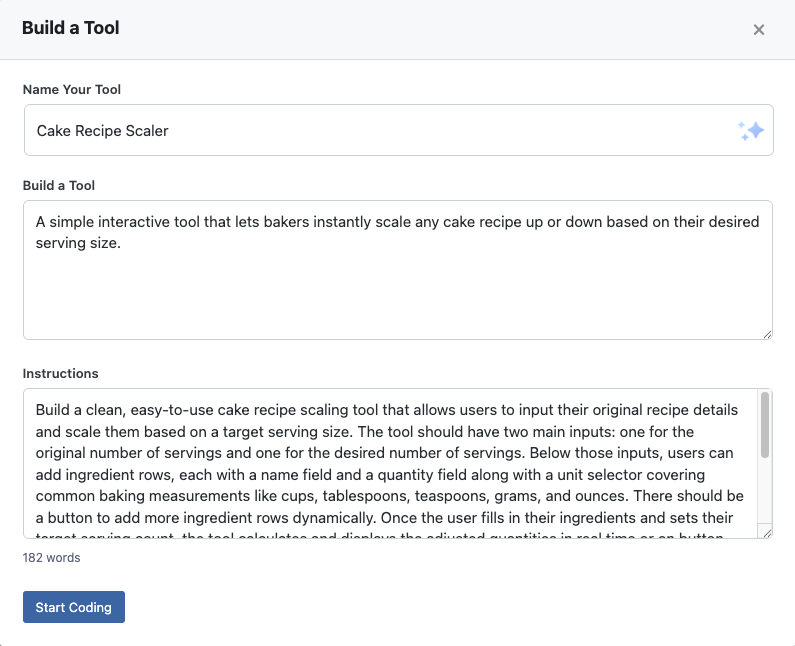
Click + Build a Tool to open the builder modal. You'll fill in three fields.
- Name - A short label for the tool, like "Tip Calculator" or "Carpet Square Footage Estimator." This becomes the tool's display name throughout HighGround and is what you'll see in the block dropdown and the tools table.
- Idea - A one-sentence summary of what the tool does. Think of this as the elevator pitch.
- Build Instructions - A detailed description of how the tool should work. This is the primary input the AI uses to generate code, so the more specific you are about inputs, outputs, layout, and behavior, the better the result. A word counter at the bottom of the field enforces a 20-word minimum before the Start Coding button unlocks.
If you'd rather brainstorm with AI, click the helper icon next to the name field and answer a short prompt about who you're targeting. The AI returns a suggested name, idea, and full instructions paragraph, and auto-fills all three fields for you. You can edit any of them before continuing.
Generating the Code
Click Start Coding and the modal switches to a progress view with a rotating status message and a Cancel button. Generation typically takes 15 to 60 seconds.
If you click Cancel, the builder UI closes but the cloud job keeps running in the background and is still billed. When it finishes, a "ready" banner appears on the Code tab so you can pick up where you left off.
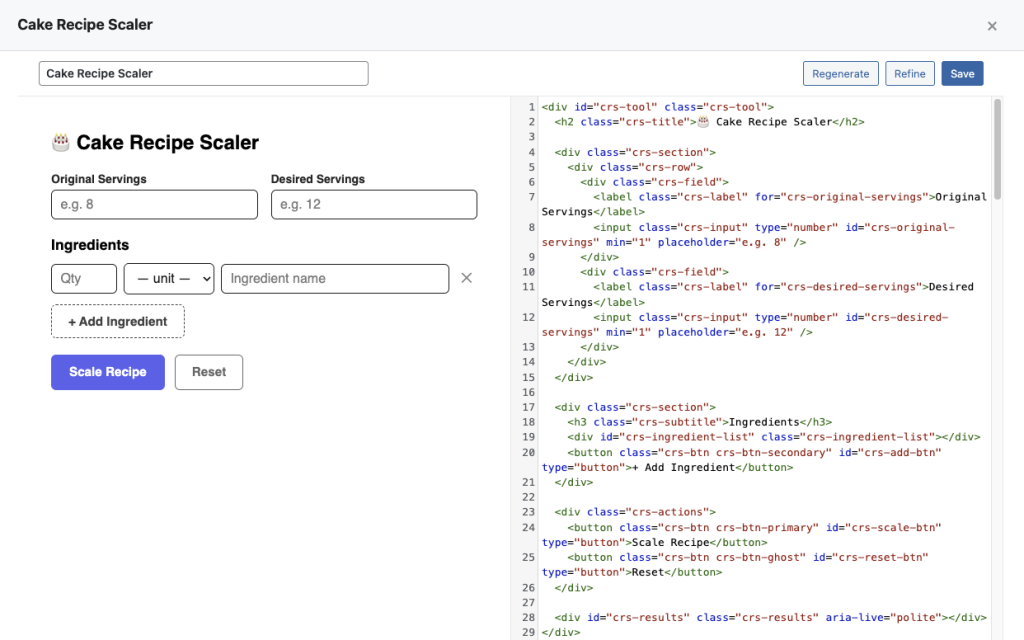
When generation completes, the modal expands to fullscreen and shows a split-view editor.
- Preview - A live, sandboxed iframe on the left that renders the tool exactly as it will appear on the frontend.
- Code - A CodeMirror editor on the right with the generated HTML, CSS, and JavaScript. You can edit the code directly here if you want to tweak something by hand.
The toolbar above the split view shows the tool name alongside three buttons: Regenerate, Refine, and Save.
Regenerate vs. Refine
These two buttons do different things and it's worth understanding the distinction.
- Regenerate re-runs your original instructions from scratch for a completely fresh attempt. The tool keeps its ID but the code is brand new. Use this when the first result missed the mark entirely and you want a different take on the whole thing.
- Refine opens a small dialog where you describe a specific change, like "Add a dark mode toggle" or "Make the submit button green." The AI returns an updated version of the existing code with your change applied. Use this when the tool is mostly right and just needs adjustments.
Each Regenerate and Refine action is billed as a separate cloud pipeline job. See Billing below.
Saving and Publishing
Click Save to publish the tool and make it available to insert into pages and posts. Before anything is saved, HighGround scans the code for unsafe elements, including inline eval() calls, cross-origin scripts, and <?php tags. These are either rejected or stripped automatically so only clean HTML, CSS, and JavaScript is saved to your site.
Inserting a Tool into a Page or Post
Published tools can be embedded two ways.
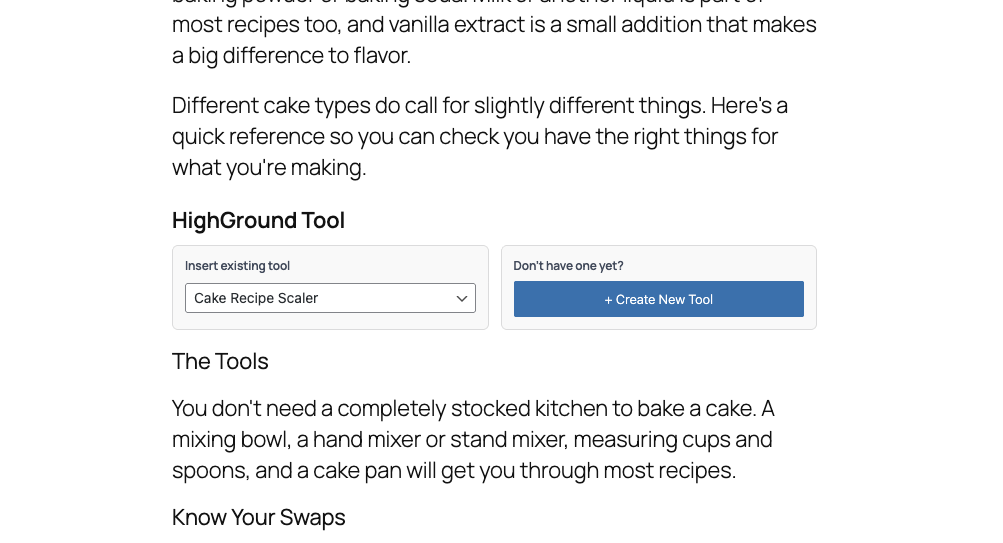
- Gutenberg block - Search for "Tool Builder" in the block inserter. The block shows a split interface with a dropdown of your existing tools on the left and a + Create New Tool button on the right. The Create button opens Settings in a new tab with the builder modal already open.
- Shortcode - Clicking the shortcode in the tools table copies it straight to your clipboard. A Classic Editor toolbar button also lists your enabled tools and inserts the shortcode at the cursor position when clicked.
Managing Your Tools
The tools table on the Tool Builder Block card lists every tool you've generated, with these columns.
- Name - The tool's display name.
- Shortcode - Click to copy the shortcode to your clipboard.
- Enabled - A green and white round slider toggle that turns the tool on or off across your site. Disabled tools render nothing on the frontend and won't appear in the Gutenberg block's dropdown or the Classic Editor toolbar list.
- Created - The date the tool was first saved.
- Actions - Edit opens the tool back up in the fullscreen editor, Preview opens the sandboxed iframe on its own, and Delete removes the tool permanently.
Safety and the Helper API
Every tool runs as pure HTML, CSS, and JavaScript in the browser. No server-side code is ever executed, and tools cannot read or modify your WordPress database directly.
Tools can still interact with WordPress through a small JavaScript helper API that HighGround exposes to each tool's iframe.
- Site and user info -
hgCurrentUser(),hgSiteUrl(), andhgSiteName()return basic information about the current visitor and site. - Content lookup -
hgGetPosts()andhgGetPostMeta()let tools read published post data. - Persistent storage -
hgSave(),hgLoad(), andhgList()let tools store and retrieve small pieces of data. Storage supports three scopes:global(shared by all visitors to the site),user(tied to the logged-in user), andsession(tied to the current browser session). Storage calls are rate-limited to prevent abuse.
Each tool's helpers are closure-scoped to its own tool ID. This means two tools embedded on the same page cannot read or overwrite each other's stored data.
Billing
Tool Builder usage is billed as "Custom" cloud pipeline jobs. Each step runs as its own job based on the Claude API usage it consumes, so you're charged independently for:
- Ideation - The brainstorming helper that generates a name, idea, and instructions.
- Code creation - The initial Start Coding run and any Regenerate action.
- Refinement - Each Refine request.
Cancelled jobs still complete in the cloud and are still charged, even if you close the builder UI before they finish.

