


If you've been running a WordPress site for a few years, you're likely dealing with dozens - sometimes hundreds - of outdated URLs scattered across posts, pages, and widgets. Fixing them one by one isn't just tedious; it's a strategy that doesn't hold up as your site grows.
The good news is that WordPress gives you real options for handling this efficiently. With the right tools and a straightforward process, you can audit, identify, and bulk update broken links without spending a weekend buried in the backend. This guide walks you through exactly how to do that - practically, without unnecessary complexity.
Short Summary
To bulk update broken links in WordPress before they damage your SEO, use a plugin like Broken Link Checker to automatically scan and identify dead links. Fix them directly from the plugin dashboard by editing, unlinking, or redirecting broken URLs in bulk. Alternatively, use tools like Screaming Frog to export broken links, then update them via the WordPress database using a plugin like Better Search Replace. Regularly schedule scans and set up 301 redirects for removed pages to preserve link equity and prevent crawl errors that hurt rankings.
Why Broken Links Are a Quiet SEO Killer
Broken links don't announce themselves. They sit in your content, your navigation, and your footer while Google crawls your site and quietly takes notes on what it finds.
One of the less talked-about consequences is crawl budget waste. Search engines have a limited amount of time to spend crawling your site on each visit. When crawlers follow links that lead nowhere, they burn through that budget without indexing anything useful. On a large WordPress site with years of content, this adds up faster than you'd expect.
There's also the matter of link equity. When a page that once had real authority now returns a 404 error, any ranking power that linked to it is essentially gone. Internal links that point to dead pages do the same thing - they pass nothing forward. You could have a well-structured site and still lose ranking strength because of links you forgot were there.
User experience plays into this too. A visitor who clicks a link and lands on an error page is going to leave. Search engines track that kind of behavior, and a pattern of users bouncing back to the search results is not a signal you want to send. It tells Google that your site didn't deliver what was promised.
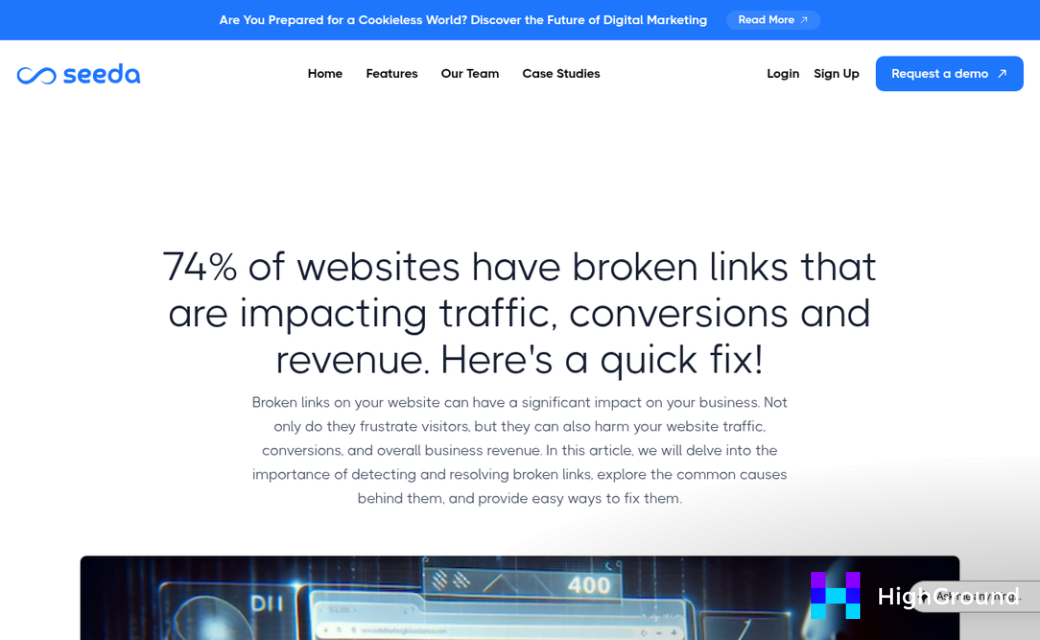
The general benchmark to aim for is keeping broken links below 1-2% of your total links. That sounds manageable in theory. But WordPress sites that have been running for a few years tend to accumulate hundreds or even thousands of links across posts, pages, comments, and widgets. Plugins get abandoned, external URLs change, and old content never gets reviewed. It's easy for a site to drift well past that threshold without anyone realizing it.
Older sites are especially at risk. A WordPress blog that's been active since 2015 might have external links pointing to businesses that have since closed, URLs that were restructured without redirects, or internal links to pages that were quietly deleted during a redesign. None of these show up as obvious problems from the front end of your site.
The damage from broken links is cumulative. Each one on its own might seem like a small thing, but across an entire site they create a compounding drag on your rankings, your crawlability, and the trust visitors place in your content. If you're also evaluating AI writing tools to help manage your content workload, our blog covers practical comparisons and guidance for site owners.
How to Find Every Broken Link Hiding in Your WordPress Site
Before you can fix anything, you need a full picture of what's broken. Running a scan across your entire site - not just a few pages - is the only way to know you're not leaving dead links behind.
There are three main ways to do this in WordPress: a dedicated plugin, data from Google Search Console, or a third-party crawler like Screaming Frog. Each method has its place, and for most WordPress users, starting with a plugin is the most straightforward path.
Using Plugins to Scan Your Site
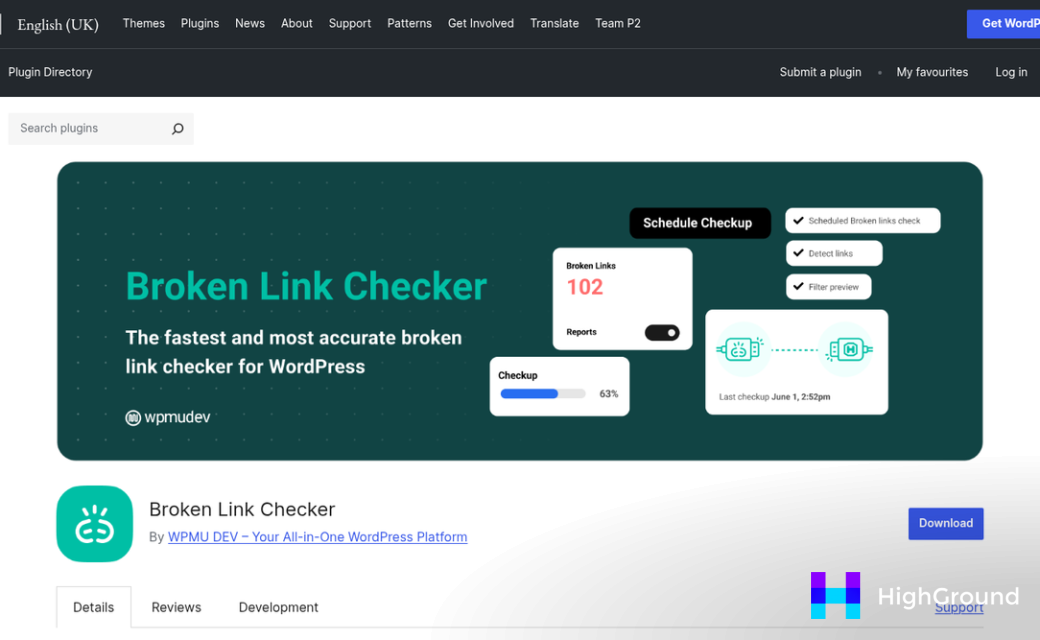
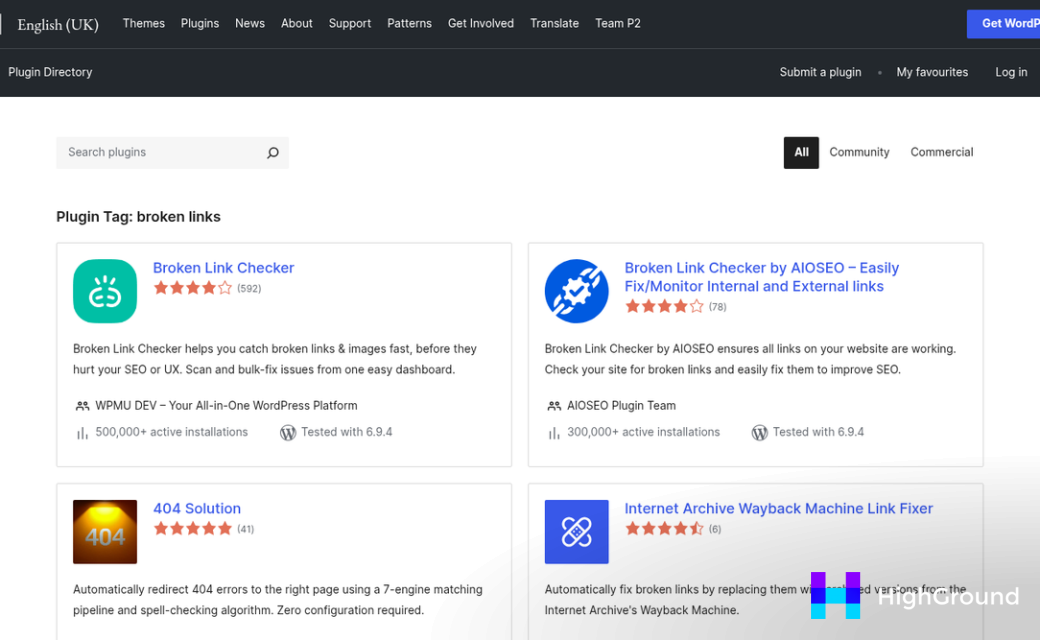
WordPress plugins handle the heavy lifting by crawling your content automatically and flagging broken links in your dashboard. AIOSEO's Broken Link Checker is one of the most widely used options, with over 3 million active installs. It runs a full scan every 3 days on its own, so you don't have to remember to check manually.
WPMU DEV's Broken Link Checker runs scans on cloud servers instead of your own hosting environment. That means it processes links up to 20 times faster than a local scan would, which matters a lot on larger sites with hundreds of pages.
Using Google Search Console
Google Search Console can surface broken links that Googlebot has already tried to crawl. Head to the Pages report and look for URLs marked as "Not Found" - these are the 404 errors Google has already logged. This is a great secondary check because it shows you what's actually affecting your crawl right now.
The limitation here is that Search Console only shows you broken destination URLs, not the source pages that link to them. Pairing it with a plugin gives you the full picture.
What to Look for in a Scan Report
A good scan report will tell you the broken URL, the page it lives on, and the HTTP status code. A 404 means the page doesn't exist anymore, while a 301 or 302 might mean the link redirects somewhere unexpected. Pay attention to those status codes because they tell you what kind of fix each link actually needs.
Full-site coverage matters here. A partial scan might miss broken links buried in older posts, footer menus, or image blocks. You want your scan to cover every content type before you move on to bulk fixing anything. If you're also creating content at scale, understanding how BrandWell works can help you keep new pages error-free from the start.
Comparing the Top Broken Link Plugins for WordPress
Once you know where your broken links are, the next question is which tool you want to use to manage them going forward. There are a few solid options, and the right one depends on your site's size and what you want the plugin to do beyond flagging bad links.
Here's a quick comparison of the main contenders before we get into the details.
| Plugin | Free Plan | Paid Starting Price | Standout Feature |
|---|---|---|---|
| AIOSEO Broken Link Checker | 250 links/month | Paid tier available | Auto-scans every 3 days |
| WPMU DEV Broken Link Checker | Limited | Subscription-based | Cloud scanning (20x faster) |
| Link Whisper | No | $77/year | Internal link suggestions |
Note: Verify current pricing before you publish, as these figures can change.
AIOSEO's Broken Link Checker is a good fit for smaller sites that want a hands-off, automated setup. The free plan covers up to 250 links per month, which works fine for a blog or small business site that doesn't have hundreds of posts. The auto-scan every three days means you don't have to remember to run checks manually, and that saves real time.
WPMU DEV runs its scans in the cloud rather than on your server. That matters more than it sounds. On large sites with thousands of links, a server-based scan can slow your site down noticeably during the crawl. WPMU DEV's cloud scanning removes that strain entirely and is reportedly around 20 times faster as a result. The trade-off is that it runs on a subscription model, so it's better suited to agencies or developers who manage multiple WordPress sites and can spread that cost across clients.
Link Whisper is the most different of the three because its primary purpose is to help you build internal links, not just to find broken ones. It flags broken internal links and lets you fix them, but its real value is the AI-driven suggestions it gives you for linking between your content. At $77 per year with no free plan to test it first, it makes the most sense for site owners who are actively trying to grow their internal linking structure rather than run a cleanup.
Each tool has a gap worth noting. AIOSEO's free plan hits a ceiling fast on larger sites. WPMU DEV's subscription cost adds up if you only manage one site. And Link Whisper won't do much for you if external links are where most of your problems live.
The Step-by-Step Process for Bulk Fixing Broken Links in WordPress
Once your plugin has finished its scan, you'll have a list of broken links waiting for action. The order in which you handle them matters, so work through the steps below before you start making changes.
Step 1: Filter Your Results Before You Touch Anything
Most plugins let you sort by link type - 404 errors, redirect chains, and external vs. internal links. Start by separating internal 404s from everything else because those are the ones you have the most control over. External broken links need a different fix than internal ones, and mixing them together leads to confusion fast.
Step 2: Review the Links Before You Edit in Bulk
This is the step people skip, and it's the one that causes new problems. Go through your filtered list and flag any links that need a custom fix rather than a straight replacement. Some links may point to content that no longer exists for a good reason and shouldn't be replaced at all.
Delete or unlink those edge cases first so they're out of the bulk queue.
Step 3: Bulk Update Internal 404s
Select your internal 404 links and choose the bulk edit or redirect option in your plugin. Replace the broken URL with the correct destination and apply the change. If the original page was moved or renamed, a 301 redirect to the new URL is usually the right call.
Step 4: Handle External Broken Links Separately
For external links, your options are more limited. You can update the URL to a working alternative page, remove the link text entirely, or replace the source with a more reliable one. It helps to check each external URL manually before you bulk-apply a replacement, because an outdated page from one site might have a newer version at a slightly different URL.
Step 5: Fix Redirect Chains
A redirect chain happens when a URL redirects to another URL that also redirects. Update those links to point directly to the final destination so the chain is cut completely. This reduces page load time and keeps link equity from leaking.
Step 6: Run a Second Scan to Confirm
After you save your changes, run the scanner again. This confirms your fixes actually took effect and catches anything that slipped through. A clean scan result means you're ready to move on - but don't skip it just because the edits looked successful on screen.
Mistakes That Make Bulk Link Fixes Worse Than the Original Problem
Rushing through a bulk fix is one of the easiest ways to create new problems while solving old ones. The process itself isn't complicated, but a few common missteps can quietly undo your progress.
The biggest one is redirecting broken links to irrelevant pages. If a product page no longer exists, sending visitors to your homepage might seem like a reasonable fix, but search engines treat that as a soft 404, which is almost as damaging as the broken link you started with. The redirect destination needs to make sense for the content that was originally there.
A lot of people also focus entirely on internal links and ignore broken external links. External links pointing to dead pages still reflect on your site's quality. They're worth fixing too, even if that just means removing the link or replacing it with a better source.
There's also the problem of over-relying on automation. Tools can flag broken links and even suggest replacements, but the automated suggestion isn't always right. Just because a plugin fills in a redirect doesn't mean that redirect is accurate. It's worth taking a few minutes to manually check anything the tool fixed automatically, especially on your most-visited pages.

Not rechecking after the fix is another easy trap. Run your scanner again a few days after you've made changes. New broken links can appear after updates or plugin changes, and some fixes don't apply correctly the first time. A second pass takes much less time than the initial audit.
Here is a quick look at the most common mistakes and what to do instead.
| Mistake | Why It's a Problem | What to Do Instead |
|---|---|---|
| Redirecting to irrelevant pages | Creates soft 404s that hurt SEO | Match the redirect to relevant content |
| Ignoring external broken links | Signals poor content maintenance | Remove or replace the link entirely |
| Trusting automation completely | Automated fixes can be inaccurate | Manually review flagged changes |
| Skipping a second scan | New broken links appear after updates | Recheck a few days after fixing |
If you've made some of these mistakes before, that's understandable. Bulk link management moves fast and it's easy to approve changes without reading them closely. The good news is that most of these are fixable once you know what to look for.
Keep Your Links Healthy Before Google Notices They Aren't
Pick one tool from the comparison section that fits your site's size and technical comfort level, and run your first scan today. If your broken link rate is under 1-2%, you're in good shape - just schedule a monthly check to keep it there. If it's higher, work through the bulk fixes now and set a recurring reminder so it never climbs back up. A single afternoon spent cleaning up dead links can protect months of SEO progress.
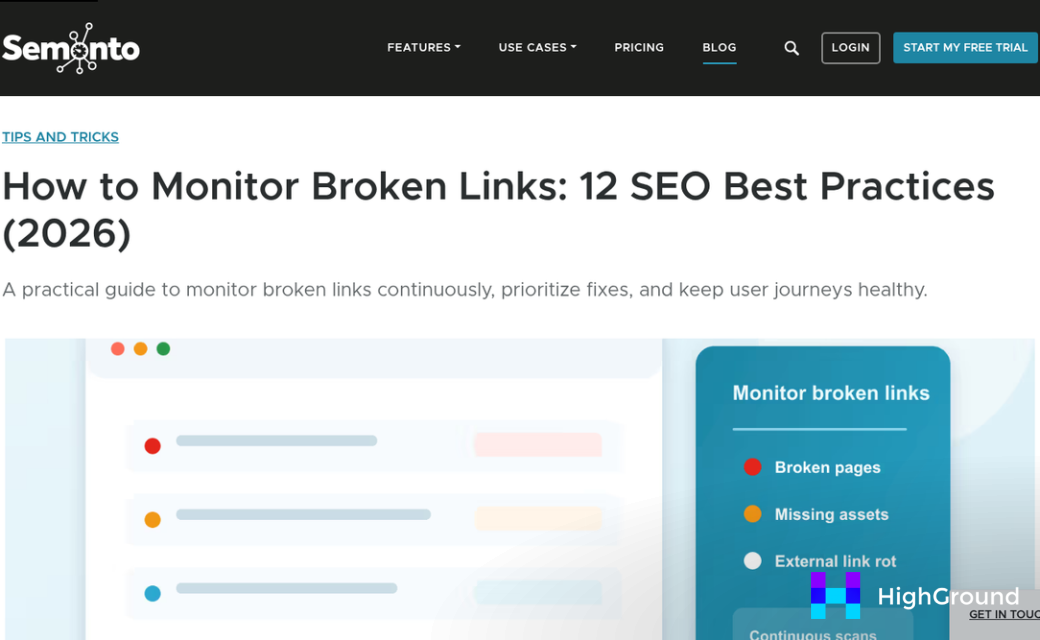
The best way to make sure broken links never become a real problem is to treat link scanning the same way you treat updating plugins or backing up your database - as a normal, non-negotiable part of keeping your site healthy. Add it to your maintenance checklist now, and it will never feel like a big job again.
FAQs
How do broken links negatively affect my WordPress SEO?
Broken links waste crawl budget, kill link equity, and increase bounce rates. Search engines interpret these signals as signs of a low-quality site, which can gradually drag down your rankings over time.
What is the acceptable broken link rate for a website?
The general benchmark is keeping broken links below 1-2% of your total links. Sites that have been running for several years often drift past this threshold without realizing it.
Which WordPress plugin is best for fixing broken links?
It depends on your site's size. AIOSEO suits smaller sites with its free auto-scan, WPMU DEV offers faster cloud scanning for larger sites, and Link Whisper is best for improving internal linking structure.
Can Google Search Console find all broken links on my site?
No. Search Console shows broken destination URLs but not the source pages linking to them. Pairing it with a dedicated WordPress plugin gives you a more complete picture.
What is the biggest mistake when bulk fixing broken links?
Redirecting broken links to irrelevant pages is the most damaging mistake. Search engines treat these as soft 404s, which can be nearly as harmful as the original broken link.

