


Here’s something that catches a lot of WordPress site owners off guard: WordPress doesn’t come with a built-in find-and-replace tool for your post content. Unlike a word processor where you can hit Ctrl+H and swap out text across an entire document in seconds, WordPress gives you no native way to search through all your posts and bulk-edit their content at once. It’s one of those gaps in the platform that feels surprising once you actually need it.
The good news is that this is a very solvable problem. Developers and plugin creators have been filling this gap for years, and there are a handful of reliable methods that can handle the job quickly - whether you’re comfortable working inside your WordPress dashboard or don’t mind getting a little closer to your database. The right approach depends on your comfort level and the scale of what you need to fix.
This guide walks you through the most practical options available, starting with the simplest and moving toward the more powerful. By the end, you’ll know exactly how to clean up that mistake across every post on your site without spending hours doing it by hand.
Short Summary
To find and replace text across all WordPress posts at once, use a plugin like “Better Search Replace” or “Search & Replace.” Install and activate it, then enter the text you want to find and the replacement text, select the database tables to search (wp_posts for posts/pages), and run the replacement. Alternatively, use phpMyAdmin to run a SQL query: UPDATE wp_posts SET post_content = REPLACE(post_content, ‘old text’, ‘new text’); Always backup your database before making bulk changes.
Why WordPress Doesn’t Let You Search and Replace Text Out of the Box
When you write or edit a post in WordPress, that content doesn’t sit in a file on your server. It gets saved to a database - and that’s where it stays. Every title, every paragraph, every link you’ve ever published lives in there, waiting to be pulled up when someone visits your site.
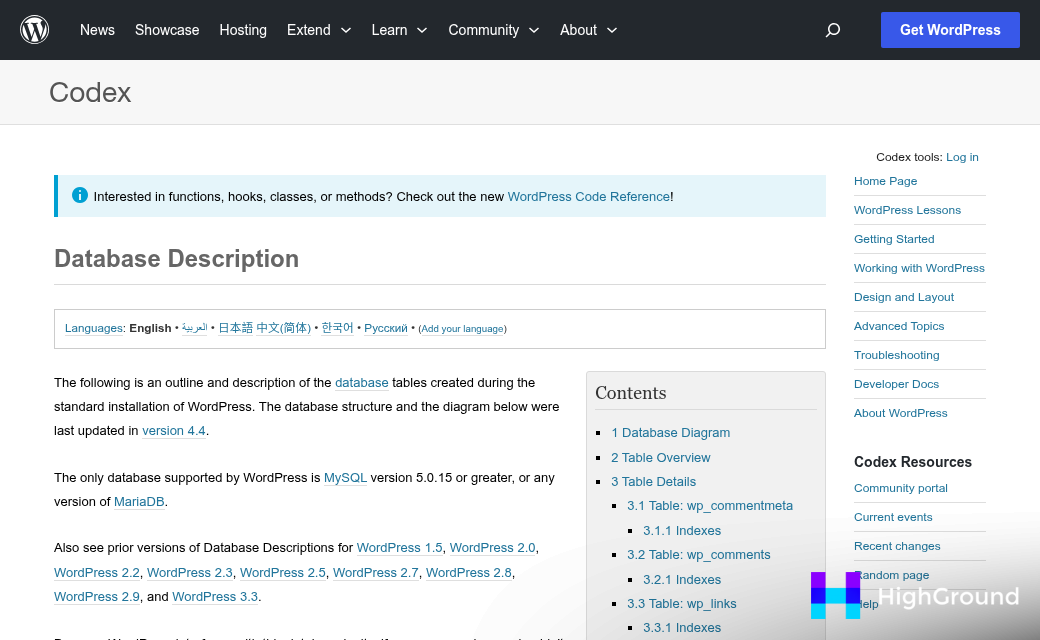
WordPress creates 12 default database tables when you first install it. One of those tables is called wp_posts, and it’s the one that holds all your post and page content. You’ll hear tools and tutorials mention this table by name, so it’s worth knowing what it refers to before you go further.
The WordPress dashboard is built to let you edit one post at a time. That’s fine for day-to-day writing, but it was never designed to let you make the same text change across hundreds of posts in a single move. There’s no built-in “find and replace” panel hiding in the settings, and no native bulk editor that works on post content.
This isn’t an oversight - it’s just how the dashboard was built. The tools WordPress gives you are focused on individual content management, not database-level edits. To change a word or phrase across all your posts at once, you need to go a level deeper than the dashboard allows.
That’s why most people turn to plugins or direct database access to get this done. Both approaches work, but they interact with your database in ways the standard WordPress editor never does. Understanding that your content lives in a database table - and not in a folder of text files - helps explain why a simple dashboard search box can’t do this job. If you’re also looking for smarter ways to manage content at scale, it’s worth reading about how BrandWell works for content creation and optimization.
What You Risk If You Edit the Database Without a Backup
WordPress stores your post content in a MySQL database, and editing that database directly gives you a lot of power. That power cuts both ways, though. A single wrong character in a database query can delete rows, corrupt content, or break your entire site in ways that are hard to undo.
One of the less obvious dangers is something called serialized data. WordPress stores certain types of data as a formatted string with character counts built in. If you run a find-and-replace on serialized data and the replacement text is a different length than the original, those character counts go out of sync. The result is broken widgets, missing theme settings, or plugin configurations that stop working entirely.
Broken layouts are another real concern. Your post content may contain HTML, shortcodes, or block editor markup that is tightly formatted. Even a small unintended change - like replacing a word that also appears inside an HTML attribute - can strip formatting or leave your pages looking broken to every visitor.
There is also the risk of scope. When you run a query against your database, it does not ask for confirmation. It executes, and the change happens to every row that matches, instantly. There is no undo button inside the database itself.
A full backup is not optional before you touch anything in the database. A backup gives you a restore point so that if something does go wrong, you can get back to where you started without losing content you worked hard to create. If you rely on AI writing tools to produce that content, exploring Copy.ai alternatives for small business owners may help you find options that better fit your workflow.
| What Can Go Wrong | Why It Happens | What It Affects |
|---|---|---|
| Content loss | A query targets more rows than intended | Posts, pages, or custom content |
| Serialized data corruption | Character counts break after a replacement | Plugin settings, theme options, widgets |
| Broken page layouts | Replacement hits HTML attributes or block markup | Visual formatting across the front end |
| No easy recovery | Database queries execute without confirmation | Everything the query touched |
If you do not have a backup tool set up already, get one in place before you go any further. It takes a few minutes and it is the one thing that stands between a fixable mistake and a very bad day.
The Fastest Plugin Options for Bulk Text Replacement
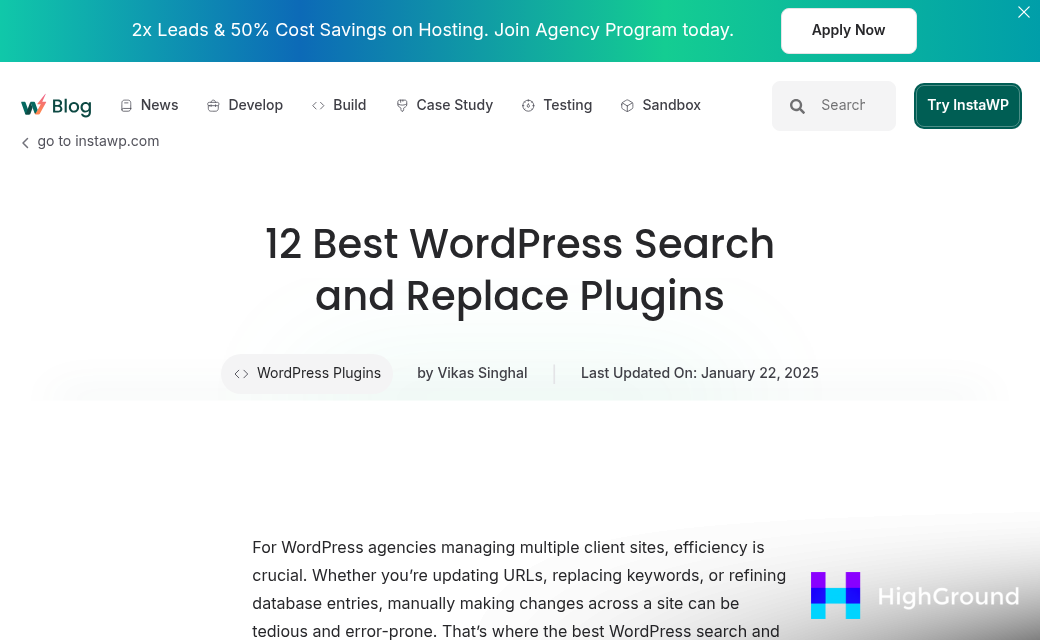
There are a few WordPress plugins that make bulk text replacement straightforward, and the right one depends on where your content lives and how much control you need.
Better Search Replace is probably the most widely used option. It works directly on your database tables and lets you pick exactly which tables to search. One thing to know upfront: it is case-sensitive by default. That means if you search for “WordPress” it will not match “WordPress” - so double-check your capitalization before you run anything.
Search & Replace is another solid choice and is known for being fast. It can process a large number of entries in just a couple of minutes, which makes it practical if you are working with a big site that has a lot of posts to update.
Word Replacer takes a slightly different approach. Instead of touching the database directly, it replaces text as the page loads in a visitor’s browser. It covers posts, pages, comments, and titles, and since version 0.3 it also supports bbPress forums. That makes it a good fit if you need to update content across a community or forum section of your site.
Here is a quick look at how these three compare across the details that matter most.
| Plugin Name | Where It Works | Case-Sensitive Default |
|---|---|---|
| Better Search Replace | Database tables (posts, meta, options, and more) | Yes |
| Search & Replace | Database tables across post content | No |
| Word Replacer | Posts, pages, comments, titles, bbPress forums | No |
Each plugin has a free version that covers the basics for most sites. Better Search Replace also has a pro version if you need extras like regex support or multisite compatibility.
Word Replacer is worth a closer look if you want changes to stay flexible. Because it works on the front end rather than in the database, you can update or remove a replacement at any time without touching your actual content.
How to Run a Find and Replace Using Better Search Replace
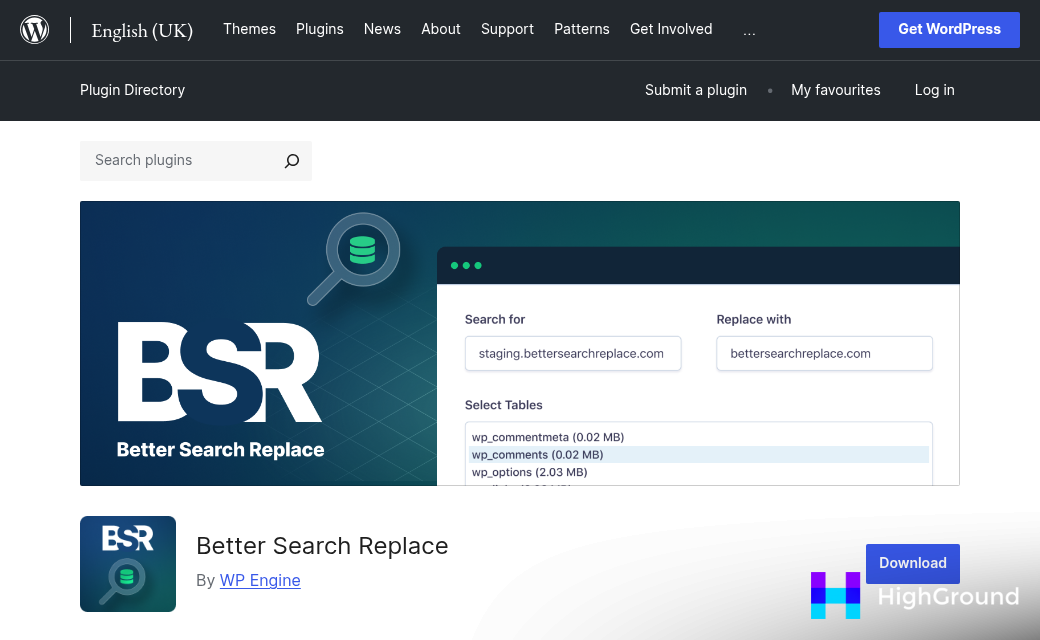
Once you have Better Search Replace installed and activated, head to Tools > Better Search Replace in your WordPress dashboard. You’ll see a simple form with a few fields and options - it’s straightforward once you know what each part does.
Start by typing the text you want to find in the “Search for” field, then type your replacement text in the “Replace with” field. The plugin is case-sensitive by default, so “Sale” and “sale” are treated as different strings. If you need to match any version of the word regardless of capitalization, check the “Case Insensitive” box before you go any further.
Next, scroll down to the table selection area. This is where a lot of people make unnecessary changes - they leave every table selected and end up touching data they never meant to. For posts and pages only, select wp_posts and deselect everything else. If your database has a different prefix, the table name will reflect that, but the structure is the same.
Before you run the actual replacement, check the “Run as dry run?” box. A dry run scans your database and tells you how many replacements it would make without actually changing anything. It’s a quick way to confirm you’ve got the right search term before anything gets written to the database.
Once the dry run looks right, uncheck that box and click “Run Search/Replace.” The plugin will process every row in your selected table and swap out the text. You’ll see a summary at the top of the page showing how many replacements were made.
| Step | What to Do | Why It Matters |
|---|---|---|
| 1 | Enter your search and replacement text | Sets what gets found and changed |
| 2 | Check case sensitivity settings | Prevents missed or unwanted matches |
| 3 | Select only wp_posts | Limits changes to post content only |
| 4 | Run a dry run first | Confirms the match count before saving |
| 5 | Run the live replacement | Writes the changes to your database |
After the replacement runs, check a few posts manually to confirm everything looks right. It only takes a minute and gives you peace of mind that the changes landed the way you expected.
When to Use a SQL Query Instead of a Plugin
If you are comfortable in your hosting control panel and would rather not install another plugin, you can run a find and replace directly in your database using phpMyAdmin. It is a straightforward approach that gets the job done without adding anything to your WordPress installation.
The table you want to work with is wp_posts, though your prefix might be different. Some installs use a custom prefix like mysite_posts, so check yours before you run anything.
The basic SQL query looks like this:
UPDATE wp_posts SET post_content = REPLACE(post_content, 'old text', 'new text');UPDATE wp_posts tells the database which table to change. SET post_content points to the column that holds your page and post content. The REPLACE function then looks for the first value and swaps it with the second. You can run a SELECT version first to preview the matches before you commit to the update.
To preview without making changes, use this instead:

SELECT post_content FROM wp_posts WHERE post_content LIKE '%old text%';This shows you every row that contains your search term so you can confirm the scope before touching anything.
The serialized data warning still applies here, just as it does with plugins. If your theme or a plugin stores settings or content in a serialized format inside the database, a direct SQL replace can break those strings. The Better Search Replace plugin handles this safely, but a raw SQL query does not. So if you are replacing something inside post meta or custom fields, a plugin is the safer path.
This approach works best when you are replacing plain text inside the main post content and you know exactly what you are changing. Developers and technically confident users will find it fast and clean.
That said, it is not for everyone. If you are not used to working inside phpMyAdmin or editing database tables, the plugin route is the more forgiving one. A mistake in a SQL query can affect a lot of rows at once and there is no undo button.
Always take a full database backup before you run any SQL query, even a small one. This is the one step you do not want to skip.
Your Post-Replace Checklist Before You Hit Publish Again
Before you hit that final replace button, run through this quick checklist. It takes less than two minutes and can save you a serious headache:

| Step | Why It Matters |
|---|---|
| Take a full backup | If anything goes wrong, you can restore your site exactly as it was - no panic required. |
| Run a dry run first | Most plugins offer a preview mode. Use it to see exactly what will change before committing. |
| Check case sensitivity settings | Replacing WordPress and wordpress are two different operations - make sure you’re catching the right one. |
| Verify the correct tables are selected | You usually only need wp_posts, not every table in your database. Scope it correctly to avoid unintended changes. |
| Spot-check a few posts afterward | Open three or four posts manually to confirm the replacement looks exactly the way you expected. |
Once you’ve done this a couple of times, it becomes one of those tasks you wonder how you ever lived without. Go make that site-wide update - you’ve got this.
FAQs
Does WordPress have a built-in find-and-replace tool?
No, WordPress does not include a native find-and-replace feature for post content. You need to use a plugin or access your database directly through phpMyAdmin to make bulk text changes across all posts.
What is the safest plugin for bulk text replacement?
Better Search Replace is widely considered the safest and most popular option. It lets you target specific database tables, offers a dry run preview mode, and handles serialized data more safely than a raw SQL query.
What is a dry run and why should I use it?
A dry run scans your database and shows how many replacements would be made without actually changing anything. It helps you confirm your search term is correct before committing changes to your database.
What is serialized data and why does it matter?
Serialized data is a formatted string WordPress uses to store certain settings, with character counts built in. Running a find-and-replace that changes string length can corrupt this data, breaking widgets, theme options, or plugin configurations.
Do I need a backup before running a find-and-replace?
Yes, a full backup is essential before making any database changes. Database queries execute instantly with no undo option, so a backup is your only recovery option if something goes wrong.

