


Internal links are one of the quieter levers in SEO - they shape how search engines crawl your site, how authority flows between pages, and how users move through your content. When they’re working well, you barely notice them. When they’re not, the effects compound slowly: pages that should rank don’t, crawl budgets get wasted, and anchor text sends confusing signals. For large sites, the problem scales fast. Imagine running an ecommerce store with 800 products where half have nofollow on their internal links and half don’t - not because of any intentional strategy, but because the links were added at different times by different people using different methods.
Fixing this one link at a time isn’t realistic. What you actually need is a way to audit, update, and standardize internal links across your entire WordPress site in bulk - without manually opening every post or page in the editor.
That’s exactly what this article covers. You’ll find practical, tool-based approaches to bulk updating internal links in WordPress, whether you’re dealing with broken URLs, inconsistent nofollow settings, outdated anchor text, or all of the above at once.
Short Summary
To bulk update internal links across your entire WordPress site, use a plugin like Better Search Replace or Velvet Blues Update URLs. Simply install the plugin, enter the old URL or domain in the “search for” field, enter the new URL in the “replace with” field, select all relevant database tables, and run the replacement. This is especially useful after migrating to a new domain or switching from HTTP to HTTPS. Always back up your database before running any bulk replace operation.
Why Your Internal Links Probably Need a Cleanup Right Now
When did you last check your internal links? Not glance at a post and notice one looked off, but actually sit down and audit where everything points. For most WordPress site owners, the honest answer is never - or at least not recently enough.
Internal link problems tend to build quietly over time. You publish new content, update old pages, change a URL structure, delete a post, or move things around after a redesign. Each of those actions can leave behind broken or outdated links without anything obviously going wrong on the surface.
One of the most common problems is orphaned content - posts that have no internal links pointing to them at all. Search engines can still find these pages through a sitemap, but they get almost no link equity and very little organic traffic as a result. A single audit of one site using Link Whisper turned up 114 orphaned posts in one session. That is not a fringe case; it is what years of normal publishing activity looks like when nobody has been tracking links.
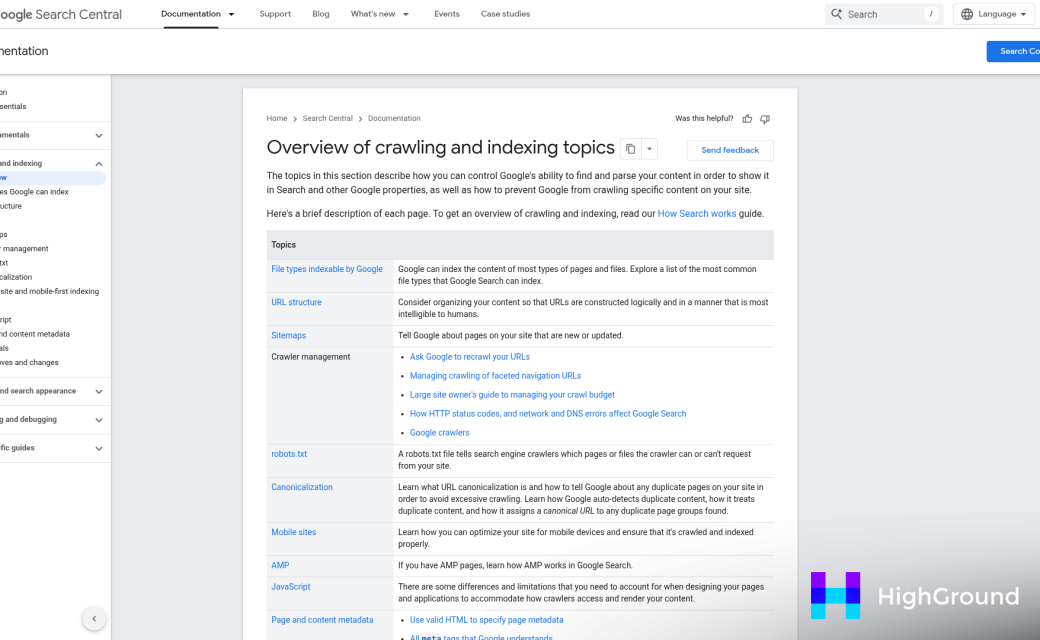
Beyond orphaned posts, there are a few other patterns worth knowing about. Anchor text goes stale when a page gets updated but the links pointing to it never do. You end up with links that say one thing but lead to content about something slightly different. Redirected URLs are another headache - a link that technically works but passes through a redirect is slower and less efficient than a direct link.
Nofollow inconsistencies are also worth a look. Some site owners accidentally apply nofollow attributes to internal links, which tells search engines not to follow or credit those pages. That is not the intended behavior for your own content.
This is where bulk updating becomes valuable. The alternative is to fix links one by one - opening each post in the editor, hunting for the link, updating it, and saving. Multiply that by dozens or hundreds of posts and it becomes a time-consuming task. Bulk updating lets you make changes across the entire site from a single interface - update a URL, replace anchor text, or fix redirect chains without touching each post manually.
The messier your link structure has become, the more a bulk approach makes sense. And the only way to know how messy things actually are is to run a proper audit first.
How to Run a Full Internal Link Audit Before Making Changes
Before you touch a single link, you need to know what you’re actually working with. Going in blind during a bulk update is one of the most common mistakes site owners make, and it tends to create new problems instead of fixing the old ones.
The goal of an audit is to get a complete picture of your internal link structure. You want to find broken links, orphaned pages that nothing points to, and any attribute mismatches like nofollow tags that have been applied to links that shouldn’t have them. That last one matters more than people expect.
A useful example is a site with around 800 products where an audit reveals that internal links to those product pages are all tagged as nofollow. The site has been actively telling search engines not to pass authority to its own product pages, possibly for years. That kind of issue doesn’t show up until you run a proper crawl.
For the crawl itself, Screaming Frog is the most widely used tool for this. The free version handles up to 500 URLs and the paid version removes that limit entirely. You can filter results by link type, status code, and attribute to get a sorted list of exactly what needs attention.
If you’d rather stay inside WordPress, a plugin like Ahrefs’ Site Audit or Semrush’s on-page tools can do a similar job through your dashboard. They’re not always as granular as a dedicated crawler, but they’re a solid starting point if you’re not comfortable with desktop software. There are also AI writing tools built for small business owners that can help streamline content creation alongside your SEO workflow.

The audit will surface a few categories of issues to address.
Broken internal links return a 404 status and need to be updated or removed. Orphaned content has no internal links pointing to it, which makes it nearly invisible to both search engines and visitors. Nofollow mismatches apply to links that should be passing authority but aren’t, and redirect chains are links that pass through one or more redirects before reaching the final destination.
Export your findings to a spreadsheet before you do anything else. Sort by link type and flag the ones that need bulk changes. That document becomes your reference point for everything in the next steps, so take the time to get it right now rather than try to reconstruct it later.
Using Plugins to Bulk Update Internal Links Automatically
Plugins are the fastest route when you need to update internal links across dozens or hundreds of posts. Three tools come up again and again for this job: Internal Link Juicer, Rank Math’s AI Link Genius, and Slim SEO Link Manager. Each one takes a different approach, so it’s worth knowing what sets them apart before you install anything.
Internal Link Juicer lets you set keyword rules and handles the linking automatically from there. You tell it which keywords should link to which pages and it scans your content to apply those connections. It has over 90,000 active installs and has been tested up to WordPress 6.9, so it’s a well-established option. If you have a large site and want to reduce manual work as much as possible, this one does a lot of the heavy lifting for you.
Rank Math’s AI Link Genius is built into the Rank Math SEO plugin, which means you’ll need that plugin installed to use it. The standout feature is the 30-second rollback for deleted links. That’s useful if you make a bulk change and then realise something went wrong - you can pull it back fast without digging through your database.
Slim SEO Link Manager sits in a different lane from the other two. It gives you manual bulk control rather than automatic suggestions, which suits people who want to stay hands-on with every link decision. You do need WordPress 5.7 or higher and PHP 7.2 or higher to run it, so it’s worth checking your server setup before you commit to it.
| Plugin | Key Feature | Notable Requirement |
|---|---|---|
| Internal Link Juicer | Auto-linking by keyword rules | WordPress 6.9 tested |
| Rank Math AI Link Genius | 30-second link rollback | Rank Math plugin installed |
| Slim SEO Link Manager | Manual bulk link control | WP 5.7+, PHP 7.2+ |
The right choice depends on how much control you want to keep versus how much you want to automate. Internal Link Juicer and Rank Math lean toward automation while Slim SEO keeps you in the driver’s seat. All three will save you a lot of time compared to editing posts one by one.
How to Bulk Update Links Manually Using the WordPress Database
Not everyone wants a plugin touching their database - and that’s a completely reasonable stance. If you’d rather work directly with the data, you have two solid options: phpMyAdmin and WP-CLI.
This approach makes the most sense after a domain migration or a permalink structure change, where hundreds of internal links need to update at once. A find-and-replace query at the database level is fast and precise.
Before You Do Anything: Take a Full Backup
A database query can’t be undone with a simple Ctrl+Z. Back up your entire database before you run a single command - this is the one step you cannot skip.
Using phpMyAdmin
phpMyAdmin is a browser-based tool that most web hosts include in cPanel. To update links, open your WordPress database and go to the wp_posts table. From there, use the Search tab to find your old URL and replace it with the new one.
For a more reliable approach, go to the SQL tab and run a query like this one directly.

UPDATE wp_posts SET post_content = REPLACE(post_content, 'https://old-url.com', 'https://new-url.com');This will update every instance of that URL across all your posts and pages at once. You may also want to run the same query on the wp_postmeta table if your links appear in custom fields.
Using WP-CLI
WP-CLI is a command-line tool for WordPress that works well if you have server access and want to skip the browser interface. The search-replace command is straightforward to use.
wp search-replace 'https://old-url.com' 'https://new-url.com' --all-tablesThe --all-tables flag tells WP-CLI to search every table in your database, not just posts. You can also add --dry-run first to preview what will change before you commit to anything - which is worth doing.
What These Tools Won’t Do Automatically
Neither tool will handle serialized data in every situation, so check your theme options and widget data afterward. Links stored in page builder fields or block editor attributes may need a separate pass to update correctly.
The database route gives you full control without relying on third-party code. It does put more responsibility on you to get the query right the first time.
Mistakes That Can Tank Your SEO During a Bulk Link Update
Bulk link updates are one of those tasks that feel straightforward until something goes wrong. Many site owners don’t notice a problem until their rankings start to slip, and by then it can take real effort to trace it back to the update.
One of the most common mistakes is over-linking to the same page. If you add dozens of links pointing to a single URL across your site, Google can read that as manipulative rather than helpful. A few well-placed links carry more weight than a flood of them.
It’s also worth thinking carefully about link context. Every link you add should make sense to a real person reading that page. If the anchor text feels forced or the link doesn’t add value to the surrounding content, it’s better to leave it out. Context matters to search engines and to readers.
Accidental changes to link attributes at scale are another thing to watch out for. Switching nofollow links to dofollow links across hundreds of pages can send unintended signals about which content you want to endorse. The reverse is also true - accidentally adding nofollow to links that were previously passing equity will quietly reduce your internal link value without any obvious warning sign.

Canonical signals are easy to break during a bulk update too. If you update links and accidentally point them to a non-canonical version of a URL, you can send mixed signals that dilute page authority. Always double-check that the URLs you’re linking to are the same ones you want search engines to index.
Before you run any bulk operation, take a backup. If you’re using Rank Math, its rollback feature gives you a useful safety net to undo changes if something doesn’t look right afterward. That’s a much better position to be in than manually hunting down every link you changed.
| Mistake | What It Affects |
|---|---|
| Over-linking to one page | Can look manipulative to search engines |
| Ignoring link context | Reduces relevance and reader trust |
| Wrong nofollow/dofollow attributes | Misroutes link equity across your site |
| Linking to non-canonical URLs | Splits page authority and confuses crawlers |
These mistakes are easy to make, especially when working at speed across a large site. The good news is that being deliberate about each change - rather than just fast - prevents most of them.
Keep Your Internal Links Working as Hard as You Do
Set a quarterly reminder to run a quick internal link audit. Domains change, old posts get deleted, and URLs get tweaked more often than most site owners realize. A short check every few months is all it takes to catch broken or outdated links before they quietly pile up and start affecting your rankings and user experience.

Good internal linking is about making your site easier to navigate, not SEO tricks. When Google’s crawlers and your actual readers can follow a logical path through your content, everyone wins. A well-linked site earns trust, keeps people around longer, and gives your best content the visibility it deserves. That’s a habit worth keeping.
FAQs
What are internal links and why do they matter for SEO?
Internal links connect pages within your website, shaping how search engines crawl your site and how authority flows between pages. They also guide users through your content, helping your best pages gain visibility and rank better in search results.
How do I know if my internal links need updating?
Run a crawl using a tool like Screaming Frog to identify broken links, orphaned pages, redirect chains, and incorrect nofollow attributes. Most sites accumulate these issues naturally over time without any obvious warning signs.
Which plugins can bulk update internal links in WordPress?
Internal Link Juicer, Rank Math’s AI Link Genius, and Slim SEO Link Manager are the top options. Internal Link Juicer automates linking by keyword rules, Rank Math offers a 30-second rollback feature, and Slim SEO gives you manual bulk control.
Can I update internal links directly in the WordPress database?
Yes, using phpMyAdmin or WP-CLI. Always take a full database backup first. Use a SQL REPLACE query or WP-CLI’s search-replace command to swap old URLs for new ones across all posts at once.
What mistakes should I avoid during a bulk link update?
Avoid over-linking to a single page, accidentally changing nofollow attributes at scale, and linking to non-canonical URLs. Always back up your site before running bulk changes, and use a rollback feature if available.

