


Bulk updating meta descriptions can feel intimidating, especially when rankings are already in a decent place. The fear of disrupting what’s working keeps a lot of site owners stuck with outdated, duplicate, or missing descriptions far longer than they should be.
The good news is that updating meta descriptions in bulk doesn’t have to mean gambling with your search visibility. With the right approach and tools, you can make site-wide improvements efficiently while keeping your rankings stable - or even improving them. This guide walks you through exactly how to do that, from auditing what you currently have to executing updates without the guesswork.
Short Summary
To bulk update meta descriptions in WordPress without losing rankings, use an SEO plugin like Yoast SEO or Rank Math, which allow bulk editing directly in the post list. Alternatively, use a CSV import/export tool or a plugin like WP All Export/Import. Avoid sudden drastic changes to high-performing pages. Keep descriptions accurate, relevant, and under 160 characters. Update in small batches, monitor Google Search Console for traffic drops, and ensure each description uniquely matches its page content to maintain existing rankings.
Why Meta Descriptions Still Matter Even Though Google Ignores Them for Rankings
Meta descriptions don’t move the needle on rankings directly, but they do influence something that does: click-through rate. When more people click your result over a competitor’s, Google takes notice. That behavioral signal feeds back into how your page performs over time.
The connection between a well-written description and more clicks is real. Neil Patel’s research found that including a clear call to action in your meta description can lift clicks by up to 20%. That’s not a small difference when you’re competing for the same handful of positions on page one.
There’s a wrinkle though - Google rewrites meta descriptions about 63% of the time, so it’s fair to ask whether the effort is even worth it.
The answer is yes. When Google rewrites your description, it pulls from the content on your page. If that content is thin or poorly written, the rewritten description will reflect that. A strong, well-crafted description gives Google a better baseline to work from, and in many cases it will use yours as-is - especially when your description closely matches what the searcher typed in.
It’s also worth knowing that roughly 25% of top-ranking pages have no meta description at all. Those pages still rank well, which confirms that the description itself isn’t a ranking factor. But those pages are also leaving clicks on the table by giving Google nothing useful to display.
A meta description’s job is not to rank higher - it’s to earn the click after you’ve already ranked. The page gets in front of someone and the description is what makes them decide to visit or scroll past. That’s a different job, but it’s still an important one.
Control matters here. You may not always get to decide what Google shows, but you do get to set the starting point. And in a bulk update, getting that baseline right across hundreds of pages is exactly where the work pays off - and where tools like BrandWell can make a real difference at scale.
What Google Actually Does With Your Meta Descriptions
Google rewrites meta descriptions about 63% of the time. That number comes from a Portent study, and it tells you something useful: a good description is not enough on its own. You also need to understand why Google steps in to rewrite yours.
The main triggers are pretty predictable. Descriptions that are too short give Google nothing to work with, so it pulls text from the page instead. Descriptions that are too long get cut off, which often makes them unhelpful. Keyword-stuffed descriptions that read like a list rather than a sentence tend to get replaced because they don’t serve the reader. And sometimes a description just doesn’t match what someone searched for, so Google swaps in something more relevant to the query.
A SearchPilot study found that pages where Google rewrote over-limit descriptions saw a 4.2% increase in monthly organic sessions. That’s not nothing. It suggests that when your description goes over the character limit, letting Google take over can sometimes work in your favor.

Length matters more than most people account for. Desktop results display up to around 160 characters, but mobile cuts that down to under 120. A 155-character description might look fine on a laptop and get clipped on a phone. That’s worth considering before you write anything.
| Device | Recommended Length |
|---|---|
| Desktop | 140-160 characters |
| Mobile | Under 120 characters |
Google has a set of conditions it expects your description to meet. Write something relevant to real search queries, keep it within the right length, and make it readable for a person rather than an algorithm. Do that, and you give Google less reason to override you.
How to Audit All Your Existing Meta Descriptions Before Touching Anything
Before you change a single meta description, you need to know what you’re working with. Bulk edits without a full picture of your existing content are how rankings slip without warning.
The fastest way to get a complete snapshot is to run a crawl with Screaming Frog SEO Spider. It pulls every meta description on your site into a spreadsheet, along with character counts and page URLs. If you’d rather not install a desktop tool, your SEO plugin - whether Yoast, Rank Math, or another - may let you export metadata directly from the WordPress dashboard.
Google Search Console is another option worth checking. It won’t give you a full meta description export, but it does show you which pages get impressions so you can prioritise which URLs matter most for this audit.

Once you have your data in a spreadsheet, sort by character count. This is the quickest way to find three groups that need attention: pages with no meta description at all, pages with descriptions under 70 characters, and pages that go over 160 characters. Each group needs a different fix, so it helps to tag them separately before you do anything else. If you’re using an AI writing tool to help draft these descriptions at scale, it’s worth knowing your options - there are several Copy.ai alternatives suited to small business owners that handle bulk content tasks well.
| Tool | What It Exports | Free or Paid | Time to Run |
|---|---|---|---|
| Screaming Frog SEO Spider | Full meta description list with character counts | Free up to 500 URLs, paid beyond that | Minutes for small sites |
| Yoast SEO / Rank Math Export | Meta descriptions tied to post/page records | Free (built into plugin) | Near instant |
| Google Search Console | Page performance data, not meta text | Free | A few minutes to filter |
Don’t skip this step to save time. A clean audit file gives you something to refer back to if anything changes after you run your bulk edits.
Choosing the Right WordPress Tool for Bulk Editing Meta Descriptions
With your audit done, the next step is to pick a tool that lets you update meta descriptions in bulk without having to open every post one by one. You have a few solid options, and each one works a little differently.
Rank Math and Yoast SEO are the two most common SEO plugins that handle this natively. Rank Math has a bulk edit feature built right into the post list screen, so you can click into multiple posts and update their meta descriptions without leaving that page. It also takes under five minutes to set up, even if you’re migrating from another plugin like Yoast. Rank Math walks you through the import process automatically, so your existing data carries over cleanly.
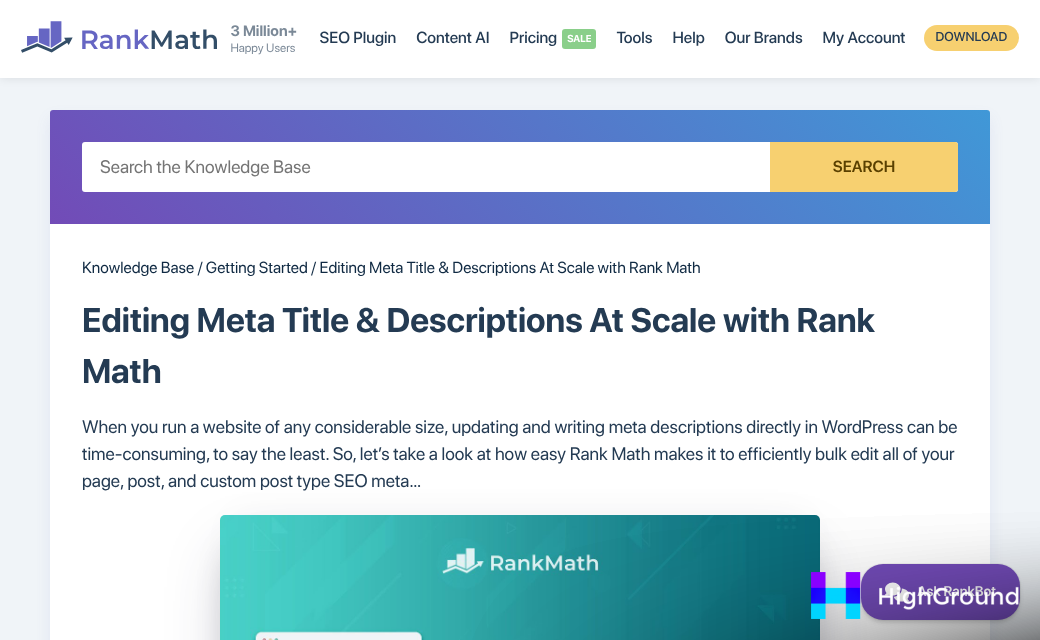
Yoast SEO also supports bulk editing through the same post list view in WordPress. It’s a reliable option if you’re already using it and don’t want to switch. The bulk editing experience is slightly less flexible than Rank Math’s, but it gets the job done for most sites.
If you need more control - say you’re managing hundreds of posts and want to edit everything in a spreadsheet first - the WP All Export and WP All Import combo is worth a look. You export your posts with their meta fields, edit the descriptions in Excel or Google Sheets, then import the file back in. It’s more steps, but it gives you a bird’s-eye view of everything at once.
| Tool | Bulk Edit Method | Ease of Use | Free or Paid |
|---|---|---|---|
| Rank Math | Inline editing from post list | Very easy | Free (Pro available) |
| Yoast SEO | Inline editing from post list | Easy | Free (Premium available) |
| WP All Export + Import | CSV spreadsheet edit | Moderate | Paid |
Rank Math is the best starting point if you want something fast and free. WP All Export makes more sense when you’re dealing with a large volume of updates and want to handle them outside of WordPress.
Step-by-Step Process for Bulk Updating Without Tanking Your Traffic
Once your tool is ready to go, the process itself is straightforward. Take it one stage at a time and you’ll be done faster than you expect.
- Back up your site first. Do this before you touch anything. A full backup takes minutes and saves you from a very bad day if something goes wrong during the import.
- Export your existing meta descriptions. Most SEO plugins let you pull a CSV file with all your current metadata. This gives you a working copy to edit and a record of what was there before.
- Edit in a spreadsheet. Open the file in Google Sheets or Excel. Work through each row and write a fresh description for every page. This is the part that takes the most time, but it’s worth doing properly.
- Check your character counts. Aim for 150 to 160 characters per description. Google tends to cut anything longer, and mobile devices can cut even sooner - so keep the most important information near the front.
- Add a natural call to action. Something like “Learn more” or “Find out how” at the end of a description can lift your click-through rate without making the text feel forced.
- Import the file back into your plugin, or paste the descriptions directly into a built-in bulk editor if your tool has one. Save, and then spot-check a handful of pages to confirm the descriptions pulled through correctly.
The biggest mistake people make here is copy-pasting the same description across multiple pages. Search engines can read that, and it does you no favors with rankings or clicks. Every page should have its own description that reflects what that page is actually about.
For large sites, avoid updating everything in one single batch. Break it into groups by category or post type so you can catch any import errors before they spread across your whole site.
Once your updates are live, you’ll want to watch how your traffic responds - which is exactly what the next section covers.
Tracking CTR Changes After Your Bulk Update Goes Live
Once your updates are live, the work is not finished. This monitoring step gets skipped more than it should, and that’s a problem because you won’t know if your changes helped or hurt without data to back it up.
Google Search Console is your go-to tool here. Open the Performance report, then filter it by page so you can see CTR data at the individual URL level. Give it two to six weeks before you draw any conclusions - Google needs time to recrawl pages and for users to interact with the new descriptions in search results.
A simple before/after tracking sheet makes this much easier to manage. Before you push any updates live, record the baseline CTR and impressions for each page you plan to change. Then check back at the two-week and six-week marks to compare. You don’t need a fancy spreadsheet for this - a basic table does the job.

| Signal | What It Means |
|---|---|
| CTR is rising with stable impressions | The new description is connecting with searchers |
| CTR is flat but impressions are up | More visibility but the description may need a tweak |
| Impressions are dropping | Likely a ranking change, not a description problem |
| CTR dropped alongside stable impressions | The new description may be less compelling than the original |
Dropping impressions can throw people off because it looks like the description change caused damage. In most cases it points to a ranking fluctuation that has nothing to do with your meta descriptions at all.
If CTR drops while impressions stay the same, that’s worth paying attention to. Go back to those specific pages and test a different angle in the description - something closer to what the original said.
Rising CTR with steady impressions is the result you’re looking for. That combination tells you searchers are seeing your listing and choosing to click it.
Your Meta Descriptions Are Updated - Now Keep Them That Way
It is also worth keeping realistic expectations about control. Google may rewrite your descriptions, and sometimes it will. But giving it something accurate, compelling, and well-written to work with consistently produces better results than leaving it to pull random sentences from your content. You are not guaranteed to win every snippet, but you are always better positioned when you try.
The payoff is easy to underestimate until you see it. Even a modest improvement in click-through rate across dozens of pages compounds quickly into real traffic gains - without touching your rankings or rebuilding a single page. That is a rare kind of win in SEO. So if your descriptions have been sitting untouched for months, the best next step is a simple one: run the audit, find the gaps, and start there.
FAQs
Do meta descriptions directly affect Google search rankings?
No, meta descriptions are not a ranking factor. However, they influence click-through rate, which is a behavioral signal that can indirectly impact how your page performs over time.
How often does Google rewrite meta descriptions?
Google rewrites meta descriptions approximately 63% of the time, typically when descriptions are too short, too long, keyword-stuffed, or don't match the searcher's query.
What is the ideal meta description length for SEO?
Aim for 140-160 characters for desktop and under 120 characters for mobile. Place the most important information near the beginning to avoid it being cut off on smaller screens.
What tools can bulk edit meta descriptions in WordPress?
Rank Math and Yoast SEO both support inline bulk editing from the WordPress post list. For larger sites, WP All Export and WP All Import allow spreadsheet-based editing outside WordPress.
How do I track results after a bulk meta description update?
Use Google Search Console's Performance report to monitor CTR and impressions per page. Record baseline data before updating, then review again at the two- and six-week marks to measure impact.

