


Here’s where the frustration sets in. You open the WordPress Media Library, poke around the bulk actions menu, and find exactly one option: Delete Permanently. That’s it. WordPress has no native bulk image replacement feature. There’s no “swap this file everywhere it appears” button, no find-and-replace for media, nothing. For a platform that powers over 40% of the web, it’s a surprisingly glaring gap.
So most people resort to doing it manually - opening posts one by one, hunting down the image, swapping it out, saving, and moving on to the next one. If you have ten posts, that’s annoying. If you have hundreds, it’s a days-long ordeal that will make you question your career choices.
The good news is that there are faster, smarter ways to handle this. This article will walk you through several practical approaches - from plugins that handle the heavy lifting inside WordPress, to database-level find-and-replace methods for those comfortable getting their hands a little dirty. By the end, you’ll have a clear path forward no matter the size of your site or your technical comfort level.
Short Summary
To bulk replace images across hundreds of WordPress posts, use a plugin like Better Search Replace or Search & Replace Everything to find and swap image URLs in the database. Alternatively, use WP-CLI with the command `wp search-replace ‘old-image-url’ ‘new-image-url’` for faster results. You can also directly run an SQL query in phpMyAdmin to replace image references in the `wp_posts` and `wp_postmeta` tables. Always back up your database before making bulk changes.
Why WordPress Makes Bulk Image Replacement Harder Than It Should Be
The media library looks functional enough on the surface, but its bulk editing tools are genuinely thin. You can bulk-select images to delete them, and that’s about it. There’s no built-in way to say “replace this image with that one across all my posts” - WordPress just wasn’t designed with that workflow in mind.
To understand why this is frustrating to fix, it helps to know what actually happens when you add an image to a post. WordPress doesn’t just drop a file path into your content and call it done. It stores the image as an attachment with its own post ID, and that ID gets referenced in a few different places depending on how the image is used.
For featured images, WordPress saves the attachment ID as post meta - specifically the _thumbnail_id field linked to each post. For images inside the post body, the image URL gets written directly into the post content as raw HTML. Some themes and page builders add their own layer on top of this, storing image data in shortcodes or serialized meta fields that are even harder to parse.

This is why a straightforward find-and-replace on the database doesn’t always work cleanly. Replacing the URL in the post content is one step, but if the attachment ID is referenced separately - and it usually is - that needs to change too. Miss one of those and you end up with broken references or the wrong image in unexpected places like social sharing previews or schema data.
WordPress also generates multiple image sizes from every upload. When you add an image, the platform creates several cropped versions and stores them alongside the original. These size-specific URLs can end up hardcoded in post content, which means a bulk URL swap has to account for those variants too - not just the full-size version.
None of this is impossible to solve, but it explains why a plugin built specifically for image replacement will do a much cleaner job than a generic database search tool. The logic involved in tracking down every reference to an image - across post content, post meta, and attachment records - takes more than one simple query to handle correctly. If you use AI content tools like BrandWell to produce posts at scale, keeping your image references clean becomes even more important. That’s the groundwork worth understanding before you start making changes.
Backing Up Before You Touch a Single Image
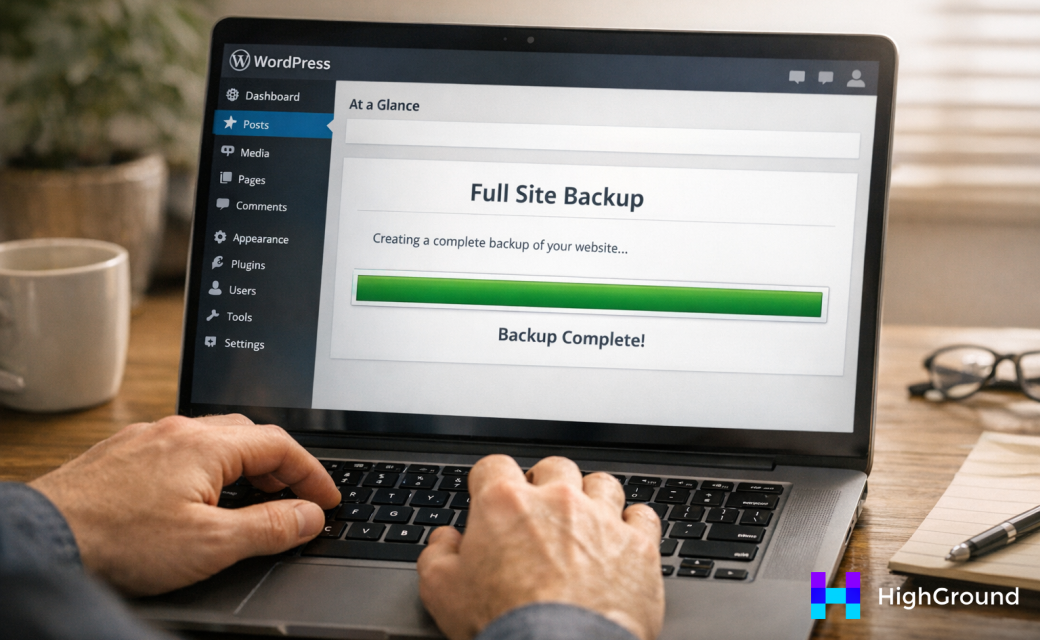
Before you run any kind of bulk operation on your WordPress site, you need a full backup. Not a partial one, not just the database - a complete snapshot of your files and your database together.
When you do a bulk image swap, you are often changing URLs stored across dozens or hundreds of post records at once. If something goes wrong mid-process, you can end up with broken image links scattered across your entire site. A full backup means you can restore everything to exactly how it was, without having to hunt down what broke.
Jetpack VaultPress Backup is one concrete option worth knowing about. It gives you 10GB of storage and keeps a 30-day archive log, so you can roll back to a specific point in time rather than just the most recent save. That kind of granularity is useful when you are troubleshooting something that went wrong partway through a big change.
You have a few different ways to back up, and they are not all equal when it comes to speed or how easy they are to restore from.
| Backup Approach | Speed | Storage | Restore Ease |
|---|---|---|---|
| Plugin backup (e.g., VaultPress, UpdraftPlus) | Fast and automated | Cloud-based, varies by plan | Easy, done within the plugin |
| Manual export (WordPress built-in) | Quick to run | Local file, database only | Partial - does not cover media files |
| Host-level backup | Varies by host | Usually full-site snapshots | Can be slow or limited by host tools |
The built-in WordPress export is worth mentioning because people use it and assume they are covered. It only exports your content as an XML file - your actual media files and uploads folder are not included. That is not a full backup.
Host-level backups are better than nothing, but some hosts only keep daily snapshots and charge extra to restore them. You want something you control directly.
A plugin-based backup is the most practical choice for most WordPress sites. Set it to run before you start, confirm it completed, and then you are in a position to move forward without worry.
Using Search & Replace Everything to Swap Images at Scale
The Search & Replace Everything plugin by WPCode is one of the most reliable ways to replace media files across a large WordPress site. The free version handles image replacement well and keeps your original URLs and attachment IDs intact as it works through your posts.
Before you run anything, install and activate the plugin from your WordPress dashboard. You will find it under the WPCode menu once it is active.
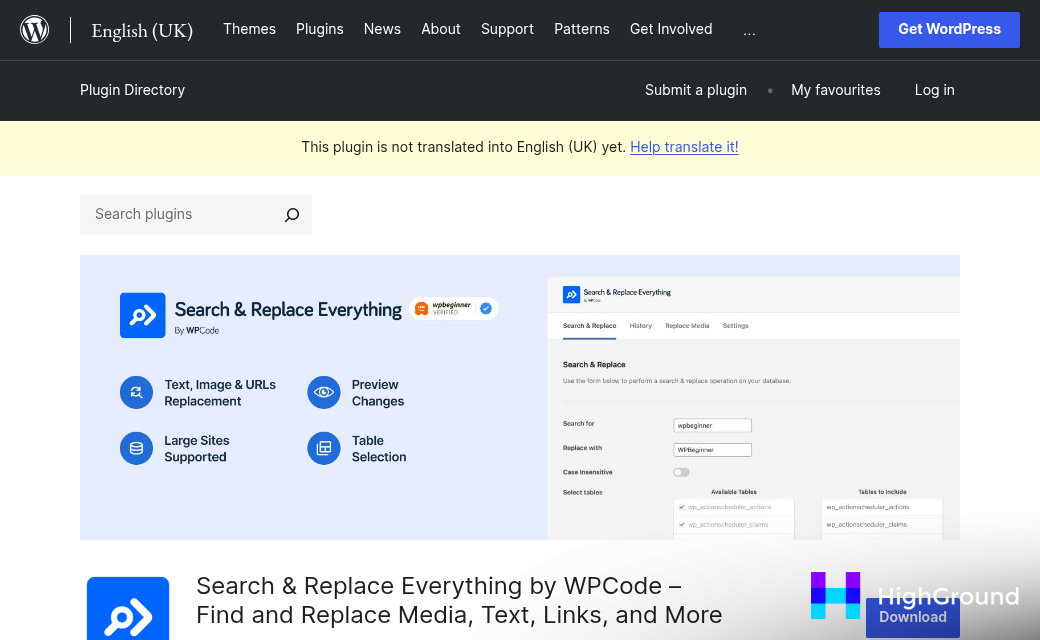
- Go to Search & Replace Everything in your WordPress admin sidebar.
- Click the Media tab at the top of the screen. It is built to handle files, not just strings, which separates it from a basic text replacement tool.
- In the Search field, select or type the name of the image you want to replace. You can search by filename or browse your media library directly.
- In the Replace field, choose the new image you have already uploaded to your media library. Upload it first if you have not done so already.
- Choose the post types you want to target. You can select posts, pages, custom post types, or all of the above.
- Hit Run Replace and let the plugin work through your content. On large sites this can take a moment, so leave the tab open.
The plugin updates every reference to the old image across your selected content. It rewrites the URLs in your post content and keeps the attachment ID for the old file where it was, so your existing post structure does not break. The new image takes over visually without you having to touch individual posts.
If you are on the Pro version, you get a one-click undo option. If the replacement does not look right across your posts, you can reverse the whole thing without restoring from a backup. It is a useful safety net when you are working at scale and want to move fast.
The free version does not have undo, which is exactly why the backup step before this one matters. You are not locked into Pro to get the core functionality - the free version does the heavy lifting for most replacement tasks. Pro just makes recovery faster if something needs to change.
When Attachment IDs and Hardcoded URLs Cause Replacements to Break
Running a bulk replacement and finding that some images didn’t update is more common than you’d think. It doesn’t mean you did anything wrong. WordPress stores image references in several different ways, and a plugin that swaps one format won’t always catch the others.
The two main culprits are attachment IDs and hardcoded URLs. Attachment IDs are the numbers WordPress uses internally to reference media files. Page builders like Elementor and Divi tend to save images by ID rather than by URL, so even if the URL in your database got updated, the builder is still pointing to the old file by its original ID number.
Hardcoded URLs are a separate problem. These are direct links written into templates, custom fields, or shortcodes that bypass the standard WordPress media system entirely. A search-and-replace tool working at the post content level will miss these completely.
Places to Check After a Bulk Replacement
It helps to have a list of places to look when something doesn’t update as expected.
- Page builder modules (Elementor, Divi, WPBakery) that store images by attachment ID
- Custom fields created with ACF or similar plugins
- Theme templates that reference image paths directly in PHP
- Widget areas and sidebars that contain image blocks
- Featured image metadata stored in the
_thumbnail_idpost meta field - Hardcoded URLs in your theme’s functions.php or custom CSS
- Reusable blocks or block patterns in the block editor
The featured image field is one that trips people up a lot. It stores the attachment ID of the image, not the URL, so a URL-based replacement won’t touch it. You’d need to update the _thumbnail_id value in the wp_postmeta table directly to fix those.
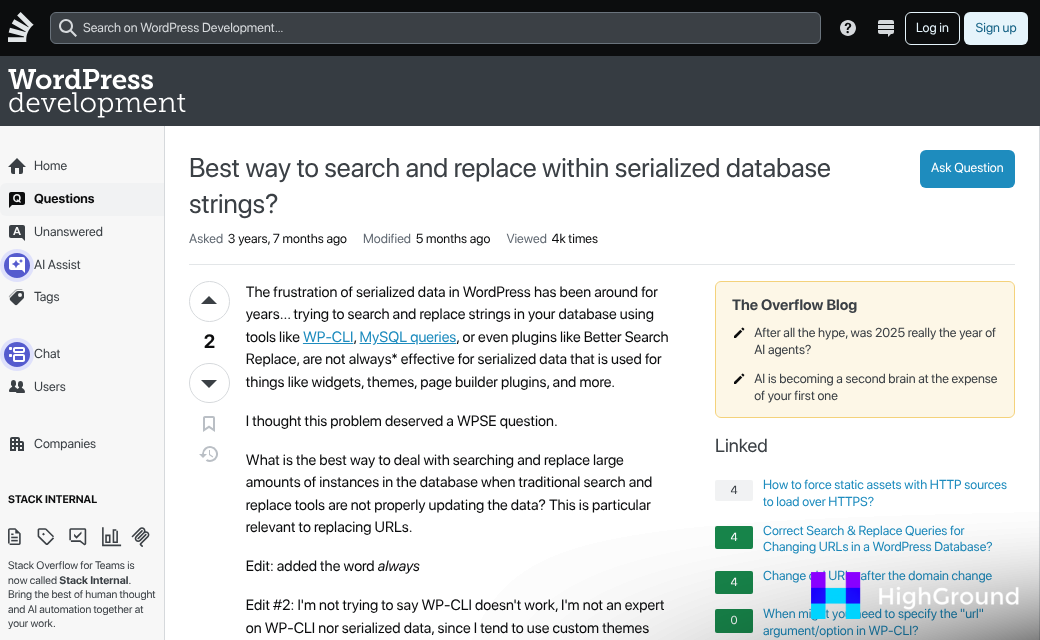
Page builders are a bigger job. Because they serialize their data before saving it to the database, a standard search-and-replace can corrupt the stored values if it changes the character count inside a serialized string. Some plugins handle serialized data safely and some don’t, so it’s worth checking the documentation before you run anything against builder content.
The good news is that none of these problems are permanent. Each one has a known fix once you understand where the data lives. Working through them one location at a time is the most reliable way to get a clean result across your whole site.
Handling 10,000+ Posts Without Losing Your Mind (or Your Server)
At a few hundred posts, a bulk replacement script runs fine and you barely notice it. At 10,000+ posts, the same script can lock database tables, and bring your site to a crawl mid-job. The scale changes everything about how you need to run this.
The most practical thing you can do is break the job into batches. Instead of running one query to update every post at once, write your script to process posts in groups and pause briefly between each one. This gives the database time to breathe and keeps your server from hitting its limits all at once.
Batch size matters more than people think. Smaller batches are slower but much gentler on your hosting environment. Larger batches get the job done faster but put real pressure on the server - and if something goes wrong mid-run, you have more to untangle.
| Batch Size | Speed | Server Impact | Risk if Job Fails Mid-Run |
|---|---|---|---|
| 25-50 posts | Slow | Very low | Minimal - easy to resume |
| 100-200 posts | Moderate | Low to moderate | Manageable with good logging |
| 500+ posts | Fast | High | Harder to diagnose and resume |
On shared hosting, stick to the lower end. On a dedicated server or a managed WordPress host with solid resources, you have more room to push it. When in doubt, start with 50 posts per batch and go from there.

Run the job during your lowest-traffic hours. Early morning on a weekday is usually a safe window for most sites. You want real visitors nowhere near the database while you are rewriting thousands of rows.
Log everything. Write your script to record which post IDs it has already processed so that if the job stops partway through, you can pick up from where it left off rather than start over from scratch. That one habit will save you a lot of frustration on a large run.
It is also worth putting your site in maintenance mode for the duration. A visitor hitting a post mid-update can sometimes get a half-replaced version, which is a small but real problem worth sidestepping entirely.
Your Images Are Updated - Now Keep It From Happening Again

Build even two or three of these habits into your workflow and future-you will be grateful. And present-you just replaced images across hundreds of posts without breaking the site. That actually deserves a moment - close the laptop, get a coffee, and feel good about it. The image grid is clean, the posts are updated, and you earned every bit of that small victory.
FAQs
Does WordPress have a built-in bulk image replacement feature?
No. WordPress’s Media Library only offers bulk deletion. There is no native way to swap an image across multiple posts simultaneously, which is why third-party plugins or database-level methods are required.
Why do bulk image replacements sometimes miss certain posts?
WordPress stores images in multiple ways - as URLs in post content and as attachment IDs in post meta. Page builders like Elementor save images by ID, so a URL-based replacement won’t update those references.
What is the safest way to bulk replace images in WordPress?
Use the Search & Replace Everything plugin by WPCode. It handles both URL and attachment ID references and processes large amounts of content reliably. Always take a full site backup before running any bulk replacement.
Why is a full backup necessary before replacing images?
Bulk replacements rewrite data across hundreds of post records at once. If something breaks mid-process, a full backup lets you restore the entire site cleanly, rather than manually tracking down scattered broken references.
How should I handle bulk image replacement on very large sites?
Process posts in batches of 25-200 at a time to avoid overloading your server. Run the job during low-traffic hours, enable maintenance mode, and log processed post IDs so you can resume if the job stops midway.

