


That’s where bulk editing plugins come in. The right tool lets you make sweeping changes across your content library in minutes, without touching a single line of code or clicking through endless individual edit screens.
This guide covers the best WordPress plugins built specifically for bulk editing posts and pages. Whether you’re running a blog, a news site, or a large e-commerce store with a hefty content archive, there’s an option here that fits how you work - and what your site actually needs.
Short Summary
The best WordPress plugins for bulk editing posts and pages include WP Sheet Editor, which lets you edit content in a spreadsheet-like interface, and Bulk Post Editor for quick field updates. Advanced options include Yoast SEO for bulk editing SEO fields, and Quick Edit Pro for streamlined inline editing. WP All Import works well for bulk updates via CSV. Most users find WP Sheet Editor the most versatile overall solution for editing titles, content, categories, tags, and custom fields across multiple posts simultaneously.
What WordPress’s Built-In Bulk Editor Can and Can’t Do
WordPress does come with a built-in bulk editor, and for basic housekeeping tasks it gets the job done. You can select multiple posts from the Posts list screen and update things like status, author, category, tags, and comments settings all at once.
To use it, check the posts you want to change, select “Edit” from the bulk actions dropdown, and hit Apply. A small panel opens above your list and lets you make changes across all selected posts in one go. It’s straightforward once you know where to find it.
That said, the limitations start to show up pretty fast once you try to do anything beyond the basics.
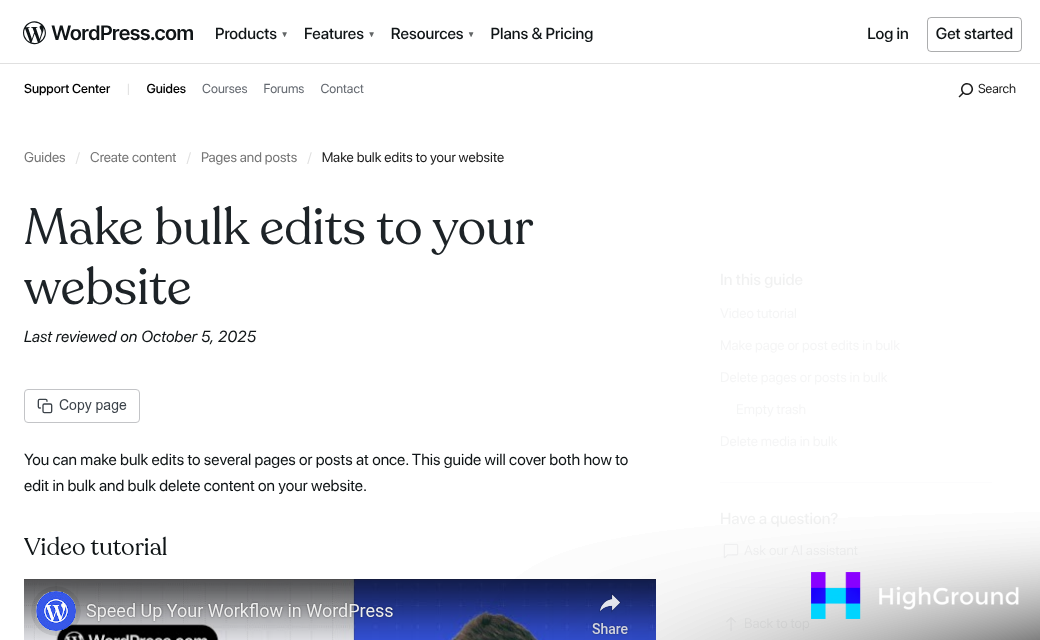
You can’t edit post titles, body content, slugs, or custom fields through this panel. There’s no way to update featured images or change individual meta values in bulk. And if your site has more than 999 posts, the editor won’t load all of them at once - which makes large-scale updates a slow, repetitive process.
Here’s a quick look at what the native bulk editor can and can’t handle:
| Field | Editable in Native Bulk Editor |
|---|---|
| Post status | Yes |
| Author | Yes |
| Categories | Yes |
| Tags | Yes |
| Comments / pings | Yes |
| Post title | No |
| Post content | No |
| Slug / permalink | No |
| Custom fields | No |
| Featured image | No |
| SEO meta fields | No |
The native tool works well enough if you need to unpublish a batch of old posts or reassign them to a new author. But the moment you need to update titles, fix custom field data, or edit content across dozens of pages, it leaves you to do that work one post at a time.
For anyone managing a content-heavy site, that’s a real bottleneck.
Spreadsheet-Style Plugins That Let You Edit Like a Pro
Some WordPress plugins take a completely different approach to bulk editing by replacing the standard list view with something that looks and works like a spreadsheet. Instead of clicking into each post one by one, you get rows and columns where you can edit fields directly in the grid.
This layout feels natural for bulk work because most people already know how to navigate a spreadsheet. You can move between cells, make quick changes, and see a lot of data at once without losing your place. There’s no constant back-and-forth between screens.
WP Sheet Editor is one of the best known plugins in this category. It gives you an editable grid across your posts, pages, and custom post types, and it covers a wide range of fields including titles, slugs, status, categories, tags, and custom fields. You can filter your content down to a specific subset and then edit just those rows, which saves a lot of time when working with a large site.
The scale this kind of tool can handle is impressive. One user reported managing close to 30,000 listings through WP Sheet Editor without the plugin falling over. That’s the kind of volume where a spreadsheet interface stops being a nice-to-have and starts being the only practical way to work.
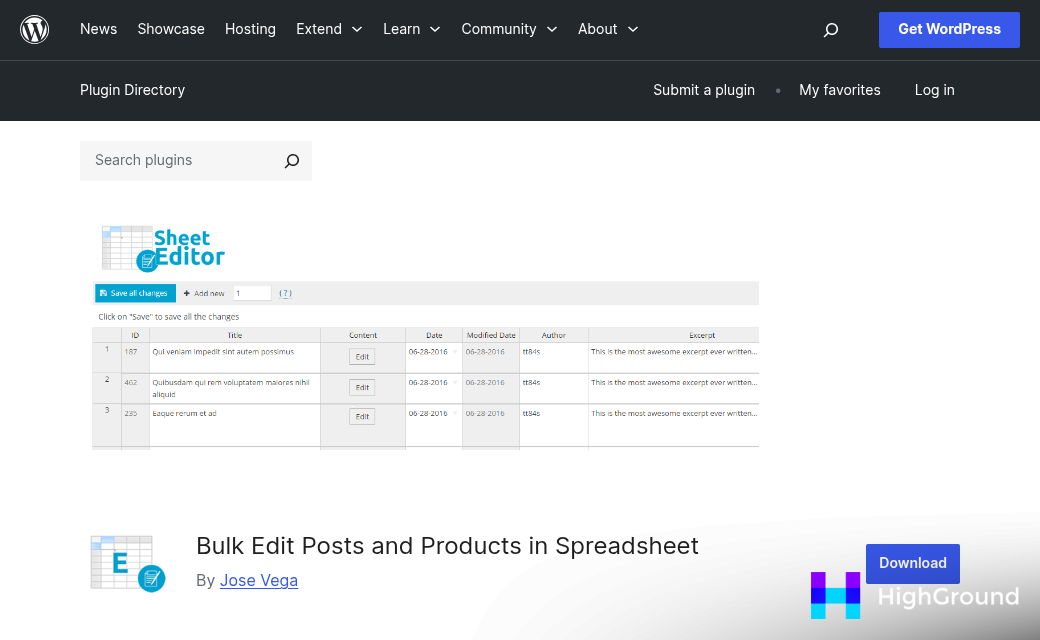
The plugin also supports bulk fill, which lets you write a value once and push it to every selected row in one go. This is handy when you want to update a status, reassign an author, or set a publish date across hundreds of posts at the same time.
There are a few things worth knowing before you install it. The free version covers posts and pages with a decent set of fields, but more advanced features like editing custom post types or WooCommerce products sit behind a paid plan. It’s worth checking which fields you actually need to edit before deciding which version fits your situation.
The spreadsheet format also reduces mistakes because you can see all your changes in context before you save anything. You’re looking at real data laid out in front of you, so it’s much easier to spot something that looks wrong. That kind of visual feedback matters when making changes across a large number of posts at once.
Dedicated Bulk Editor Plugins Worth Installing
Some plugins are built specifically to handle bulk editing and nothing else. That focus tends to show in the details - cleaner interfaces, broader field coverage, and filtering that actually works the way you’d expect.
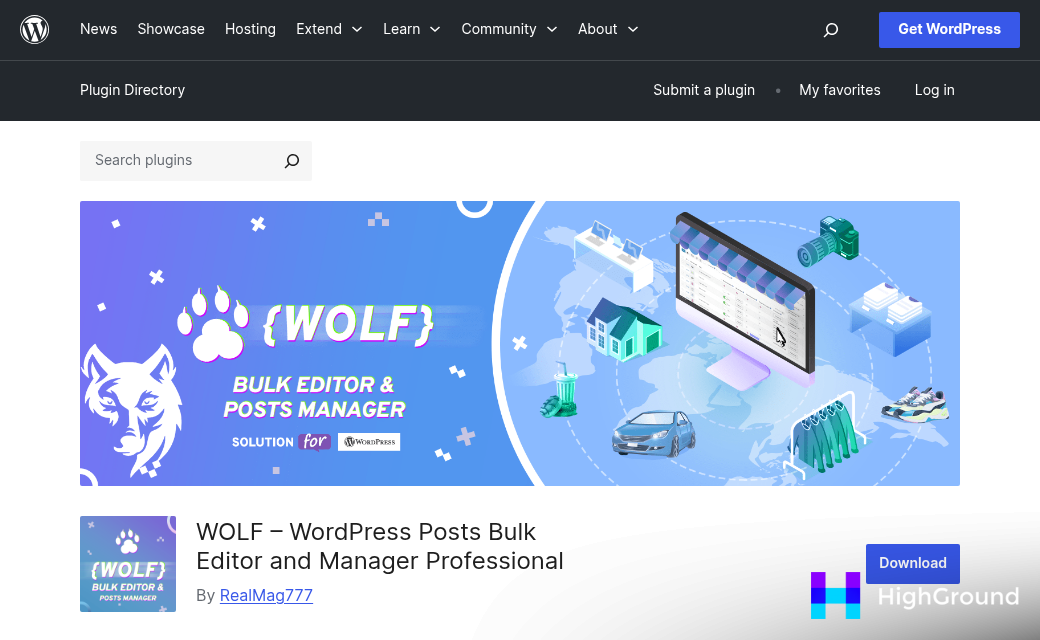
WOLF - WordPress Posts Bulk Editor has been around since 2012, which is a long time in plugin years. That kind of track record means it’s been tested against a lot of WordPress updates and edge cases. It lets you edit post titles, slugs, dates, statuses, and more in a straightforward inline interface. It’s not flashy, but it gets the job done without a steep learning curve.
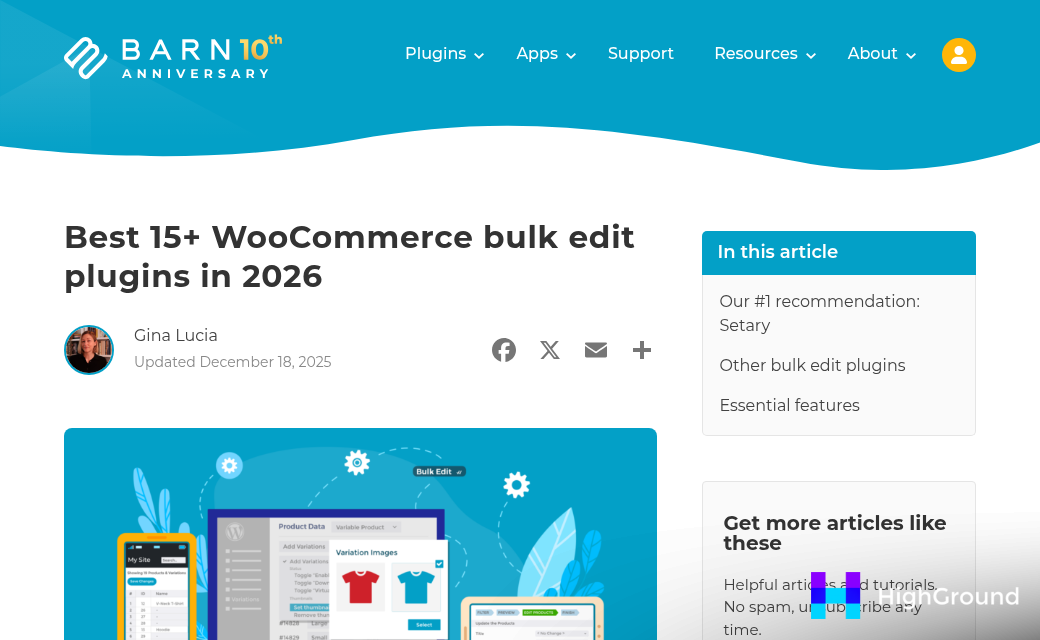
WPBULKiT comes from iThemelandCo, a developer that has been building premium WordPress plugins since 2014. It’s a more modern option with a cleaner layout and a solid range of editable fields. If you want something that feels up to date without requiring a lot of setup time, it’s worth a look.
One thing to check before you buy any premium plugin is the refund policy. It tells you a lot about how much confidence a developer has in their product.
| Plugin | Standout Feature | Refund Policy |
|---|---|---|
| WOLF - WordPress Posts Bulk Editor | Long-standing reliability with broad field support | Not publicly listed |
| WPBULKiT | Modern interface with flexible filtering | 7-day refund window |
| WP All Import | Import-based bulk editing with advanced mapping | 90-day refund window |
WP All Import takes a different approach by using an import workflow to handle bulk changes. It’s more involved to set up, but it gives you a lot of control over how data gets applied across posts. The 90-day refund window is one of the most generous in this space.
The right choice between these depends on how much editing you plan to do and how comfortable you are with a slightly more technical setup. WOLF is great for quick, no-fuss access to post fields. WPBULKiT suits people who want a more polished experience without a lot of configuration. WP All Import fits better when you are working with large data sets or need to map fields in a precise way.
Filters, Custom Fields, and Why They Matter for Bulk Edits
Knowing which plugins to use is only part of the picture. The other part is understanding how to target the right posts before you make any changes - because a bulk edit gone wrong can affect hundreds of pages at once.
Most bulk editing plugins let you filter posts by category, tag, author, date range, or post type before you do anything. This is worth taking seriously. If you want to update the author on a set of posts from 2021, you can filter by that year and that author alone rather than touching your whole library. It takes an extra minute to set up but it keeps unintended edits from happening.
Accidentally publishing a batch of drafts is more common than you’d think, and so is overwriting meta descriptions across an entire post type when you only meant to update a handful. Filters are your first line of defence against that kind of thing.
Custom Fields and Meta Data Are Editable Too
A lot of site owners don’t realise that bulk editing can go beyond standard fields like title, status, and category. Custom fields and post meta - the kind of data that SEO plugins, page builders, and custom post types rely on - can also be edited in bulk with the right tool.
This is useful if you use a plugin like Yoast or Rank Math and need to reset a meta field across a section of your site. Instead of opening each post one by one, you can update that field for every post in a filtered set. Not every bulk editing plugin handles this well, so it’s worth checking that capability before you commit to one. If you’re also evaluating content creation tools, it’s worth looking at Copy.ai alternatives for small business owners to see how different platforms compare.
The table below shows which field types are generally editable depending on what kind of bulk editor you’re working with.
| Field Type | Built-in WordPress Editor | Dedicated Bulk Editor Plugin |
|---|---|---|
| Title and Status | Yes | Yes |
| Category and Tags | Yes | Yes |
| Author | Yes | Yes |
| Custom Fields / Post Meta | No | Yes (plugin dependent) |
| SEO Meta Fields | No | Yes (plugin dependent) |
Familiarity with filters and field types puts you in a much better position to choose a tool that actually fits what your site needs.
How to Pick the Right Plugin for Your Site’s Setup
The right plugin for one site can be completely wrong for another. It all comes down to what you’re working with and how you like to work.
Start by thinking about volume. If you have a few dozen posts and you bulk edit maybe once a month, a lightweight free plugin is probably all you need. But if you’re managing thousands of products in WooCommerce or running a content-heavy site with multiple custom post types, you’ll want something with more control and better filtering.
It’s also worth thinking about your content structure. Do you use custom fields heavily? Do your pages rely on a page builder like Elementor or Divi? Some plugins handle standard WordPress fields well but don’t reach into page builder content at all. Knowing that gap ahead of time saves you from a lot of frustration.
Your comfort level with different interfaces matters too. Some people feel right at home in a spreadsheet-style editor where they can tab between cells and make quick inline changes. Others find that kind of view a bit much and prefer simple dropdowns and checkboxes in a more structured panel. Neither is the wrong answer - it’s just about what you’ll actually use without dreading it.
Consider how often you bulk edit. If it’s a core part of your workflow and you do it weekly, it’s worth paying for a premium tool. If it’s something you do a few times a year, a free plugin that covers the basics is a smarter fit.

Don’t write off premium plugins just because of the price. Most reputable ones come with a money-back guarantee, which gives you a real window to test the plugin against your actual content. That’s a low-risk way to find out if a tool does what you need before you’re committed to it.
Think back to what stood out in the earlier sections. If filtering by custom fields felt like a big deal for your setup, let that guide you toward plugins that handle metadata well. If you just need to bulk update categories and statuses across standard posts, something simpler will do the job without any extra overhead.
The goal is to match the tool to the work - not to get the most feature-packed plugin on the market.
Stop Editing One Post at a Time - Here’s Your Game Plan
The smartest move is to start small. Pick one plugin that matches your most pressing need, install it on a staging site, and get comfortable before you touch your live content. If you’re tidying up 50 blog posts or managing close to 30,000 product listings, there’s a tool built for exactly that scale - you just need to match the right one to your workflow.

When you’re ready to move forward, keep it simple:
- Identify your needs - what do you actually need to edit in bulk, and how often?
- Shortlist a plugin - narrow it down to one or two options that fit your site’s scale and budget.
- Test it - run it on a staging environment and put it through its paces with real data.
- Scale up - once you’re confident, roll it out on your live site and start saving time immediately.
There’s no need to overhaul everything at once. Even one well-chosen plugin can turn a tedious afternoon of manual edits into a five-minute task - and that time adds up fast.
FAQs
What can WordPress's built-in bulk editor actually do?
WordPress's native bulk editor lets you update post status, author, categories, tags, and comment settings across multiple posts at once. However, it cannot edit titles, body content, slugs, custom fields, or featured images.
Which plugins are best for spreadsheet-style bulk editing?
WP Sheet Editor is a top choice, offering an editable grid across posts, pages, and custom post types. It supports bulk fill and can handle large sites with tens of thousands of posts.
Can bulk editing plugins update custom fields and SEO meta?
Yes, dedicated bulk editing plugins can update custom fields and SEO meta data, unlike WordPress's built-in editor. However, this capability varies by plugin, so check before committing to one.
How do I avoid accidentally editing the wrong posts?
Use your plugin's filtering options to target posts by category, author, date range, or post type before making changes. This prevents unintended edits from affecting your entire content library.
Should I choose a free or premium bulk editing plugin?
It depends on your volume and needs. Free plugins suit occasional, small-scale edits, while premium tools are worthwhile for frequent or complex bulk editing. Many premium options offer money-back guarantees for low-risk testing.

