


Missing, outdated, or inconsistent featured images are one of those problems that's easy to ignore until suddenly it isn't. Maybe you ran a site redesign and your old images no longer fit the new layout. Maybe you bulk-imported content and the images didn't carry over. Maybe you've just never set featured images consistently, and now your archive pages look like a patchwork quilt. Whatever got you here, the idea of opening every single post and manually uploading an image sounds like a special kind of misery - especially when you're dealing with hundreds or thousands of posts.
Mass updating featured images means making changes to thumbnails across multiple posts at once, without touching each post individually. Done right, it can transform the look of your site in minutes rather than days. It also has real consequences for SEO and social sharing, since featured images are what show up in Google Discover, Facebook link previews, and structured data - so getting them right actually matters beyond just aesthetics.
This article walks you through several practical ways to tackle this, from beginner-friendly plugins that let you set or replace featured images in bulk, to more hands-on approaches for those comfortable with a bit of code. Whether you're dealing with a small backlog or a massive import gone sideways, there's a method here that fits your situation.
Short Summary
To mass update featured images across WordPress posts, use a plugin like "Quick Featured Images" which lets you bulk assign, replace, or remove featured images across multiple posts at once. You can filter by post type, category, or tag, then apply a single image to all selected posts. Alternatively, use WP-CLI with the command line, or write a custom script using WordPress's `update_post_meta()` function with `set_post_thumbnail()`. For database-level changes, update the `_thumbnail_id` meta key directly in the `wp_postmeta` table using SQL queries.
Why Featured Images Get Out of Sync Across Your Site
Most sites don't lose their featured images all at once. It happens gradually, and by the time you notice, hundreds or even thousands of posts are affected.
One of the most common causes is a platform migration. If you moved your content from Blogspot, Squarespace, or another CMS into WordPress, the import process rarely carries featured images over cleanly. Importers are good at pulling in post content and metadata, but image assignments are another story. The images might land in your media library just fine, but the connection between a post and its featured image often doesn't survive the move.
Theme changes are another culprit. Some themes use custom post meta to handle cover images or hero images in their own way. When you switch to a new theme that uses the standard WordPress featured image field, all of that custom data gets left behind. Your posts look fine in the database but show no featured image on the front end.
Bulk imports from tools like WP All Import or the native WordPress importer can also leave gaps. If the source file didn't include a featured image column, or if the image URLs pointed to a server that no longer exists, you end up with a large batch of posts that were never assigned an image to begin with. This is especially common with content purchased from third parties or repurposed from another site.
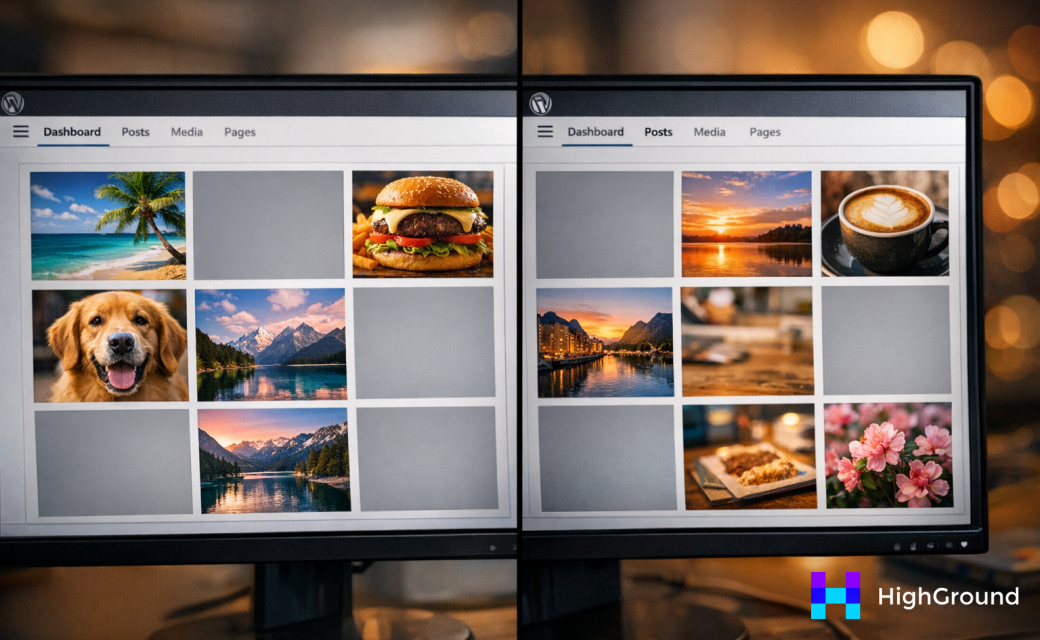
Media library changes cause problems too. Deleting unused images, swapping out a CDN, or moving to a new hosting environment can break the attachment IDs that WordPress uses to link posts to their featured images. The post still has a record of the image, but the image itself is gone.
On a small blog with fifty posts, these gaps are easy to spot and fix by hand. But on a site with ten thousand posts, the damage can sit undetected for months. New posts go up with featured images, old posts stay broken, and the inconsistency builds up across the archive without any single event to point to.
WordPress doesn't flag missing featured images anywhere in the admin by default. There's no dashboard warning, no automatic audit, and no built-in report. You have to go looking for the problem before you can fix it.
What to Audit Before You Touch Anything
Before you run any bulk update, take a breath and do some groundwork first. A bulk action that touches hundreds of posts at once can be hard to reverse if something goes wrong, so a little preparation goes a long way.
The first thing to do is back up your database. Most hosts give you a one-click backup option in their control panel, and plugins like UpdraftPlus make it straightforward from inside WordPress. You want a snapshot of your site from right before the update so you have something solid to roll back to if needed.
Next, get a clear picture of which posts are actually missing featured images. You can do this by installing a plugin like Sirv or Just Custom Fields, but the simplest route is to use a query in phpMyAdmin or ask your developer to pull a list. WordPress stores featured image assignments in the wp_postmeta table under the key _thumbnail_id, so any post without that entry is one you need to fix.
It also helps to think about which post types are involved. A standard WordPress install has posts and pages, but many sites also run custom post types for things like products, portfolio items, or team members. Bulk update tools handle these differently, so knowing what you're working with saves you from accidentally updating the wrong content.
Scale matters more than people account for. Updating 50 posts is a different task than updating 5,000. At smaller volumes, a manual review is realistic and gives you more control. At larger volumes, you need a tool that can handle the load without timing out or creating duplicate metadata entries.
Consider scope before you pick a tool:
| Post Volume | Recommended Approach |
|---|---|
| Under 100 posts | Manual review is practical alongside a plugin |
| 100 to 1,000 posts | A bulk plugin with filtering by post type |
| Over 1,000 posts | A plugin with batch processing or a custom script |
Once you know your post types, your volume, and you have a backup in place, you're in a much better position to choose the right tool for the job. If you're generating content at scale, it's also worth understanding how AI writing platforms like BrandWell work to keep your posts consistent from the start.
Choosing Between Bulk Featured Image and Quick Featured Images
There are two plugins that come up most when people want to mass update featured images in WordPress. They do similar jobs but in different ways, and the right one depends on your setup.
Bulk Featured Image is a straightforward tool that gets the job done with minimal fuss. Its confirmed compatibility with WordPress 6.6.2 makes it a reliable pick if you are running a recent version of WordPress and want something that just works.
Quick Featured Images takes a broader approach. It is 100% GDPR compliant, which matters if your site serves users in Europe or if your host has strict data handling rules. It also handles hundreds of posts in a single run, so it scales well for larger sites with a lot of content to update.
Translation support is another thing worth looking at before you commit. Quick Featured Images includes translation support, which is useful if your WordPress dashboard runs in a language other than English. Bulk Featured Image does not list this as a feature.
Here is a side-by-side breakdown of the comparison.
| Feature | Bulk Featured Image | Quick Featured Images |
|---|---|---|
| GDPR Compliance | Not specified | 100% GDPR compliant |
| Post Volume | Not specified | Handles hundreds of posts |
| WordPress Compatibility | Confirmed with WordPress 6.6.2 | Not specified |
| Translation Support | Not listed | Yes |
If your site has a large archive to process and you need to stay on the right side of data regulations, Quick Featured Images is the stronger fit. If you want a simple tool that works with a current WordPress install and your site is smaller in scale, Bulk Featured Image covers the basics without extra overhead.
Neither plugin requires advanced technical knowledge to use. Both work from inside the WordPress dashboard, so you do not need FTP access or code to get started. If you are also looking at ways to streamline your content workflow, it may be worth exploring how AI writing tools work alongside these kinds of plugins.
Step-by-Step: Running a Bulk Featured Image Update
Once you have your plugin installed and activated, head to the plugin's interface from your WordPress dashboard. Most bulk image plugins live under the Media menu or have their own top-level menu item.
Here's how to run the update from start to finish.
Step 1: Filter your posts. Before you change anything, use the plugin's filter options to narrow down which posts will be affected. You can usually filter by post type, category, tag, or date range. This step matters more than people expect because it's the difference between updating 20 posts and accidentally touching 2,000.
Step 2: Choose your condition. Select whether you want to replace images across all posts or only posts that are missing a featured image. The "missing only" option is the safer starting point if you're filling in gaps rather than doing a full swap.
Step 3: Select your replacement image. Pick the image from your media library that you want to apply. Double-check the dimensions and file name before you move on so you don't run the update twice.
Step 4: Preview what will be affected. Some plugins show a count or a list of posts before you commit. Take a few seconds to look at that number and make sure it lines up with what you expected.
Step 5: Run the update. Click the bulk update button and let the plugin do its work. Larger sites may take a minute or two to process, so don't close the browser tab mid-run.
Before you hit that final button, there are a few things worth checking.
- Some posts may have featured images that are intentionally different from the rest. Tag or note those posts first so you can restore them afterward if needed.
- Run a quick backup or use a staging environment if this is a large site with a lot of posts.
- Check whether the plugin logs its changes so you have a record to reference later.
After the update finishes, spot-check five to ten posts manually. Look at the front end of your site rather than just the dashboard, because that's where display problems actually show up.
It's also worth checking posts in different categories since your theme may display featured images differently depending on the template used for each section.
When the Bulk Update Doesn't Work Right
Even when you follow every step correctly, things don't always go smoothly. Large sites with thousands of posts are especially prone to hiccups mid-process, and it can feel frustrating when you're not sure what went wrong.
The three most common problems people run into are images that don't update at all, the same wrong image getting applied to every post, or the whole process timing out before it finishes. Each one has a different cause and a different fix.
Images Not Updating
If nothing changes after you run the bulk update, start by checking that your posts were actually included in the selection. It is easy to accidentally filter by a category or post type that doesn't match your content. Also check that the image you selected is fully uploaded to your Media Library and not just linked from an external source.
The Wrong Image Is Applying to Everything
This one usually comes down to selecting the image before narrowing your post selection. Go back and set your filters first, then choose the image. The order of operations matters more than most plugins make obvious.
The Process Times Out
Timeout errors happen when your server runs out of time to process a large batch of posts in one go. This is a PHP limit problem, not a plugin problem. You or your developer can increase the max_execution_time and memory_limit values in your php.ini file to give the process more room to run. You can refer to the official PHP documentation for guidance on adjusting these settings safely.
If you can't change PHP settings directly, try breaking your posts into smaller batches. Most plugins let you filter by date range or category, so you can run the update in stages instead of all at once.
A Quick Troubleshooting Checklist
- Confirm the image exists in your Media Library before you start.
- Set your post filters before you select the featured image.
- Check that your selected post type and status match the posts you want to update.
- If the process times out, increase PHP memory and execution limits or reduce your batch size.
- After the update runs, spot-check a few posts manually to confirm the change applied.
Most bulk update failures come down to one of these things. A little patience and a methodical check through this list will get you to the bottom of it. If you're also exploring ways to streamline your content workflow, it may be worth looking at Copy.ai alternatives built for small business owners.
Keep Your Featured Images Working For You
Consider building one small habit into your workflow: do a quick featured image audit after any bulk post import or theme change. It catches problems early, keeps your site looking consistent, and saves you from another round of cleanup down the road.

The hard part is behind you. Your posts will load with the right visuals, your social shares will look polished, and your readers will get a more professional first impression - all because you took the time to get this sorted once and for all.
FAQs
What causes featured images to go missing across WordPress posts?
Featured images commonly go missing due to platform migrations, theme changes, bulk imports with incomplete data, or media library deletions that break attachment ID links between posts and their images.
Which plugin is better: Bulk Featured Image or Quick Featured Images?
Quick Featured Images suits larger sites needing GDPR compliance and translation support. Bulk Featured Image is simpler and confirmed compatible with WordPress 6.6.2, making it ideal for smaller sites.
Should I back up my site before bulk updating featured images?
Yes, always back up your database before running any bulk update. A backup gives you a reliable restore point if something goes wrong during the process.
Why does the bulk update process keep timing out?
Timeouts are caused by PHP server limits, not the plugin itself. Increase <code>max_execution_time</code> and <code>memory_limit</code> in your <code>php.ini</code> file, or process posts in smaller batches by filtering by date or category.
How do I confirm the bulk update worked correctly?
After the update completes, manually spot-check five to ten posts on the front end of your site, checking posts across different categories since themes may display featured images differently per template.

